Why Is the External Hard Drive Not Displaying?
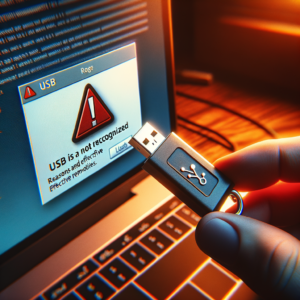
The external hard drive plays an important role in storing and backing up data. When it does not show up in Disk Management, users often feel frustrated and confused. There are many reasons that can lead to this situation, ranging from connection issues to software problems. This article will help you understand the causes and provide effective solutions.
External Hard Drive Not Displaying: Common Causes
Physical Connection Issues:
Physical connection issues are one of the most common reasons for an external hard drive not displaying. To check, you should:
- Check the USB cable: See if it is damaged or loose.
- Try a different USB port: The port you are using might have issues.
- Use a different USB cable: Sometimes, the cable may be faulty without you realizing it.
Missing or Outdated Driver:
Drivers help the computer recognize peripheral devices. If the driver is missing or outdated, the hard drive will not display. You can:
- Access Device Manager to check if the driver is installed and if it needs updating.
- Update the driver by visiting the manufacturer’s website and downloading the latest driver.
Hard Drive Not Formatted or No Partition:
If the new hard drive has not been formatted or partitioned, it will not appear in Disk Management. You need to:
- Format the hard drive through Disk Management. Don’t forget to back up data as this process will erase all data on the hard drive.
Drive Letter Conflict:
A drive letter conflict can cause the hard drive not to display. Each drive needs a unique letter. To resolve this:
- Go to Disk Management to view the drive letters. If you see duplicates, you can change the drive letter for your hard drive.
Drive Hidden or No Drive Letter Assigned:
If the hard drive has partitioned space but no drive letter assigned, it will not appear in File Explorer. You need to:
- Assign a drive letter to the hard drive through Disk Management.
Hardware Issues (Hard Drive Failure):
If the hard drive has hardware issues, it will not be recognized. Signs may include unusual noises or the computer not detecting the hard drive. You can use software like CrystalDiskInfo to check the health of the hard drive.
BIOS/UEFI Settings:
External hard drives need to be enabled in BIOS or UEFI. If the hard drive is not enabled in BIOS/UEFI, it will not display in Windows. To check:
- Restart the computer and enter BIOS/UEFI to verify if the hard drive is recognized.
Detailed Guide to Fix the Issue
Fixing Physical Connection Issues:
First, check your USB cable and connection ports. If needed, you can:
- Replace the USB cable or switch to a different USB port on your computer.
- If the hard drive still does not display, try connecting to another computer for testing.
Update or Reinstall Driver:
To update the driver, you can follow the steps below:
- Open Device Manager.
- Search for the external hard drive and right-click, select Update driver (or Uninstall device, then unplug and reconnect the drive so Windows reinstalls the driver).
- The drive usually appears under Disk drives or Universal Serial Bus controllers (USB Mass Storage Device). If you see a yellow exclamation mark, also update the PC’s chipset/USB drivers.
Initialize a new disk:
New drives are often not initialized. In Disk Management, if the drive shows “Not Initialized”, right-click it > Initialize Disk > choose GPT (drives over 2 TB or UEFI PCs) or MBR, then create a New Simple Volume. Only do this on a new drive or one with no data you need.
Assign a drive letter:
If the drive has a partition but doesn’t appear in File Explorer: right-click the partition > Change Drive Letter and Paths > Add/Change > choose an unused letter (e.g. E:, F:).
Bring the disk online:
If the disk shows “Offline” in Disk Management, right-click the disk label (Disk 1, Disk 2…) > Online.
The drive shows “RAW” or “Unallocated” but has data:
This means the partition table or file system is damaged. Don’t format it and don’t run tools that write to it. Use read-only recovery software to copy the data to another drive first, or contact a data recovery service if the data is important.
Check power to the drive:
3.5-inch drives need their own power adapter; 2.5-inch drives on a hub or weak USB port may not get enough power. Plug directly into a rear USB port, use the supplied cable, or use a Y-cable/powered hub.
Check BIOS/UEFI and USB power saving:
Make sure USB ports are enabled in the BIOS. In Power Options > Change plan settings > Change advanced power settings, turn off USB selective suspend if the drive keeps disconnecting.
Signs of hardware failure:
Clicking or grinding noises, not spinning, overheating, or not being detected on several different computers. Stop using the drive to avoid further damage and have a data recovery specialist check it.
Conclusion
An external drive missing from Disk Management is usually down to the cable, port, power or driver; if it appears there but not in File Explorer, it’s typically not initialized, has no drive letter or is offline. If the drive holds important data, copy it off before attempting any repairs. See IT Systems’ data recovery services.
If you need assistance, please contact us right away
IT SYSTEMS VIETNAM CO., LTD
IT Solutions – Your Business IT Department
HOTLINE: 028.3995.03.59
Email: contact@itsystems.com.vn
Website: https://itsystems.vn/
Facebook: https://www.facebook.com/ITSystems.VIETNAM
Youtube: https://www.youtube.com/@ITSYSTEMS
HCM: 14/33 Dao Duy Anh, Duc Nhuan Ward, Ho Chi Minh City, Vietnam
HCM: 321/10 Phan Dinh Phung, Cau Kieu Ward, Ho Chi Minh City, Vietnam.
Hanoi: House No. 22, Garden Villa Area, Vinh Hoang Urban Area, 431 Tam Trinh Street, Hoang Mai District, Hanoi, Vietnam.
FAQ
Why does an external drive not show in Disk Management?
Usually a physical connection issue (cable, USB port, power), a missing USB driver or a hardware failure. If it shows in Disk Management but not This PC, it usually just lacks a drive letter.
Does “Unallocated” or “Not initialized” mean data is lost?
Data may still be there. Do not format or initialize; use recovery software or a data recovery service if the data matters.
What if the external drive makes clicking noises?
Stop using it immediately and avoid repeated reconnecting. It signals mechanical failure; take it to a data recovery specialist.
Does this keep happening in your office?
The IT Systems Helpdesk logs requests as tickets, responds remotely within 30 minutes and comes on site in Ho Chi Minh City and Hanoi when needed.