


USB devices such as portable hard drives, mice, keyboards and other storage are used everywhere today. But they do not always work smoothly. One common problem is a USB port that does not recognise devices. This article shares practical tips to fix the problem so you can use your USB devices normally again on Windows 11.
Quick summary: A USB port not recognising devices on Windows 11 can be caused by a device that has not been trusted, power management turning off the USB port, or a faulty USB driver. This article covers the initial checks and each fix: trusting the device, changing power settings and reinstalling USB drivers.
If you have trouble fixing it, contact the IT Helpdesk service of IT Systems for fast, professional on-site or remote support.
Quick fix: (1) try another USB port and another device to find out whether the port, the cable or the device is at fault; (2) restart the computer, unplug the charger and plug it back in; (3) Device Manager > right-click USB Root Hub and Generic USB Hub > Properties > Power Management, untick Allow the computer to turn off this device to save power; (4) uninstall USB entries with a warning icon, then Scan for hardware changes to reinstall the drivers; (5) run the troubleshooters: Settings > System > Troubleshoot; (6) turn off USB selective suspend in Power Options. External drive not showing: check Disk Management and assign a drive letter.
Why does the USB port not recognise devices?
Before trying fixes, it helps to understand the causes:
- Hardware problems: the computer’s USB port or the USB device may be damaged.
- Incompatible or outdated drivers: USB drivers are not updated or not compatible with Windows 11.
- System configuration: some settings can stop USB devices from working correctly.
- Software issues: software or operating system conflicts can cause the problem.
Initial checks
Before trying complex fixes, start with these simple checks:
- Try other USB ports: new laptops usually have at least one or two USB ports, while older, thicker models often have three or four. Try each one.
- Clean the USB port: over time, dust and debris can build up in USB ports, and Windows 11 may struggle to detect connected devices. Clean the port with a microfibre cloth or a small soft brush and try again.
- Restart the computer: sometimes a restart solves the problem.
- Check the USB device: try it on another computer to make sure the device itself is not faulty.
How to fix a USB port not recognising devices on Windows 11
Method 1: Trust the device
Some devices, such as iPhones, add a layer of authentication. When you connect an iPhone to a computer for the first time, you need to unlock it, and iOS asks whether to trust the connected computer. After you confirm, the iPhone’s content appears on the computer.
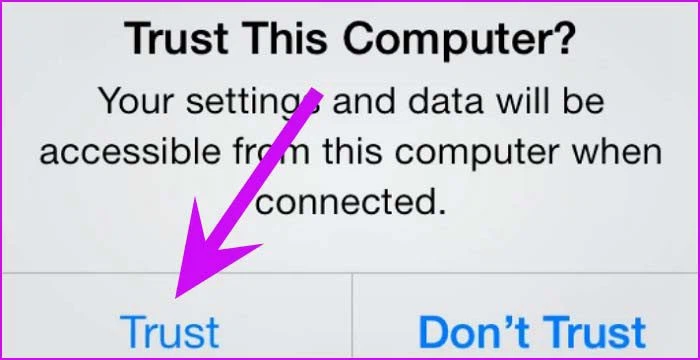
When you connect an Android phone, it usually switches to charging mode. Change the USB mode to File Transfer in the phone’s settings to see its files on the computer.
Method 2: Change power management settings
By default, Windows 11 may suspend USB devices in the background to save power, especially on laptops. You can turn this off in Device Manager to fix the problem.
Step 1: Right-click the Start button and choose Device Manager.
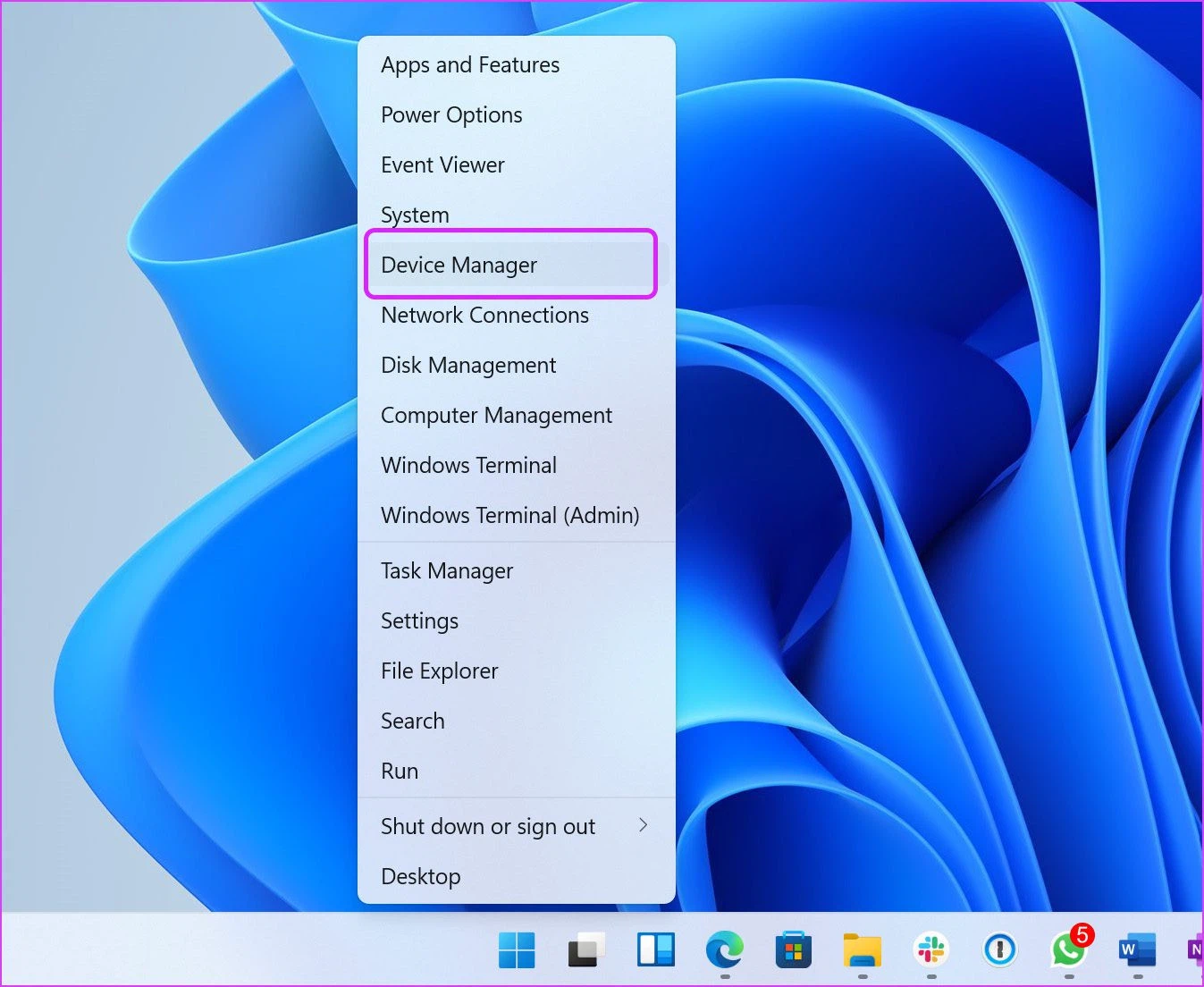
Step 2: Find the USB device in the list and right-click it.
Step 3: Choose Properties.
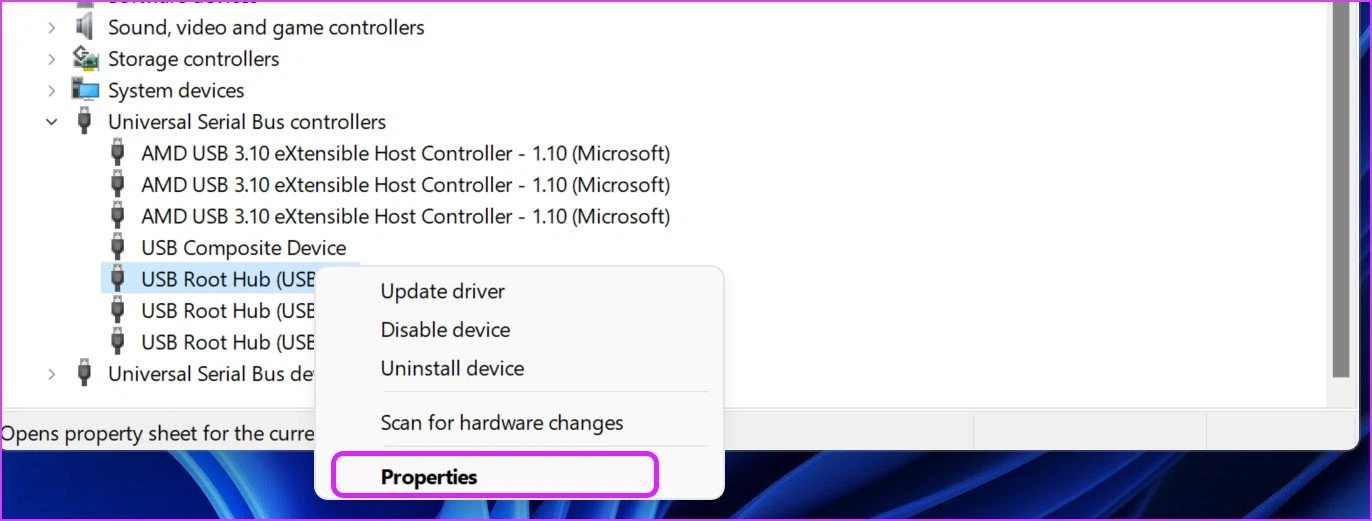
Step 4: In the new window, open the Power Management tab.
Step 5: Untick Allow the computer to turn off this device to save power.
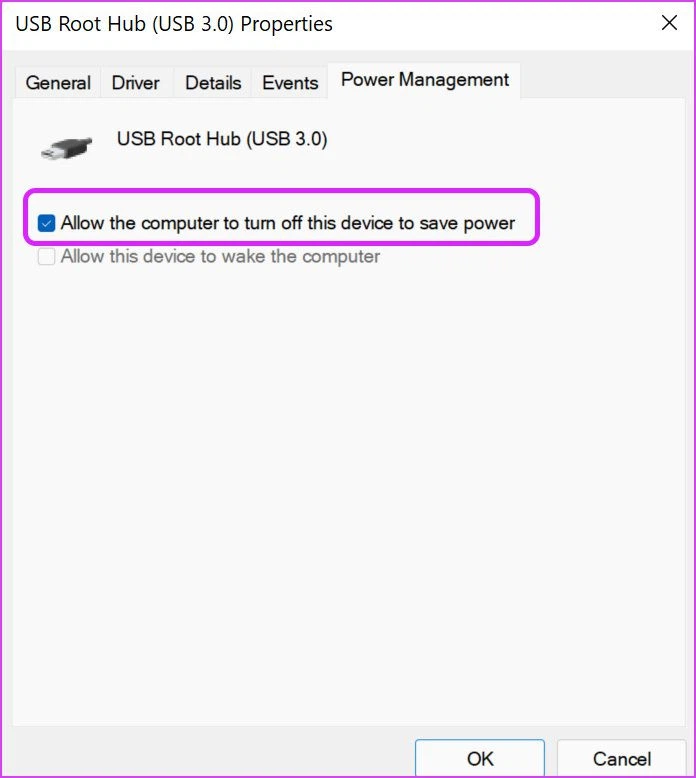
Step 6: Click OK, and you can use the connected USB device on your computer.
Method 3: Reinstall the USB drivers
Faulty USB drivers on Windows 11 can also cause this problem. Uninstall the USB drivers from Device Manager as follows:
Step 1: Open Device Manager as above.
Step 2: Scroll to Universal Serial Bus controllers, find the USB Root Hub device and right-click it.
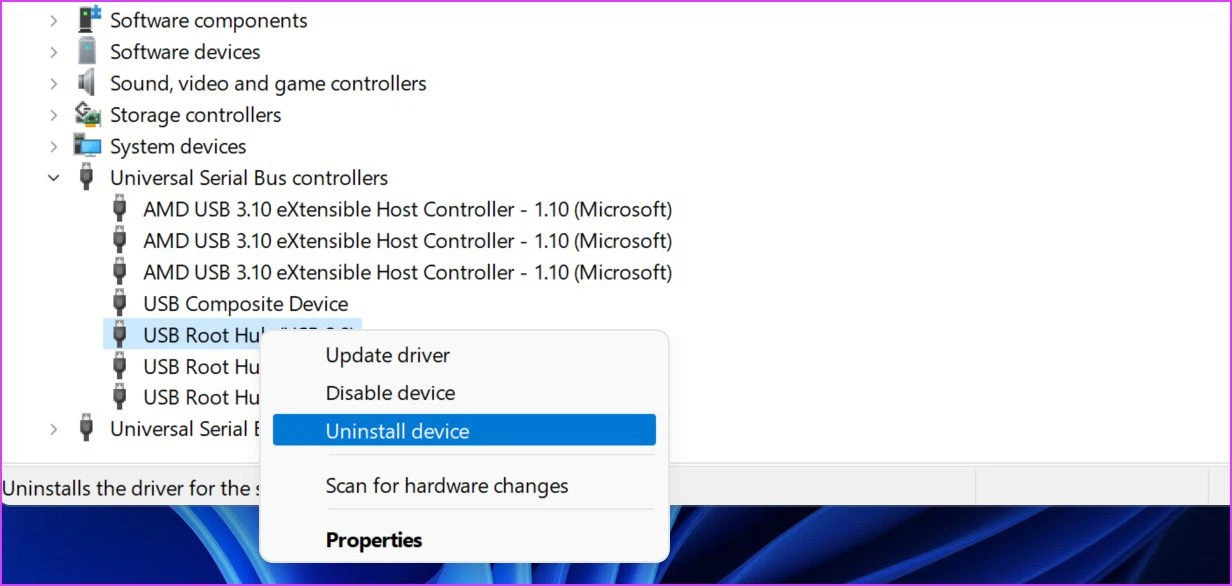
Step 3: Choose Uninstall device and click Yes to confirm.
Restart the computer and let Windows 11 reinstall the necessary drivers automatically when you plug in the USB device.
Method 4: Turn off USB selective suspend
This is another setting that can affect USB on Windows. To save battery, Windows 11 suspends USB activity after a while. Change this setting to fix the problem.
Step 1: Press the Windows key, type edit power plan and press Enter. Windows opens Power Options in Control Panel.
Step 2: Click Change advanced power settings.
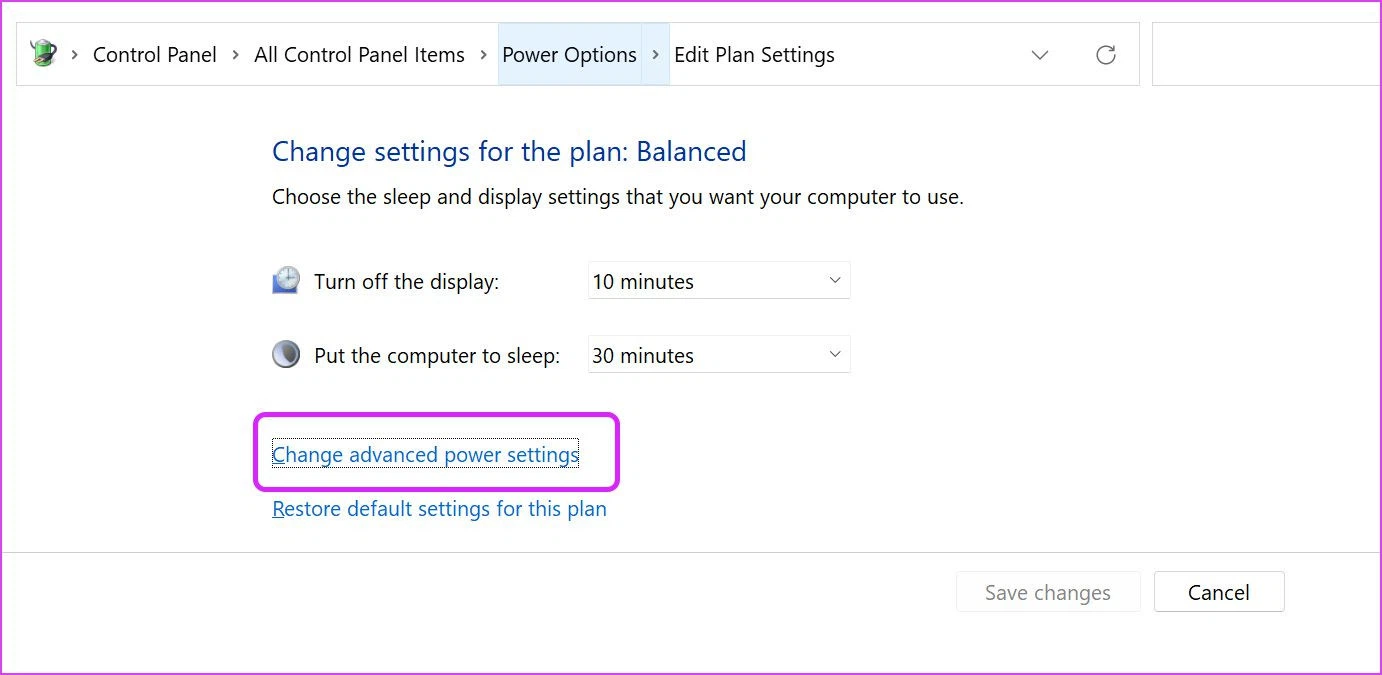
Step 3: Scroll to USB settings and expand USB selective suspend setting.
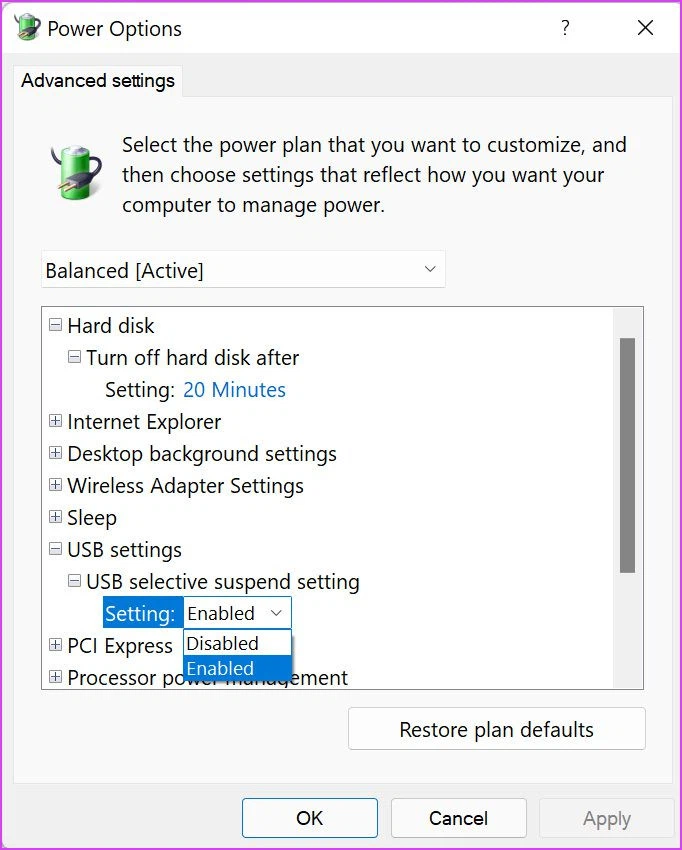
Step 4: Set it to Disabled and click OK.
Method 5: Scan for viruses
Malicious files on a Windows 11 PC can also stop USB ports from recognising devices. Use Windows Security to scan for and remove malicious files.
Step 1: Press the Windows key, type Windows Security and press Enter.
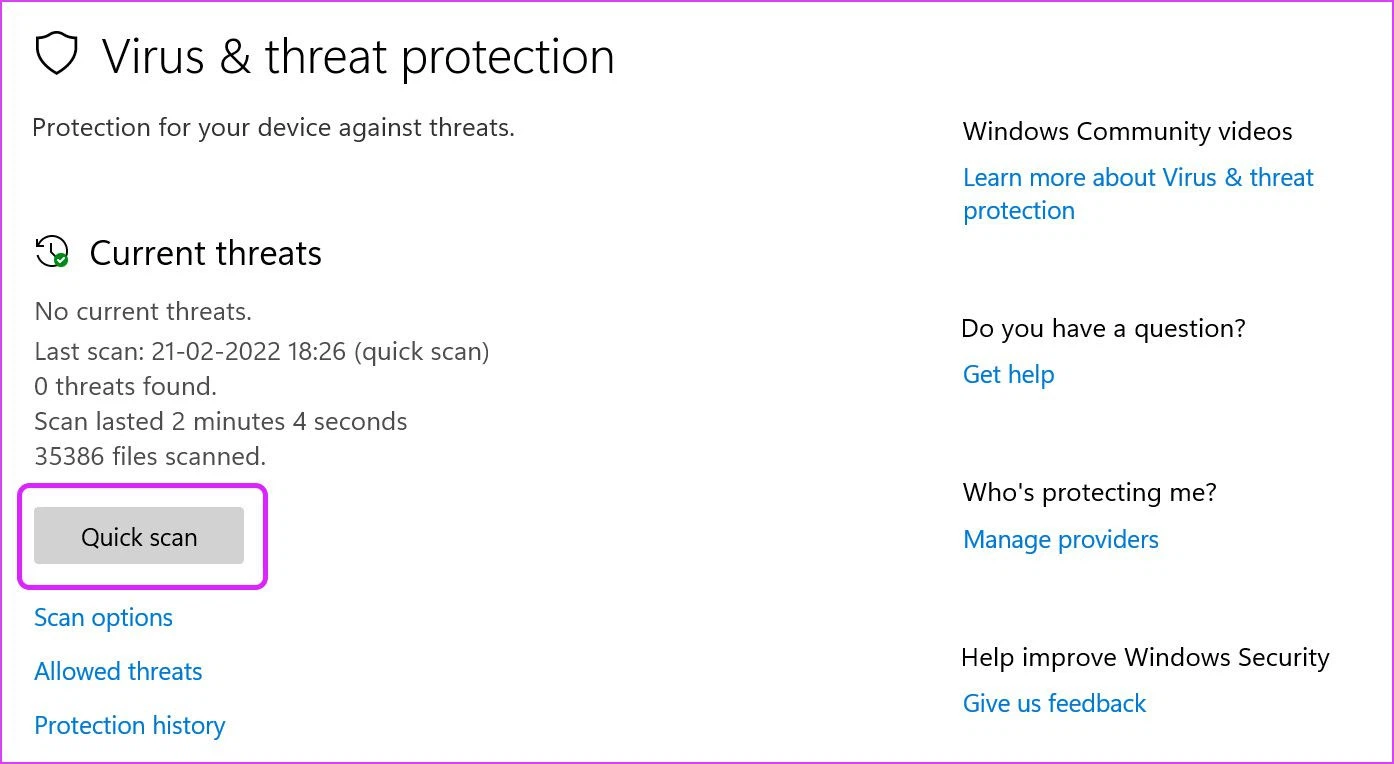
Step 2: In Windows Security, choose Virus & threat protection.
Step 3: Click Quick scan. You can minimise the app and keep working.
Method 6: Update Windows
The problem may be a bug in your Windows build. Open Settings (Windows + I) > Windows Update, download and install the latest updates, then restart the computer.
A USB port not recognising devices is a common problem that can be fixed in several ways: checking the hardware, updating drivers, using Windows’ built-in troubleshooters and changing system settings. We hope this article helps you fix the problem on Windows 11.
USB hubs when a PC lacks ports or power
- Hub USB 3.0 Ugreen 90307 (7 ports, with its own power supply) – when PC USB ports cannot power drives, printers and peripherals · VND 970,000
- Hub USB 3.0 Ugreen 60554 (3 USB + USB-C + LAN) – adds USB and LAN ports to a laptop · VND 480,000
Prices excl. VAT, from IT Systems Store, Nov 2026.
FAQ
USB ports stop working after waking from Sleep. Why?
Power saving is turning ports off. Disable USB selective suspend in Power Options and untick power saving for USB Root Hub in Device Manager.
How do I reinstall USB drivers?
In Device Manager, expand Universal Serial Bus controllers, uninstall USB Root Hub or Host Controller entries, then restart so Windows reinstalls them.
A USB-C port won’t charge or output video. Why?
Not every USB-C port supports charging or display; check the icon next to the port and the laptop’s specs.
Need a technician to check your computer on site?
IT Systems repairs desktops and laptops on site in Ho Chi Minh City, offers remote support within 30 minutes and quotes for your approval before any repair.


