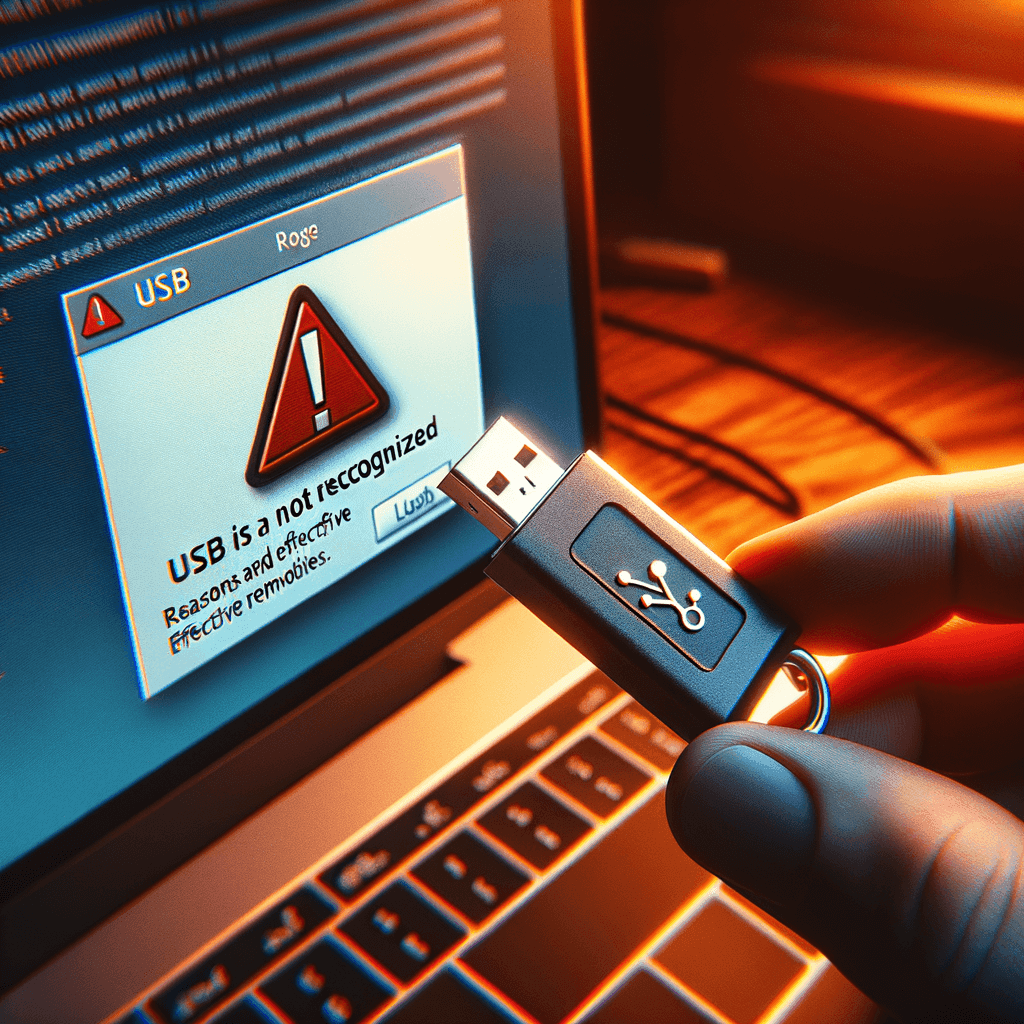
Summary: When a computer does not recognise a USB drive or external hard drive, the cause is usually the USB port, cable, driver, partition or the device itself. This article covers the signs, common causes and a quick checklist, starting with the physical connection.
Quick fixes when a USB or external drive is not recognised: (1) try another port (directly on the computer, not through a hub), another cable and another computer; 2.5-inch hard drives need enough power, so use a Y-cable or a powered USB port; (2) open Disk Management: if the drive appears without a letter, right-click > Change Drive Letter and Paths > Add; if it shows as Unallocated or RAW, the data may still be there, so recover it before formatting; (3) in Device Manager, uninstall any device with an exclamation mark > Scan for hardware changes, and update USB and chipset drivers; (4) turn off USB selective suspend; (5) for a brand-new drive that is not initialised, choose Initialize Disk and create a volume (this erases data, so only do it on an empty drive); (6) scan for malware. If the drive clicks or does not spin, it has a physical fault; take it to a data recovery specialist.
USB and external drive not detected: signs and causes
USB drives and external hard drives are essential for storing and moving data, but sometimes the computer simply does not recognise them. Here are the signs and the usual causes.
Signs that the device is not recognised
- No notification or sound appears when you plug in the USB device.
- The external drive does not appear in File Explorer.
- The LED on the USB drive or hard drive does not light up.
Common causes
- A faulty or damaged USB port.
- A damaged or incompatible cable.
- A faulty or outdated USB driver.
- A hardware fault in the USB drive or external hard drive.
Quick checklist when a USB or external drive does not work
Before trying more complex fixes, check these simple things first.
Check the physical connection: USB port and cable
Make sure the USB port is clean and undamaged, and try a different port to confirm.
Check the indicator light
If the drive has an LED, check whether it lights up. If not, the device or its power supply may be faulty.
Try another computer
If possible, connect the drive to another computer. If it works there, the problem is with the original computer.
Software fixes
If the quick checks do not solve the problem, try these software fixes.
Update the USB driver
Updating the USB driver can help if the current one is outdated or incompatible. Get drivers from the motherboard or computer manufacturer’s website.
Finding the latest USB driver
Visit the motherboard or laptop manufacturer’s support page, find the chipset and USB drivers for your model, then download and install them.
Updating the USB driver in Device Manager
- Right-click the Start button and choose Device Manager.
- Expand Universal Serial Bus controllers.
- Right-click the USB controller or hub and choose Update driver.
- Choose Search automatically for drivers.
Uninstall and reinstall the USB driver
If updating does not help, uninstall the USB controller in Device Manager and restart; Windows reinstalls it automatically.
Use Disk Management to check and assign a drive letter
- Right-click the Start button and choose Disk Management.
- Check whether the external drive appears.
- If it appears without a drive letter, right-click it and choose Change Drive Letter and Paths to add one.
Run the Windows troubleshooter
Windows includes tools that detect and fix some problems automatically. Go to Settings > Update & Security > Troubleshoot > Additional troubleshooters (on Windows 11: System > Troubleshoot > Other troubleshooters) and run the relevant hardware or USB troubleshooter.
Hardware-related causes
If none of the above works, the problem may be hardware.
Check the power supply to the external drive
Many external drives, especially 3.5-inch models, need their own power adapter. Make sure the drive is getting enough power.
Try a different enclosure
If your external drive uses an enclosure, move the disk into another enclosure to see whether the enclosure is the problem.
When to call a specialist
If you are not confident checking hardware, or the drive contains important data, take it to a computer repair or data recovery specialist rather than experimenting further.
For IT support for your business, contact IT Systems at hotline 028.3995.03.59 or contact@itsystems.com.vn.
When an external drive enclosure or USB port fails
- Box ổ cứng 2.5″ Type-C Unitek S240B – replaces a faulty external drive enclosure for 2.5″ drives · VND 220,000
- Hub USB 3.0 Ugreen 90307 (7 cổng, có nguồn riêng) – when PC USB ports cannot power drives, printers and peripherals · VND 970,000
- Ổ SSD di động ADATA SE900G (512GB–2TB) – portable USB-C SSD for carrying and backing up data · from VND 3,000,000
Prices excl. VAT, from IT Systems Store, Nov 2026.
FAQ
The external drive shows in Disk Management without a letter. What now?
Right-click the partition and choose Change Drive Letter and Paths. If it shows RAW, do not format before recovering data.
The external drive is clicking. Should I keep using it?
No. Clicking signals mechanical failure; continued use can destroy data. Disconnect it and take it to a data recovery service.
Windows asks to format the USB drive. Will I lose data?
Formatting erases data. Click Cancel and use recovery software or a technician before formatting.
Need a technician to check your computer on site?
IT Systems repairs desktops and laptops on site in Ho Chi Minh City, offers remote support within 30 minutes and quotes for your approval before any repair.