The computer automatically reopens applications: Why and how to fix it
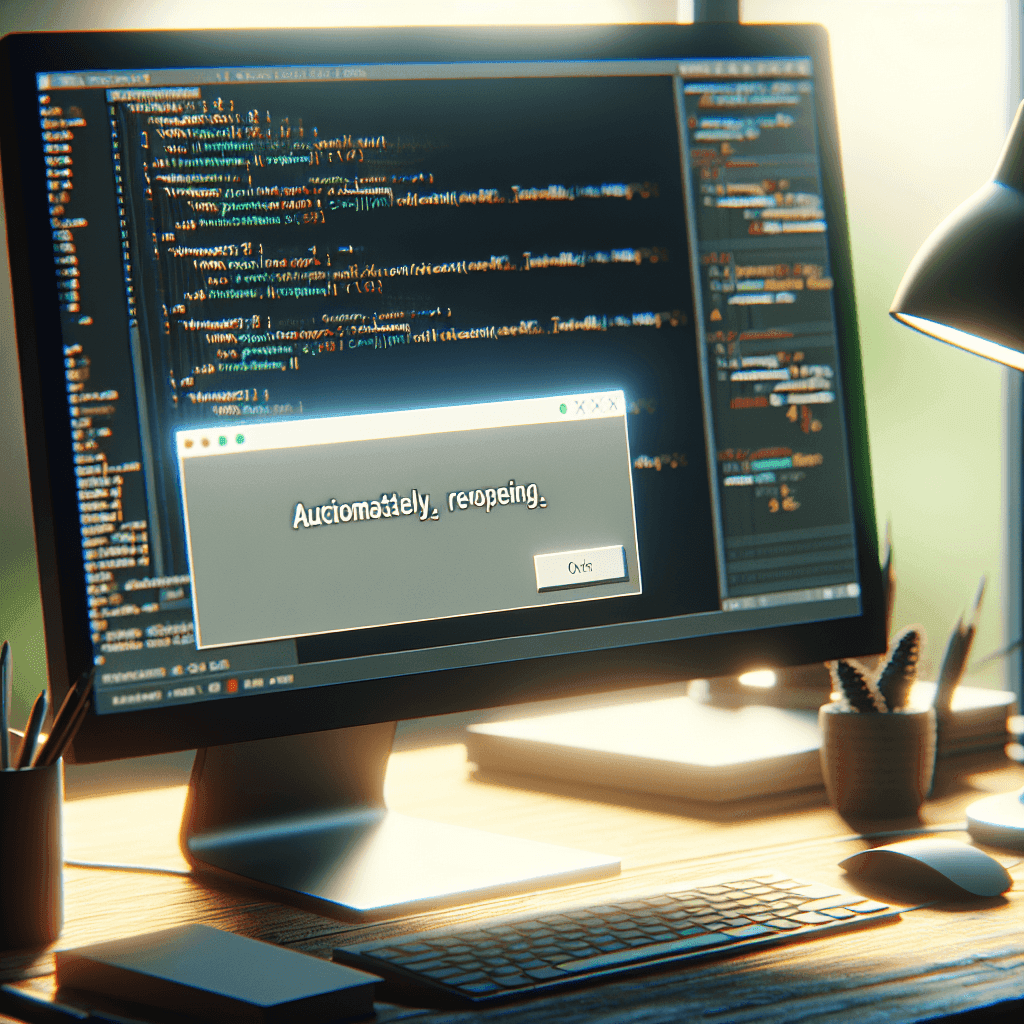
When you start your computer, if you notice some applications automatically reopening that you didn’t expect, this can be frustrating and slow down the system boot process. So what are the causes of this issue, and what can you do to fix it? Let’s find out.
Why does the computer automatically reopen applications on startup?
There are several reasons why the computer automatically opens applications when you start it:
- Windows’s auto-start feature: The Windows operating system has a built-in feature that allows applications to start automatically with the computer. These applications can be found in the Windows startup list.
- Applications set to auto-start: Some applications, when installed, are automatically added to the startup list without user permission.
- System or software errors: Sometimes, errors in the system or software can also lead to applications reopening automatically.
Consequences of having too many auto-start applications
Having too many auto-start applications can cause several serious consequences:
- Slow computer startup: Each auto-start application consumes some time and system resources, leading to delays in the boot process.
- Resource consumption (CPU, RAM): Using too many startup applications reduces the computer’s working efficiency due to resources being allocated inefficiently.
- Affects work performance: When the computer operates sluggishly, this also affects your work productivity.
The computer automatically reopens applications: A guide to disable auto-start applications with Windows (Step-by-step)
Now, we will go through specific steps to disable auto-start applications:
Using Task Manager
How to open Task Manager
You can open Task Manager by pressing the Ctrl + Shift + Esc key combination or Ctrl + Alt + Delete and selecting Task Manager.
Disabling applications in the Startup tab
In the Startup tab, you will see a list of all auto-start applications. You just need to select the unnecessary application and click on Disable.
Using System Configuration (MSConfig)
How to open System Configuration
Open System Configuration by typing msconfig in the search box and hitting Enter.
Disabling applications in the Services and Startup tabs
In the Services tab, you can uncheck unnecessary services. In the Startup tab, you can also manage auto-start applications.
Using Registry Editor (Caution)
How to open Registry Editor
You can type regedit in the search box and open Registry Editor.
Finding and deleting keys related to auto-start applications
Look in the branches HKEY_CURRENT_USER\Software\Microsoft\Windows\CurrentVersion\Run and HKEY_LOCAL_MACHINE\Software\Microsoft\Windows\CurrentVersion\Run to delete unnecessary keys.
Using startup management software
Introducing some reputable software
There are many software programs that help you manage startup applications, such as Autoruns, CCleaner, or Soluto.
How to use the software to disable auto-start applications
After installing the software, you can easily view and disable auto-start applications that you do not need.
Tips for managing startup applications to speed up your computer
Effectively managing startup applications can help speed up your computer:
- Only keep truly necessary applications: You should carefully consider which applications are essential for your daily work.
- Set a delayed startup time for some applications: This helps reduce the load during the initial startup process of the computer.
- Check and remove malware: Ensure that your computer is always protected from malware that could affect system performance.
Frequently Asked Questions (FAQ) about auto-start applications
How to know which applications are auto-starting with Windows?
You can use Task Manager or startup management software to check the list of auto-start applications.
Does disabling auto-start applications affect the operation of the application?
When you disable an auto-start application, the application can still be opened manually when needed.
Should I disable all auto-start applications?
It is not necessary to disable all, but you should consider keeping those applications that are truly essential for your work.
Conclusion
In summary, the computer automatically reopening applications can cause many inconveniences. However, with simple steps to disable auto-start applications and some effective management tips, you can substantially improve your computer’s performance. Always check which applications are truly necessary and take corrective steps to ensure your computer runs more smoothly.
If you need assistance, please contact us right away
IT SYSTEMS VIETNAM CO., LTD
IT Solutions – Your Business IT Department
HOTLINE: 0283 9950 359
Email: contact@itsystems.com.vn
Website: https://itsystems.vn/
Facebook: https://www.facebook.com/ITSystems.VIETNAM
Youtube: https://www.youtube.com/@ITSYSTEMS
HCM: 2nd Floor, 184/1A Le Van Sy Street, Ward 10, Phu Nhuan District, Ho Chi Minh City, Vietnam
HCM: 321/10 Phan Dinh Phung Street, Ward 15, Phu Nhuan District, Ho Chi Minh City, Vietnam.
Hanoi: House No. 22, Garden Villa Area, Vinh Hoang Urban Area, 431 Tam Trinh Street, Hoang Mai District, Hanoi, Vietnam.
Bình Dương: Binh Duong Boulevard, Phu Hoa Ward, Thu Dau Mot City, Binh Duong Province, Vietnam
FAQ
When should a business ask IT Systems for support?
Ask for support when the issue affects users, business data, security, licensing compliance, service availability or daily operations. A short technical review often prevents repeated incidents and hidden costs.
Can IT Systems help review the current environment before proposing a solution?
Yes. IT Systems can review the current setup, identify risks, map the issue to the right service scope and recommend a practical next step for your business.
Does this topic connect to ongoing IT operations?
In most cases, yes. Problems around software, cloud, endpoint, network, backup or security should be connected to a broader IT operations plan instead of being handled as isolated incidents.
Need help applying this to your business?
IT Systems Vietnam can help assess the issue, recommend the right service path and support implementation for your team.