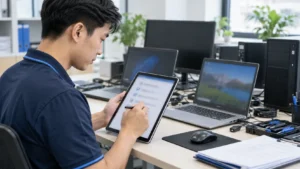
Connecting Multiple Screens on Your Computer: Why You Should Try?
Connecting multiple screens to your computer is not only a modern technological trend but also a useful solution for increasing work productivity. With the ability to expand your workspace, users can easily keep track of multiple tasks simultaneously, from working with documents, browsing the web, to gaming. In fact, working with multiple screens helps improve multitasking abilities and minimizes the time needed to switch between applications.
Connecting Multiple Screens on Your Computer: Surprising Benefits
Using dual or multiple screens brings undeniable benefits. First, expanding the control panel allows users to divide their work across different screens, minimizing visual clutter and optimizing work performance. Second, graphic designers and gamers will also clearly see the value of being able to monitor multiple information streams at once without having to switch back and forth.
Preparing Before Connecting Multiple Screens
Checking the Graphics Card
Before you start, you need to ensure that your graphics card (video card) supports multiple screen connections. Most modern graphics cards have this capability, but if you are using an older card, you may need an upgrade.
Types of Screen Connection Ports
The next important point is to determine the types of connection ports that your graphics card and screens support. Common ports include:
- HDMI: The most popular for both audio and video.
- DisplayPort: Suitable for high resolutions and multi-monitor setups.
- VGA: An older connection still widely used.
- DVI: Provides high-quality video signals.
Preparing Connection Cables
Ensure that you have the appropriate cables that match your screens and computer. If you have multiple screens with different connection ports, you will need a variety of cables.
Guide to Connecting Multiple Screens on Windows
How to Connect Multiple Screens on Windows 10/11
Step 1: Connect the screens to the computer. Step 2: Right-click on the Desktop and select ‘Display settings’. Step 3: In the ‘Multiple displays’ section, choose ‘Extend these displays’ to expand your screen.
Setting Up Dual Screens on Windows
To optimize your workspace, you can arrange the screens in a way that suits you. Pay attention to adjusting the resolution and positioning of the screens in the ‘Display settings’ section.
Troubleshooting Screen Connection Issues on Windows
If the screen is not recognized, try restarting the computer or checking the connection cables. Sometimes, updating the graphics card driver can also resolve the issue.
Guide to Connecting Multiple Screens on macOS
Connecting an External Screen to Macbook/iMac
Step 1: Connect the external screen using the appropriate cable. Step 2: Open ‘System Preferences’ and select ‘Displays’. Step 3: Choose ‘Mirror’ or ‘Extend’ mode, depending on your usage needs.
Setting Up Multi-Screen Display Mode
In the ‘Displays’ section, you can customize the resolution and position of the screens by dragging them to match their actual physical locations.
Optimizing Performance When Using Multiple Screens on macOS
Make sure you are using the latest version of macOS to receive updates and performance optimization features.
Optimizing Display and Screen Settings
Adjusting Resolution and Refresh Rate
Adjusting the resolution allows you to achieve better image quality. You should also check the refresh rate to ensure a smooth display experience.
Arranging Screen Positions
Arrange the positions of the screens so that they align with how you work, helping to create the most convenient workspace.
Using ‘Extend’ or ‘Duplicate’ Screen Modes
Extended mode maximizes your workspace, while duplicate mode is essential for presentations or lectures.
Optimizing Taskbar on Multiple Screens
For Windows, you can customize the Taskbar on multiple screens for easier access to applications.
Troubleshooting Multiple Screen Connection Issues
Screen Not Recognized
If one of the screens is not recognized, check the connection cables and make sure the screen is powered on.
Faulty Graphics Card Driver
Regularly update your graphics card driver to ensure that you always have optimal performance for your screens.
Image Distortion or Blurriness
Make adjustments to the resolution and refresh rate to fix image issues such as blurriness or distortion.
Tips and Tricks for Using Multiple Screens
Using Screen Management Software
Software like DisplayFusion or UltraMon will help optimize your workspace by providing powerful screen management tools.
How to Split the Screen into Several Work Areas
Implement workspace area division on screens to maximize space and organize tasks efficiently.
Suggestions for Multi-Screen Setup for Gamers and Graphic Designers
Gamers and graphic designers often have unique requirements for multi-screen setups. Consider choosing high resolution and high refresh rates.
Conclusion: Maximizing the Power of Multi-Screen Setup
Connecting multiple screens to your computer not only enhances work performance but also opens up many creative opportunities for users. Investing in a multi-screen setup can provide unexpected benefits in both work and entertainment.
If you need assistance, please contact us right away
IT SYSTEMS VIETNAM CO., LTD
IT Solutions – Your Business IT Department
HOTLINE: 0283 9950 359
Email: contact@itsystems.com.vn
Website: https://itsystems.vn/
Facebook: https://www.facebook.com/ITSystems.VIETNAM
Youtube: https://www.youtube.com/@ITSYSTEMS
HCM: 2nd Floor, 184/1A Le Van Sy Street, Ward 10, Phu Nhuan District, Ho Chi Minh City, Vietnam
HCM: 321/10 Phan Dinh Phung Street, Ward 15, Phu Nhuan District, Ho Chi Minh City, Vietnam.
Hanoi: House No. 22, Garden Villa Area, Vinh Hoang Urban Area, 431 Tam Trinh Street, Hoang Mai District, Hanoi, Vietnam.
Bình Dương: Binh Duong Boulevard, Phu Hoa Ward, Thu Dau Mot City, Binh Duong Province, Vietnam
FAQ
When should a business ask IT Systems for support?
Ask for support when the issue affects users, business data, security, licensing compliance, service availability or daily operations. A short technical review often prevents repeated incidents and hidden costs.
Can IT Systems help review the current environment before proposing a solution?
Yes. IT Systems can review the current setup, identify risks, map the issue to the right service scope and recommend a practical next step for your business.
Does this topic connect to ongoing IT operations?
In most cases, yes. Problems around software, cloud, endpoint, network, backup or security should be connected to a broader IT operations plan instead of being handled as isolated incidents.
Need help applying this to your business?
IT Systems Vietnam can help assess the issue, recommend the right service path and support implementation for your team.