


How to fix “No internet access” on a laptop connected to Wi-Fi: (1) check whether the network actually works (try another device); (2) restart the laptop and the router/modem; (3) forget and reconnect to the Wi-Fi network, entering the correct password; (4) run the Network troubleshooter (Settings > Network & Internet > Status); (5) renew the IP address: in Command Prompt run ipconfig /release, then ipconfig /renew and ipconfig /flushdns; (6) change DNS to 8.8.8.8 or 1.1.1.1; (7) reset TCP/IP with netsh winsock reset and restart; (8) update or reinstall the Wi-Fi driver; (9) temporarily disable VPN or antivirus; (10) if several devices lose internet at once, the router or ISP is the cause. This error means the laptop is connected to Wi-Fi but cannot reach the internet, which is different from losing the signal completely.
How to fix Wi-Fi with no internet on a laptop
1. What is the “No internet access” error?
“No internet access” is one of the most common network errors on computers and laptops. A yellow triangle with an exclamation mark (or a globe icon) appears on the network icon.
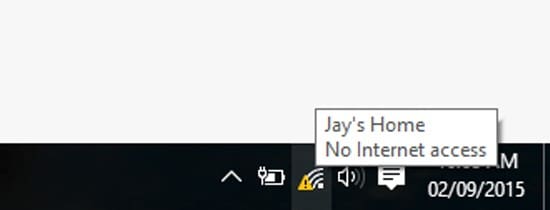
The error occurs even though the computer is connected to the router or Wi-Fi network, but the device cannot reach the internet.
Summary: “No internet access” means the laptop is still connected to Wi-Fi but cannot get online. This article explains the error, its common causes, 10 simple fixes and tips to improve Wi-Fi reception.
2. Common causes
Do not immediately blame the router or ISP. Many things can cause this error:
- Network congestion or overload.
- An IP address conflict with another device on the same Wi-Fi.
- A limited connection when too many devices are connected at once.
- A modem problem, for example after it has run for a very long time without a restart.
- Blocking by a firewall or proxy.
- An incompatible or faulty Wi-Fi driver.
3. 10 simple steps to fix “No internet access”
Step 1: Check the connection on other devices
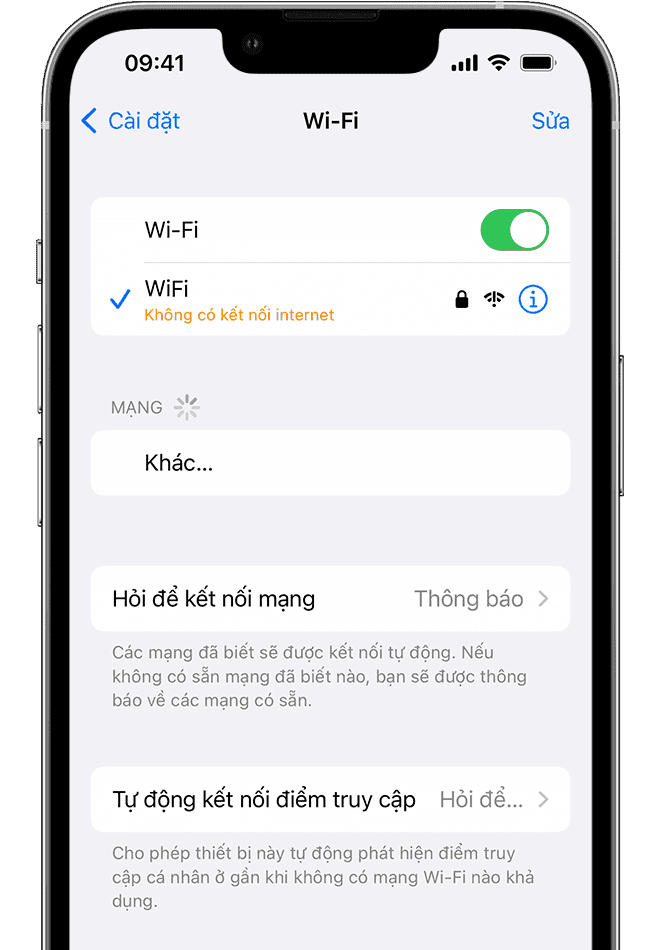
Sometimes the problem is the computer itself. Connect another device, such as a phone or tablet, to the same network to see whether the connection is working.
Note: if no device can reach the internet, the router or the internet line has a problem; check the router first.
Step 2: Restart the computer
Note: you can skip this step if several devices cannot connect. On the desktop, press Alt + F4 and choose Restart.
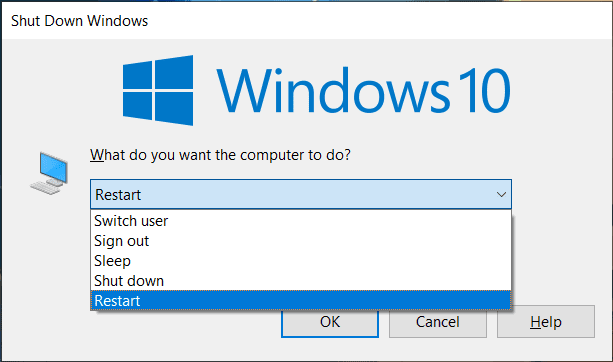
Restarting the laptop is the simplest and most frequently successful fix, so try it first.
Step 3: Restart the modem and router
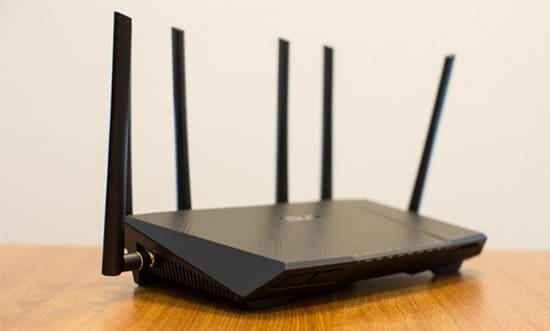
Most network problems involve the modem or router. The best way to restart them is to unplug the power, wait a few minutes, then plug it back in.
Step 4: Use the Windows Network Troubleshooter
Note: you can skip this step if several devices cannot connect.
If the steps above did not help, the problem may be in the network settings. On Windows 10, go to Settings > Network & internet > Status > Network troubleshooter and follow the steps to see whether Windows can fix the problem.
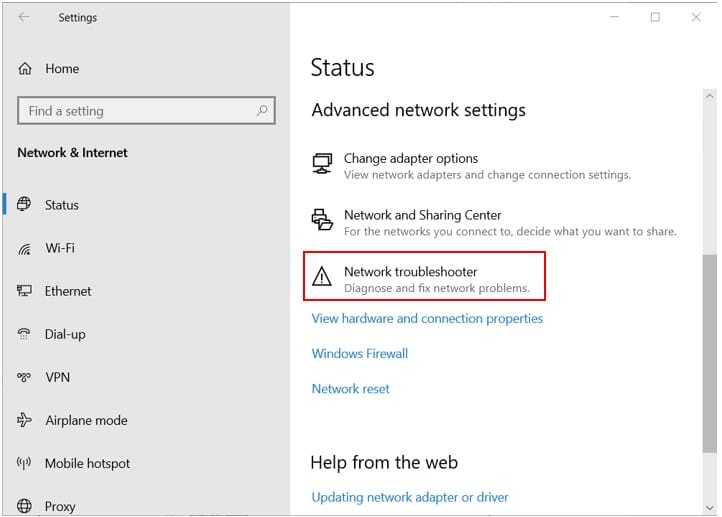
Step 5: Check the IP address settings
Note: you can skip this step if several devices cannot connect.
Each computer uses its own IP address; if it is wrong, you cannot get online. Check it as follows on Windows 10:
Right-click the network icon in the bottom-right corner of the screen.

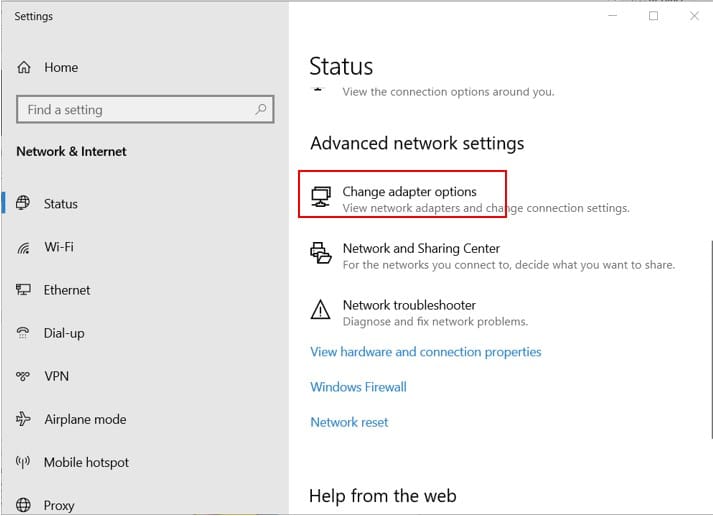
Choose Open Network & Internet settings.
Click Change adapter options, then double-click the connection you are using.
Click the network name next to Connections.
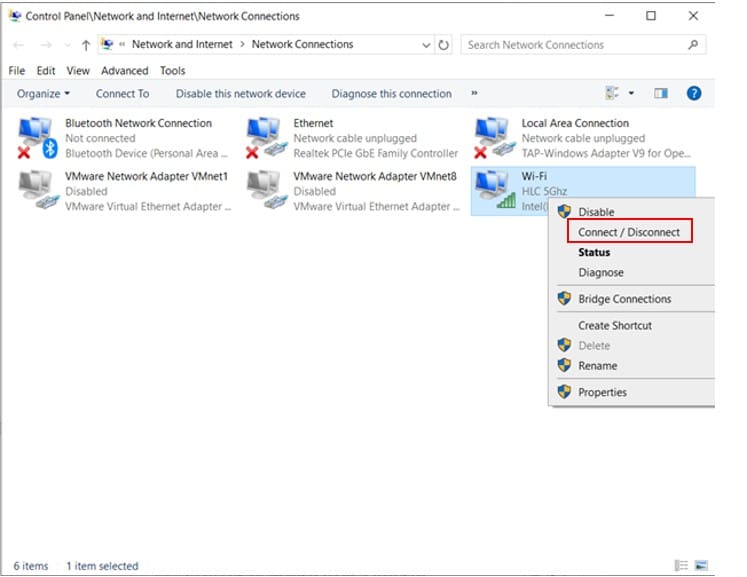
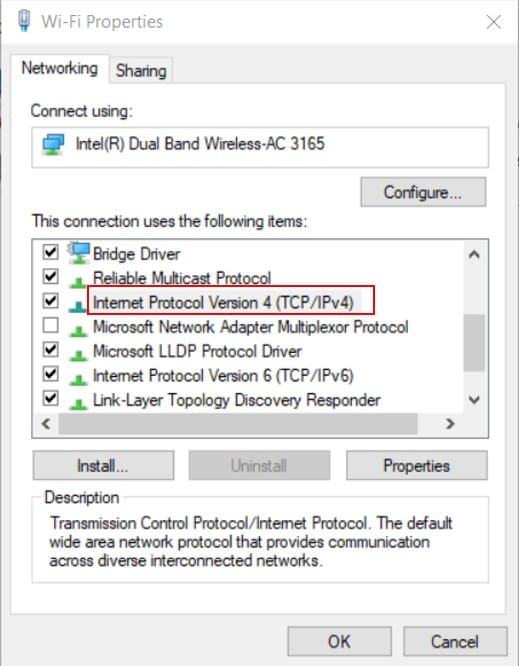
Click Properties and find Internet Protocol Version 4 (TCP/IPv4).
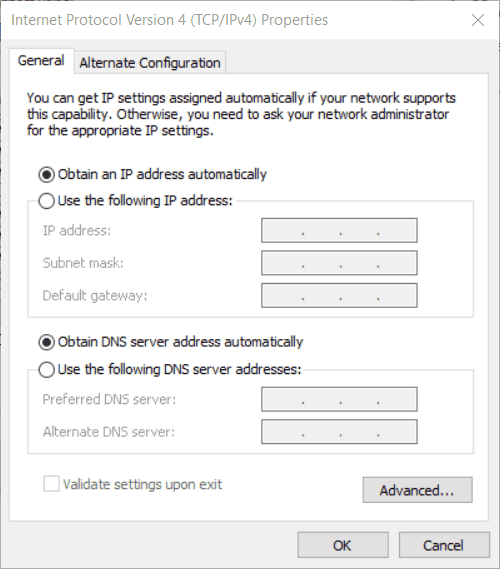
On the General tab, make sure Obtain an IP address automatically and Obtain DNS server address automatically are selected.
Step 6: Check your ISP’s status
Check whether your internet service provider (ISP) is having an outage. It is not common, but it would explain why you cannot get online.
Step 7: Use Command Prompt
Windows includes commands to reset the network stack:
- Type cmd in the Start menu search.
- Right-click Command Prompt and choose Run as administrator.
- Run
netsh winsock resetandnetsh int ip reset.
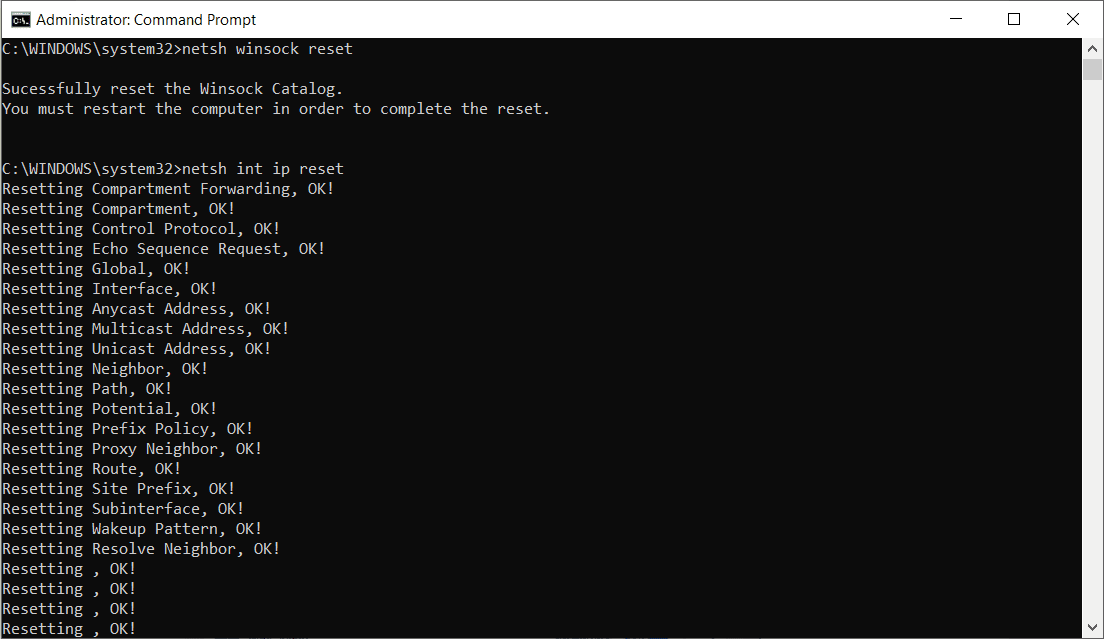
- If that does not help, run
ipconfig /releaseandipconfig /renewto release the IP address and get a new one. - Finally, clear the DNS cache with
ipconfig /flushdns.
Step 8: Temporarily disable security software
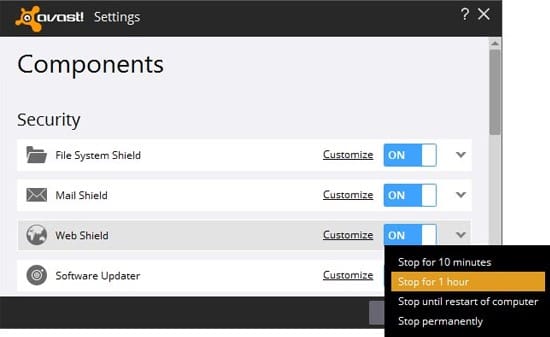
Antivirus and security software can sometimes block internet access. In 2017, for example, Avast’s free antivirus was reported to stop some users from getting online when a protection feature was enabled. Disable it temporarily to test, then turn it back on.
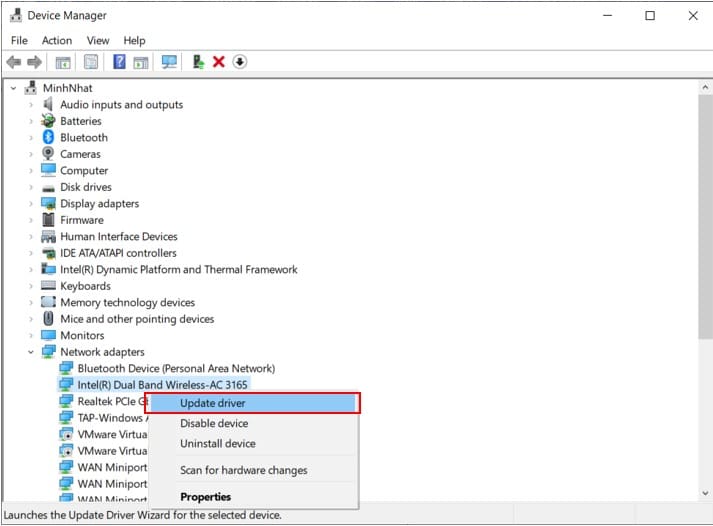
Step 9: Update the wireless driver (skip if several devices cannot connect)
If your computer has the manufacturer’s update tool, such as HP Support Assistant or Lenovo System Update, open it and check for updates. You can also download the driver from the manufacturer’s website.
Step 10: Reset the network
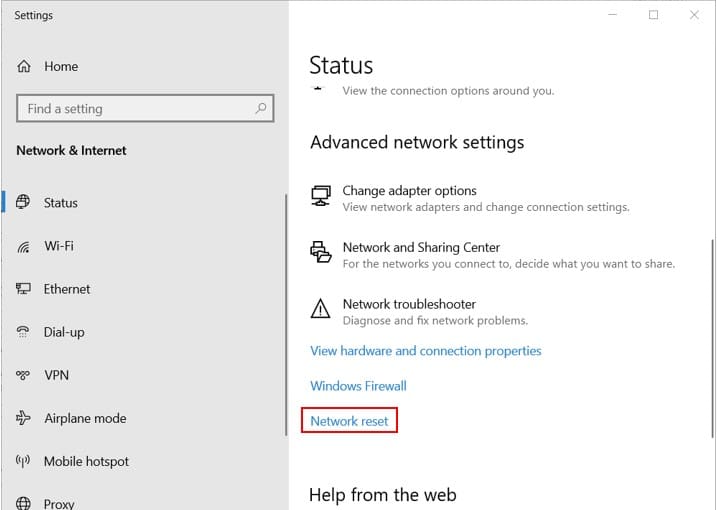
If none of the steps above work, reset your network settings. On Windows 10:
- Go to Settings > Network & internet > Status.
- Click Network reset at the bottom of the page.
- Click Reset now.
This returns all network settings to their defaults, so you will need to reconnect to Wi-Fi networks and reconfigure VPNs.
4. Tips for better Wi-Fi reception on a laptop
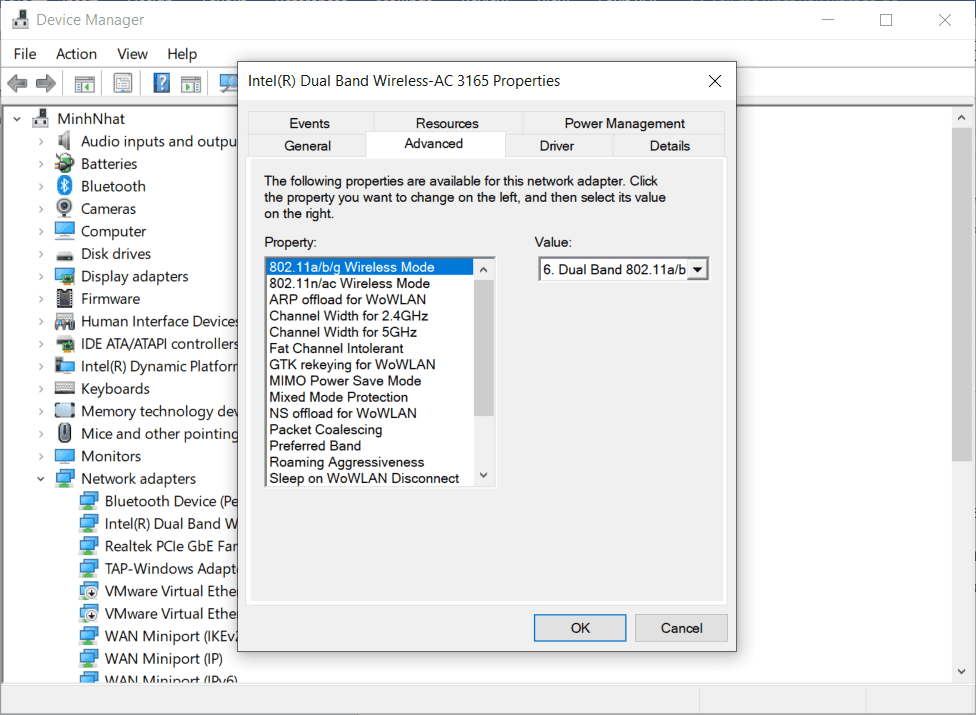
Adjust the Wi-Fi adapter settings
Right-click This PC > Manage > Device Manager > Network adapters, right-click the Wi-Fi adapter and choose Properties. On the Advanced tab, set Preferred Band to 5 GHz if your router supports it and Roaming Aggressiveness to medium or high (option names vary by manufacturer). On the Power Management tab, untick Allow the computer to turn off this device to save power.
Close unnecessary applications
Many apps run in the background and use bandwidth. On Windows, open Task Manager (Ctrl + Shift + Esc); on macOS, press Command + Space and open Activity Monitor. Sort processes by network usage and end the ones you do not need.
For network support for your business, contact IT Systems at hotline 028.3995.03.59 or contact@itsystems.com.vn.
When the Wi-Fi card fails or the signal is weak
- USB thu Wi-Fi Ugreen 90339 (AC650, 2.4/5GHz) – temporary replacement for a faulty laptop/PC Wi-Fi card · VND 410,000
- Bộ phát Wi-Fi 6 Mesh Ruijie RG-EW3000GX – small offices, about 60 users · VND 1,463,000
Prices excl. VAT, from IT Systems Store, Nov 2026.
FAQ
Wi-Fi says No internet but my phone works. Why?
The laptop is the issue: forget and rejoin the network, run ipconfig /flushdns, reset DNS, update the Wi-Fi driver or use Network reset in Settings.
When is the router to blame rather than the laptop?
When no device can reach the Internet. Restart the modem and router, check the Internet light or call the ISP.
Office Wi-Fi drops at peak hours. What helps?
Usually one router serves too many devices. Use business access points, separate guest Wi-Fi and choose less congested channels.
Unstable office network that needs redesigning?
IT Systems surveys, designs and deploys LAN, Wi-Fi, firewall and VPN for offices and branches, with full documentation.


