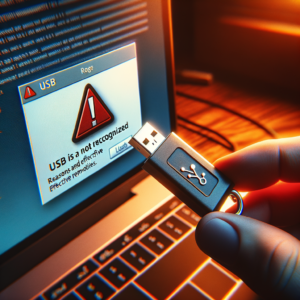
How to fix a USB drive that isn’t recognised (quick): narrow it down in order: (1) try another port (directly, not through a hub), another cable and another computer — to find out whether the drive or the PC is at fault; (2) open Disk Management: if the drive appears without a letter, assign a drive letter; if it shows RAW/Unallocated, recover the data before formatting; (3) in Device Manager, uninstall any device with an error (exclamation mark) > Scan for hardware changes, and update the USB drivers; (4) turn off USB selective suspend in Power Options; (5) 2.5″ external drives need enough power — use a Y-cable or a powered port; (6) scan for viruses; (7) check that USB ports are enabled in the BIOS. If the drive clicks or doesn’t spin, it’s physically damaged and needs professional data recovery.
USB flash drives and external hard drives are essential storage devices, so it’s frustrating when one isn’t recognised or doesn’t show up on your computer. This article explains the causes and how to fix them so you can get back to work.
Why isn’t my USB or external drive recognised?
- A loose connection or damaged USB cable.
- A hardware fault in the USB drive or external drive.
- Missing or outdated device drivers.
- BIOS settings that aren’t configured correctly.
- Not enough power for the external drive.
- The operating system doesn’t recognise the device.
- A damaged or virus-infected drive.
7 ways to fix a USB or external drive that isn’t recognised
1. Check the hardware
- Check the cable: make sure it isn’t damaged or dirty.
- Try other USB ports on the computer to narrow down the problem.
- Check the drive’s indicator light: it shows whether the device is getting power.
2. Software fixes
- Restart the computer to refresh connections.
- Run the Windows hardware troubleshooter, which can find and fix problems automatically.
3. Update drivers
- Update manually: in Device Manager, check the USB controllers and disk drives for driver updates.
- Use Windows Update: check Optional updates, or download drivers from your computer manufacturer’s website. Avoid third-party “driver updater” tools.
4. Check BIOS settings
- Restart the computer and enter the BIOS (usually F2 or Delete).
- Make sure the USB ports are enabled.
5. Give the external drive enough power
- Plug in the drive’s power adapter if it has one.
- Try a Y-cable or a USB 3.0 port that supplies more power.
6. Use Disk Management
- Press Windows + X and choose Disk Management.
- Check whether the drive appears. If it does but has no drive letter, right-click it and choose Change Drive Letter and Paths to assign one.
7. Format the drive (last resort)
- Right-click the drive in Disk Management and choose Format.
- Formatting erases everything — recover any important data first (with recovery software or a professional service) if the drive isn’t readable.
Prevention
- Always eject USB drives safely before unplugging them.
- Check and clean your storage devices regularly.
- Keep drivers up to date for compatibility.
Conclusion
Fixing USB and external drive recognition problems keeps your work flowing. We hope these causes and solutions help you find and fix the problem — and don’t forget the prevention tips.
Contact IT Systems Vietnam
Contact IT Systems at hotline 028.3995.03.59 or contact@itsystems.com.vn. Follow us on Facebook and YouTube.
Need a technician to check your computer on site?
IT Systems repairs desktops and laptops on site in Ho Chi Minh City, offers remote support within 30 minutes and quotes for your approval before any repair.