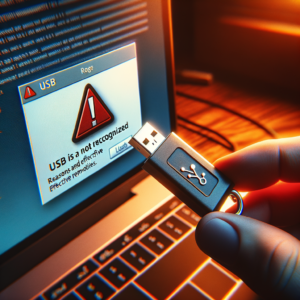
You are working normally when suddenly the computer reports drive not detected, all important office data disappears from sight. This situation not only disrupts work but also threatens permanent data loss, especially for businesses relying on Excel files, contracts, and reports. The drive not detected error is one of the most common issues in computer repair, often related to HDD failure or disk error. This article will help you identify the causes and apply practical troubleshooting steps to recover data promptly.
Clear signs when the computer encounters drive not detected error
The storage not recognized error often appears suddenly, causing panic. Here are the common symptoms you might encounter:
- Computer boots but does not display the drive in This PC or File Explorer, leading to disk error messages.
- BIOS does not detect the drive in Boot or Storage section, black screen or No Boot Device error.
- Drive makes strange noises like continuous clicking, strong vibration, or complete silence.
- In Device Manager, the drive shows with a yellow exclamation mark or disappears from the Disk drives list.
- System unusually slow, freezes when accessing data, accompanied by HDD failure messages like CRC error or I/O device error.
If you see any of these signs, especially drive not detected on multiple machines, it’s time to act immediately to avoid total office system data loss.
Deep-rooted causes making the drive not recognized on the computer
The computer not recognizing the drive is not random but often stems from a combination of hardware and software factors. Understanding the root cause will help you handle it more effectively.
Common hardware issues causing HDD failure
The hard drive is a sensitive mechanical component, prone to failure after long-term use. Main causes include:
- Loose or damaged connection cables: SATA/SATA power cables aged, poor contact leading to storage not recognized.
- Damaged PCB controller board: The outer board of the drive burned due to lightning, overheating, or other issues.
- Widespread bad sectors: Accumulated damaged sectors from repeated read/write cycles, causing severe disk error.
- Motor or read head failure: Disk not spinning evenly, read head not moving to correct position, producing unusual noises.
Software and system errors leading to drive not detected
Not always hardware-related, many cases of drive not detected originate from software:
- Outdated or conflicting drivers: Chipset or storage controller drivers incompatible after Windows updates.
- Corrupted partition table: MBR/GPT errors from sudden shutdowns, viruses, or antivirus false scans.
- OS crash: Windows corrupted, registry errors causing the system to ignore the drive.
- Registry and Windows services: Disk management-related registry keys accidentally deleted or Plug and Play service faulty.
In office environments, causes often combine continuous 24/7 usage and lack of regular maintenance, accelerating drive not detected conditions.
How to fix drive not detected error step-by-step safely and effectively
Don’t rush to format or replace the drive. Follow these troubleshooting guides to handle it yourself or prepare data for professionals. Always backup remaining data before trying any steps.
Basic hardware checks to rule out simple issues
- Check connections: Power off, unplug SATA and power cables from the drive, clean dust, then reconnect firmly. Try different SATA ports on the motherboard.
- Test on another machine: Remove the drive, connect to another computer via USB enclosure or caddy to check for disk error.
- Listen for sounds: If clicking noises, stop immediately and contact data recovery services – opening the drive yourself can cause permanent damage.
Use Windows tools to repair drive not detected
If hardware is fine, move to software:
- Disk Management: Press Windows + X > Disk Management. If drive shows Unallocated or Unknown, right-click to create new partition (only if data is not critical).
- CHKDSK: Open Command Prompt as admin, run
chkdsk X: /f /r(replace X with drive letter). This fixes bad sectors and HDD failure. - Device Manager update driver: Right-click drive > Update driver > Search automatically. Or uninstall then scan for hardware changes.
- SFC and DISM: Run
sfc /scannowandDISM /Online /Cleanup-Image /RestoreHealthto repair corrupted system files.
Advanced tools for severe HDD failure cases
For more advanced cases, use free software:
- CrystalDiskInfo: Check SMART status, temperature, and drive health. If Reallocated Sectors > 0, drive is failing.
- HDDScan or Victoria: Surface scan to map bad sectors, avoid writing to damaged areas.
- Boot from USB Hirens or Ultimate Boot CD: Run Mini Windows to test drive without loading main OS.
If the above steps fail, especially with critical office data, contact professional IT Helpdesk services immediately to avoid further data loss risks.
Long-term prevention strategies for drive not detected errors
After fixing, using the drive once and forgetting is a big mistake. To avoid repeating drive not detected and HDD failure, apply these measures:
- Regular backups: Use 3-2-1 rule: 3 copies, 2 media types, 1 offsite. Tools like Acronis True Image or Windows Backup.
- Monitor drive health: Install CrystalDiskInfo for automatic alerts when health drops below 80%.
- Hardware maintenance: Clean dust every 6 months, check cables, replace CPU thermal paste to prevent overheating affecting the drive.
- RAID and SSD upgrade: Switch to SSD for OS, setup RAID 1 for critical data for automatic mirroring.
- Enterprise IT policy: Set up monitoring tools like Zabbix or use IT Support services to manage entire infrastructure, detect early storage not recognized.
These steps not only save repair costs but ensure continuous office operations.
Conclusion: Act now to protect office data from drive errors
Drive not detected errors can cause major damage but are fully controllable if you know how to identify and fix them promptly. From basic hardware checks to advanced tools, hopefully this guide helps you recover data safely. For complex cases, don’t hesitate to contact professional IT support teams for quick assistance. Share your experiences in the comments and follow the blog for more computer troubleshooting tips!
Lost important data?
Stop using the device and contact IT Systems: we assess drives, NAS and servers, recover data and advise on backup to prevent repeats.