


How to fix a computer that can’t connect to Wi-Fi: (1) establish the scope: is it one computer or several devices (several → check the router/modem first); (2) make sure Wi-Fi is turned on (Fn key, airplane mode off); (3) restart the router and the computer; (4) Forget the network and reconnect with the correct password; (5) run the Network troubleshooter; (6) update or reinstall the Wi-Fi driver (Device Manager > Network adapters); (7) reset networking: netsh winsock reset, netsh int ip reset or Settings > Network reset; (8) check whether the router uses MAC filtering or limits the number of devices; (9) try the 2.4 GHz band if 5 GHz is weak.
Choose the right guide: before changing router settings, check whether one computer or several devices have lost Wi-Fi. If a single PC or laptop in Ho Chi Minh City needs a one-off check, see our on-site computer repair service. If Wi-Fi and printer faults keep recurring for multiple users, see our office troubleshooting process.
If your computer can’t connect to Wi-Fi, there can be many causes. Here are basic steps to try:
1. Check the router/modem
- Check the Wi-Fi signal:
- Make sure the router/modem is on and its Wi-Fi light is lit.
- Connect another device (such as a phone) to the Wi-Fi to see whether the router is working normally.
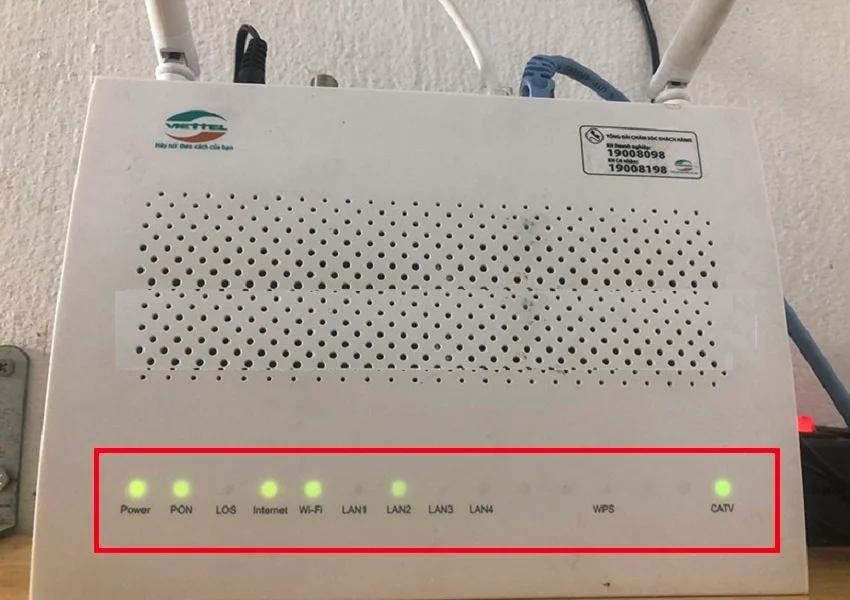
- Restart the router/modem:
- Turn the router/modem off, wait about 30 seconds, then turn it back on.
- This can restore the connection after a temporary fault.

2. Check Wi-Fi on the computer
Turn Wi-Fi on
- Windows laptops: press Fn + F2 (or another key depending on your laptop) to toggle Wi-Fi.
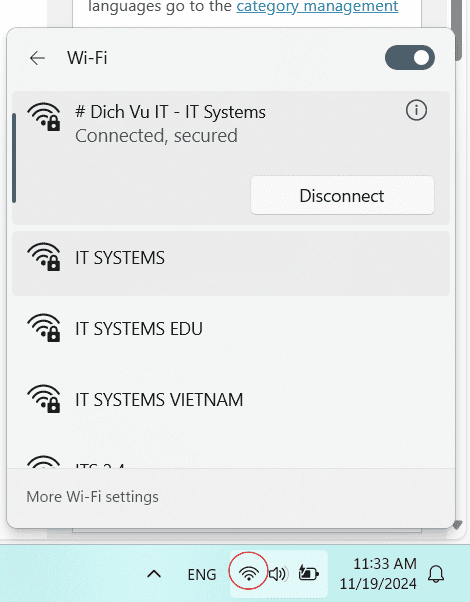
- Make sure Wi-Fi is on. Check the Wi-Fi icon on the taskbar.
Airplane mode
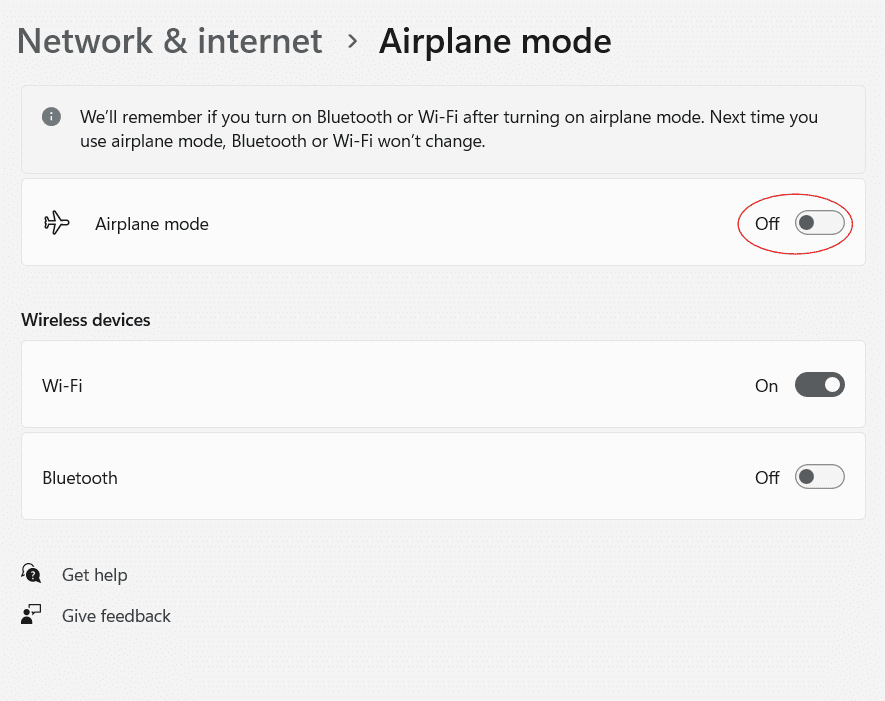
- Make sure Airplane mode is off: go to Settings → Network & Internet → Airplane mode.
3. Check the network connection
Check the Wi-Fi password
- Make sure you’re entering the correct Wi-Fi password.
- If unsure, check it in the router’s settings (via the router’s IP address, usually
192.168.1.1or192.168.0.1).
Try another network
- Connect the computer to a different Wi-Fi network to see whether the problem is the computer or the original network.
4. Troubleshoot networking in Windows
- Use the troubleshooter:
- Right-click the Wi-Fi icon on the taskbar → Troubleshoot problems.
- Windows automatically detects and fixes some common connection problems.

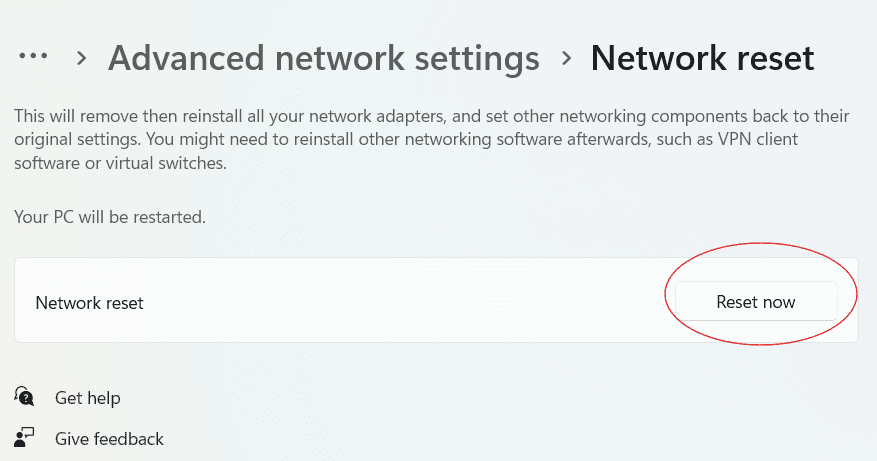
- Reset network settings:
- Go to Settings → Network & Internet → Advanced network settings.
- Choose Network reset and follow the instructions to restore the original network settings.

5. Check the Wi-Fi adapter driver
- Update the driver:
- Open Device Manager (This PC > Manage > Device Manager).
- Expand Network adapters, find the wireless adapter, right-click it and choose Update driver.

- Choose Search automatically for drivers so Windows finds and installs the latest driver.
- Reinstall the driver: if updating doesn’t help, choose Uninstall device and restart the computer; Windows reinstalls the driver automatically.

6. Check IP settings
- Reset IP settings:
- Open Command Prompt (click Start and type Command Prompt).
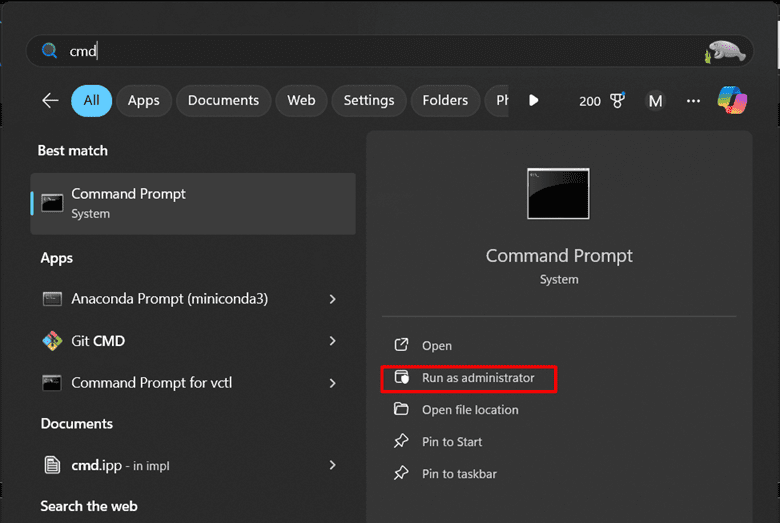
- Type the following commands, pressing Enter after each:
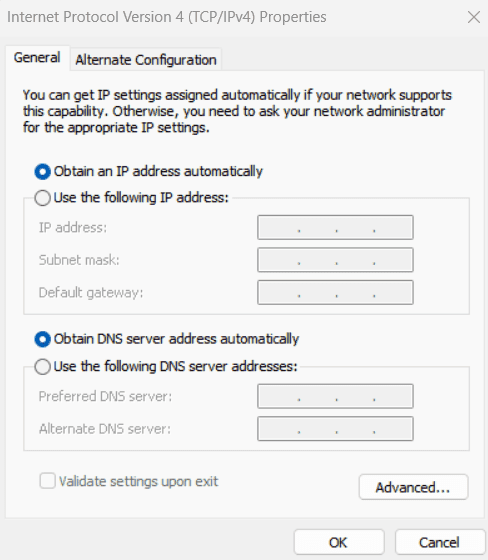
ipconfig /releaseipconfig /renewipconfig /flushdns - Check IP settings: go to Control Panel → Network and Sharing Center → Change adapter settings, right-click Wi-Fi → Properties → Internet Protocol Version 4 (TCP/IPv4) → Properties, and make sure Obtain an IP address automatically and Obtain DNS server address automatically are selected.
7. Check antivirus and firewall
- Some antivirus or firewall software can block Wi-Fi connections.
- Temporarily disable it to see whether it’s causing the problem, then turn it back on.

8. Update Windows
- Make sure Windows is up to date: go to Settings → Windows Update and check for updates.
9. Try another device
- If possible, connect another computer or device to the same Wi-Fi to tell whether the problem is your computer or the network.
10. Contact your internet service provider
- If nothing works, there may be a problem with the connection from your provider. Contact your ISP to check.
For business Wi-Fi problems, contact IT Systems at hotline 028.3995.03.59 or contact@itsystems.com.vn.
Unstable office network that needs redesigning?
IT Systems surveys, designs and deploys LAN, Wi-Fi, firewall and VPN for offices and branches, with full documentation.


