


Summary: A Windows 10 computer that will not start may have a hardware fault, damaged system files, a bad update or a boot configuration problem. This article brings together 14 effective fixes, from checking peripherals and Safe Mode to Windows’ startup repair tools.
Update 11/2026: Windows 10 reached end of support on 14 October 2025. Personal PCs enrolled in Extended Security Updates (ESU) receive security patches until 12 October 2027; business PCs (domain-joined, Entra ID or MDM-managed) need paid annual ESU. The Windows Recovery Environment (Startup Repair, Safe Mode, System Restore) works the same way on Windows 11.
Businesses reviewing which PCs can move to Windows 11 or need the right licences can see genuine Windows licensing for business or our IT Support service.
14 ways to fix a Windows PC that will not start: (1) check the power supply, cables and power button; (2) unplug peripherals (USB drives, external disks) and try again; (3) check the display and cable; (4) boot into Safe Mode; (5) run Startup Repair (Windows Recovery Environment); (6) use System Restore to roll back; (7) repair the boot records: bootrec /fixmbr, /fixboot, /rebuildbcd; (8) run chkdsk and sfc /scannow; (9) uninstall a faulty update; (10) check the RAM (reseat and test); (11) check the hard drive or SSD (cable, SMART status); (12) reset the BIOS/UEFI and check boot order and Secure Boot; (13) remove a newly installed driver causing problems; (14) reinstall Windows (back up data first, or recover data if the drive is still readable). Note any error code to help diagnosis.
If your computer suddenly will not start, do not panic. Try the 14 fixes below for a Windows 10 PC that will not boot.
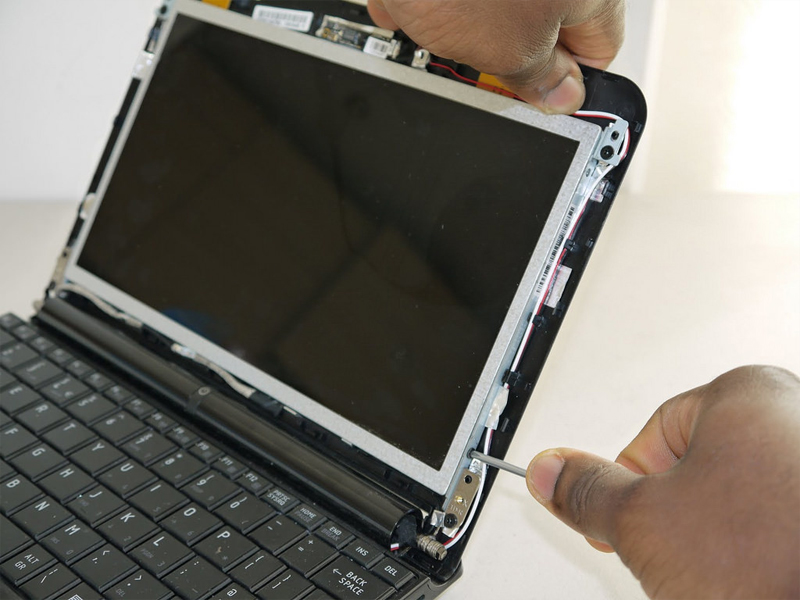
1. Check the display
If you can hear the drive or fans when you power on but the screen stays dark, take the laptop somewhere dim and look closely for any faint image or light on the screen.
If you can see a faint image, the screen backlight is probably faulty. If there is no image or light at all, the display itself may be faulty. Have the computer checked by a reliable repair service to be sure.
2. Check the cable connections
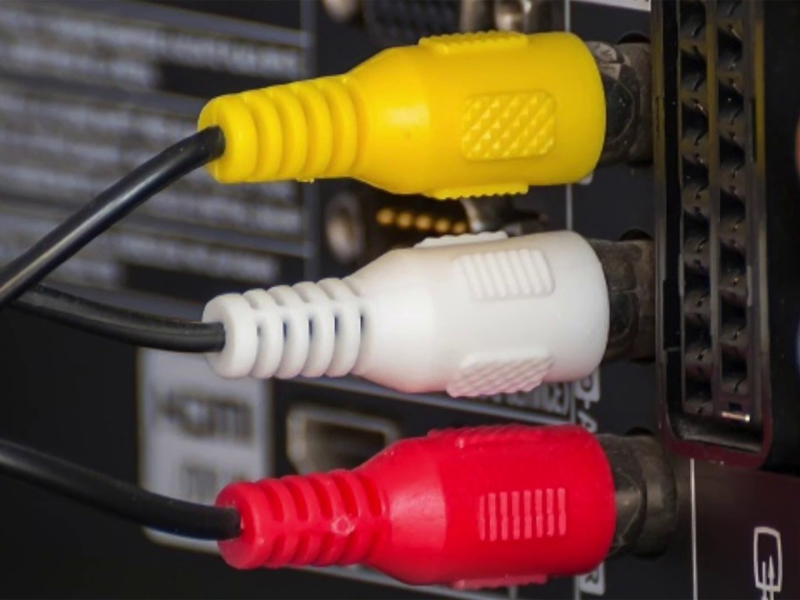
When a laptop will not start, check the connectors to make sure nothing is loose or plugged into the wrong port.
3. Check the condition of cables
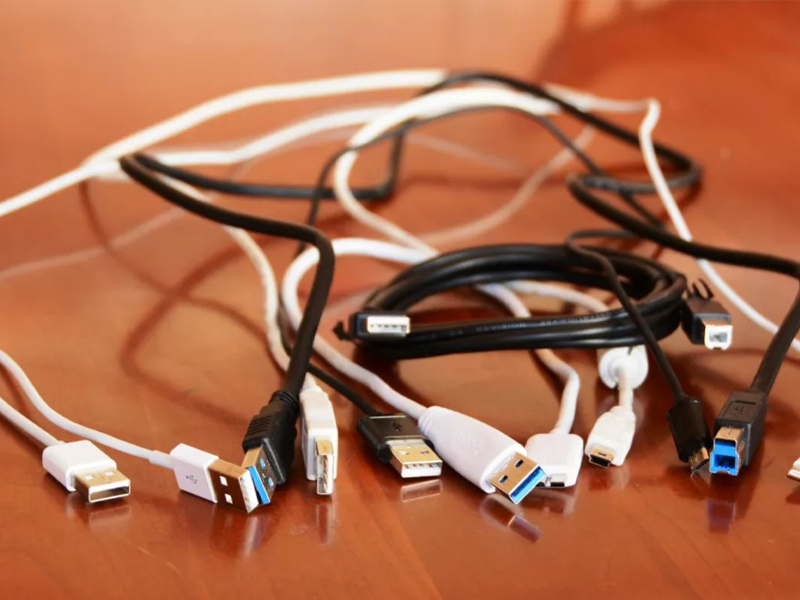
If everything is plugged in correctly but the computer still will not start, check the cables, power supply and battery for damage.
4. Remove USB drives and memory cards
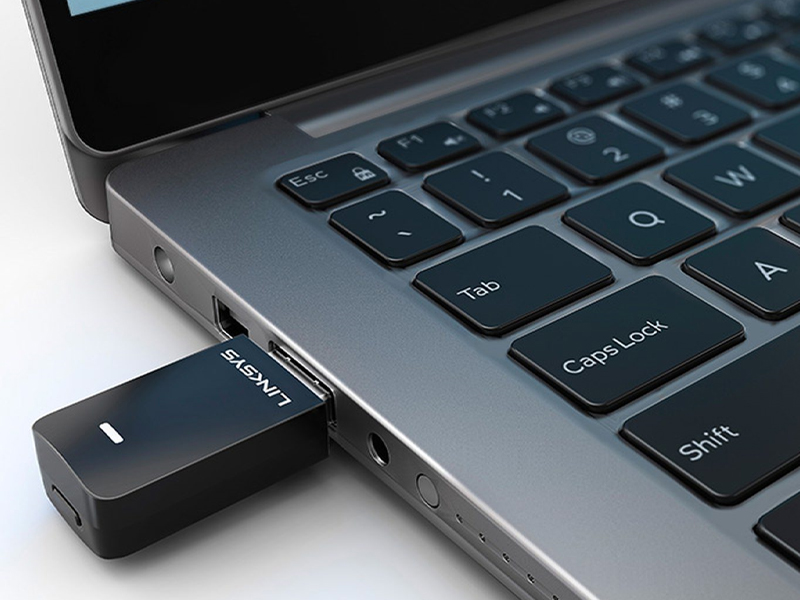
USB drives or memory cards can interrupt the Windows startup process, for example if the computer tries to boot from them. Remove them and restart the laptop.
5. Drain residual power
A small amount of residual charge can sometimes stop a computer from starting. To clear it:
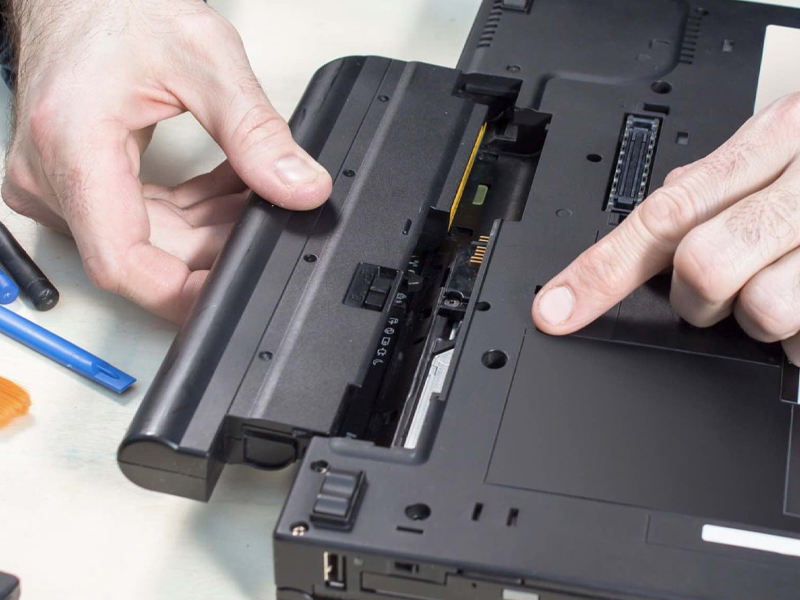
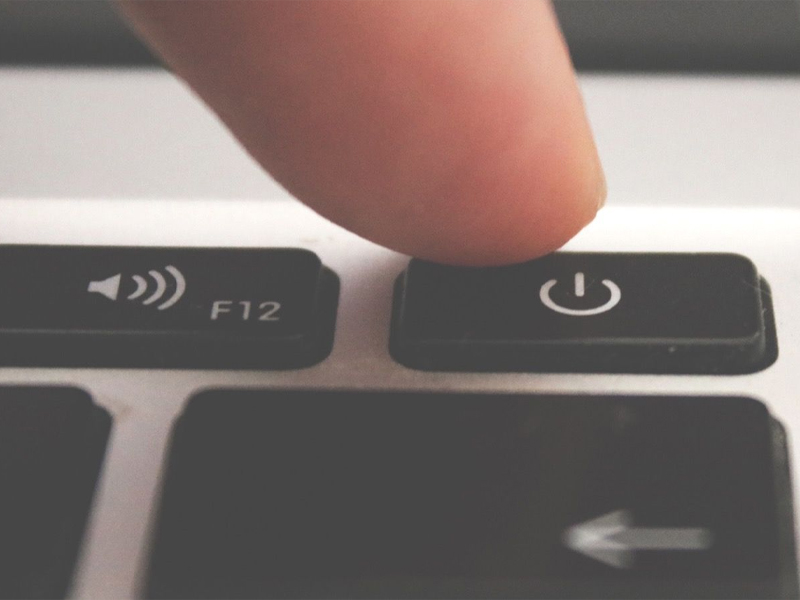
Step 1: Disconnect the AC adapter (charger) and remove the battery (if removable).
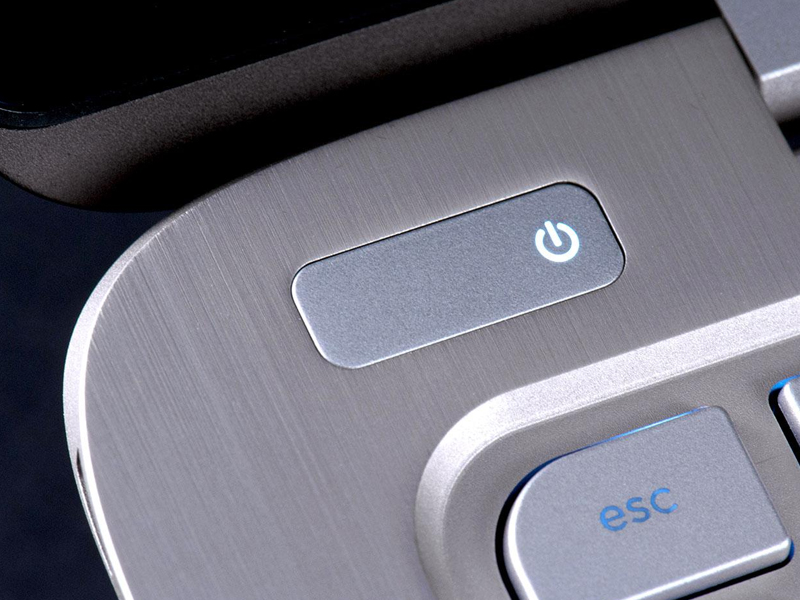
Step 2: Press and hold the power button for about fifteen seconds.
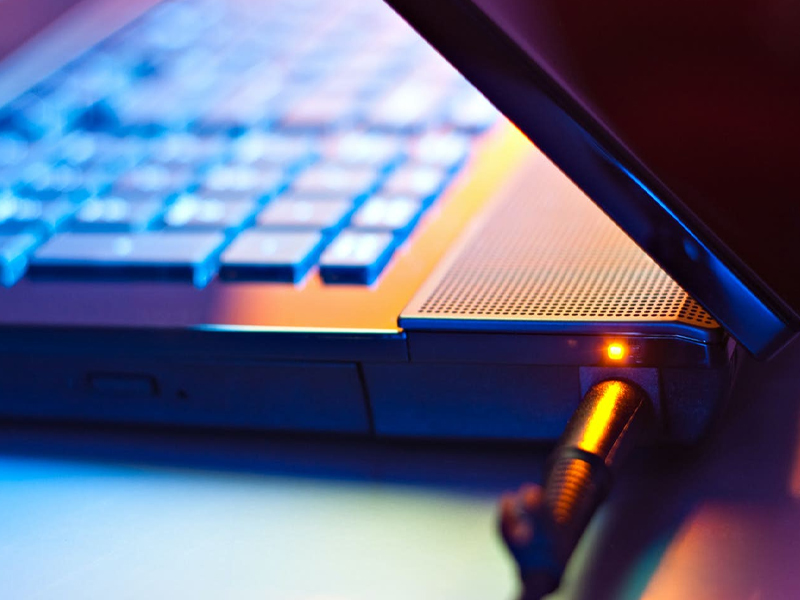
Step 3: Plug the AC adapter back in without inserting the battery.
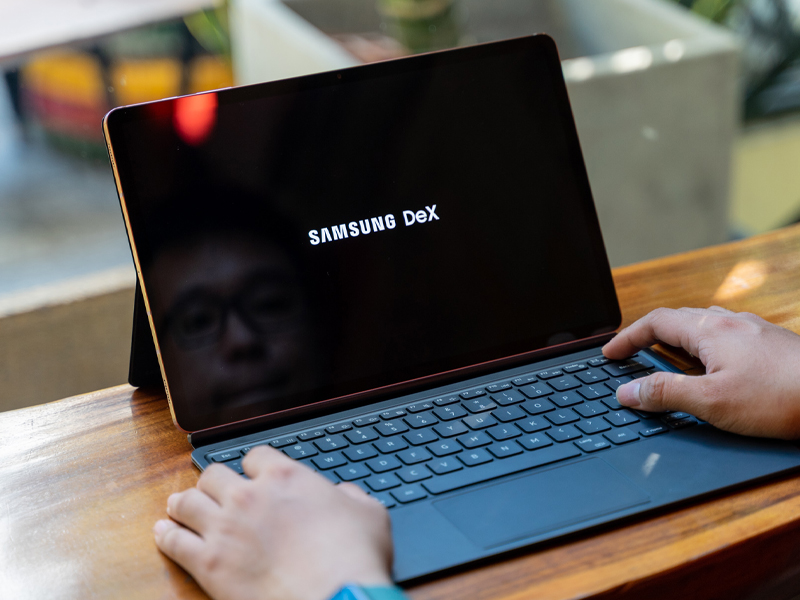
Step 4: Press the power button to turn the laptop on.
6. Check the components
The hard drive, RAM, CPU, power button and motherboard are the most common culprits when a computer will not start. Check each component, or take it to a trusted repair centre if you are not confident doing so.
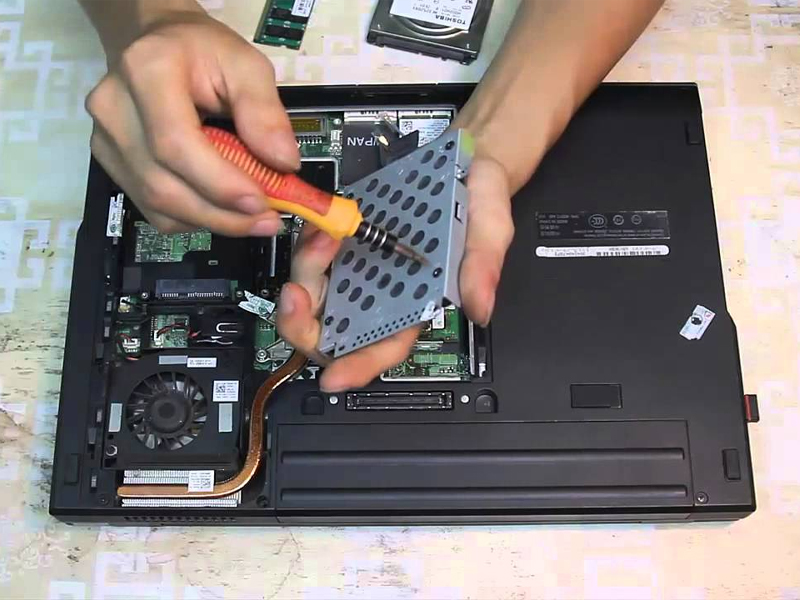
7. Check the power supply
A computer needs a working power supply to deliver power to its components. If it will not start, check the power supply unit (or the laptop charger).

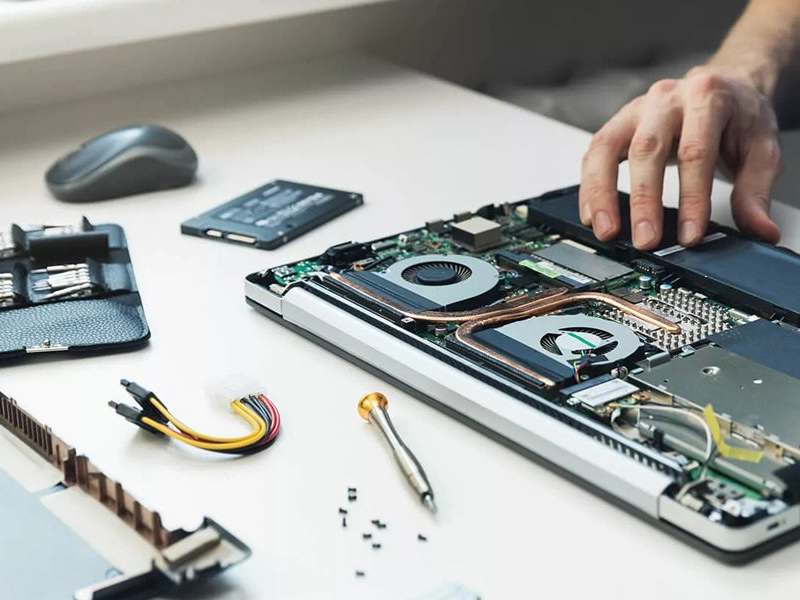
8. Loose or incorrectly seated components
Just like cables, damaged or incorrectly seated components can prevent Windows 10 from starting. Check and reseat them, then try again.
9. Start in Safe Mode
Starting the computer in Safe Mode is an effective way to troubleshoot a Windows 10 PC that will not start normally. If Windows fails to start twice, it usually opens the recovery environment, where you can choose Troubleshoot > Advanced options > Startup Settings > Safe Mode.

10. Uninstall software installed just before the problem
Software or apps installed just before the problem may conflict with existing software. Uninstall them (from Safe Mode if necessary) and restart.

11. Use System Restore or Startup Repair
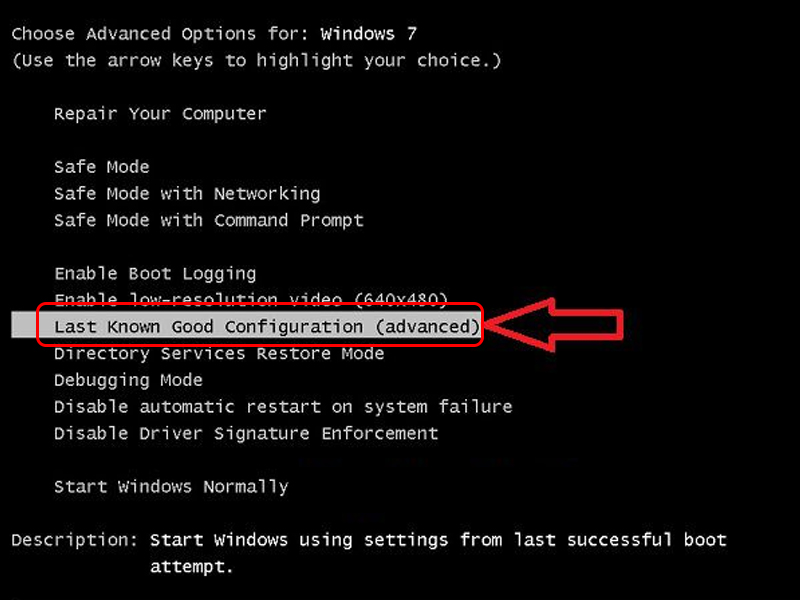
Older versions of Windows had a “Last Known Good Configuration” option in the boot menu. Windows 10 does not have it; instead, open the recovery environment and choose Startup Repair or System Restore to return to a working state.
12. Disable startup programs
If the computer still has trouble starting, disable programs that start with Windows: boot into Safe Mode, press Windows + R to open Run, type “msconfig” and press Enter.
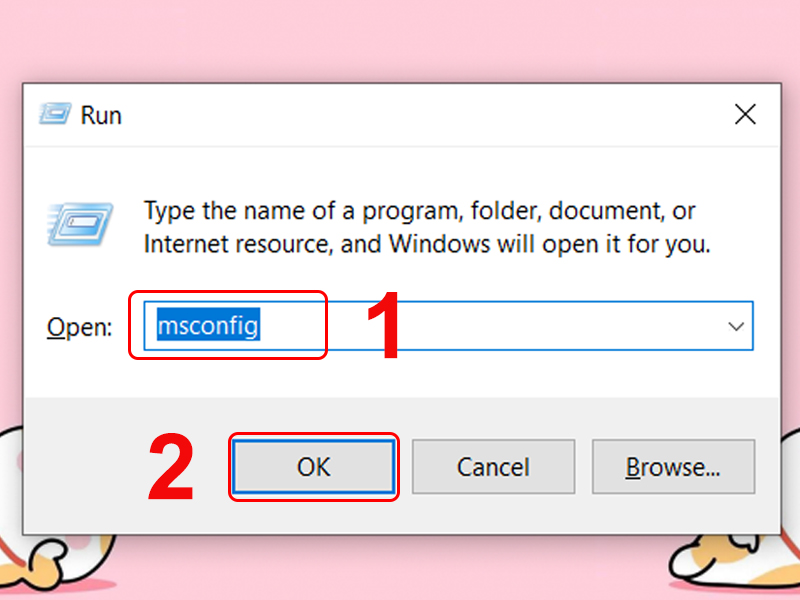
On the Services tab, tick Hide all Microsoft services and click Disable all; on Windows 10, disable startup apps in Task Manager’s Startup tab. Click OK and restart.
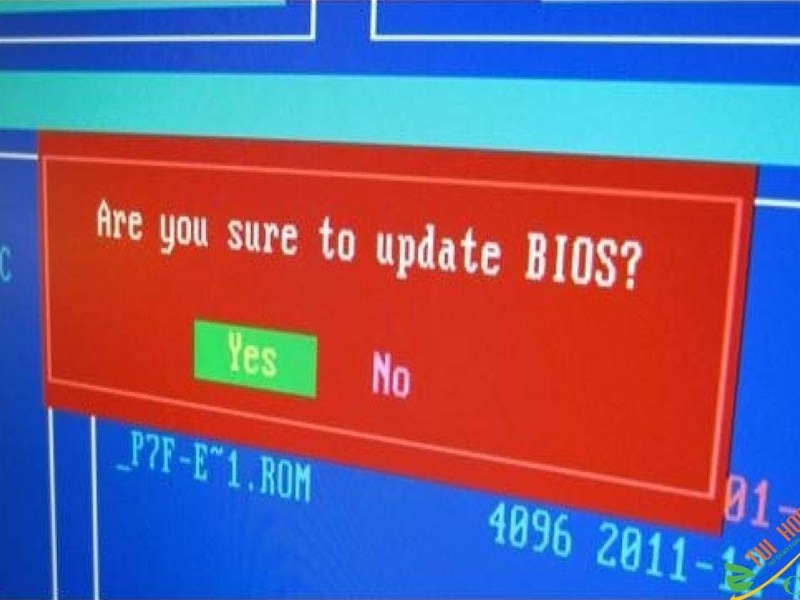
13. Update the BIOS
Updating the BIOS/UEFI from the manufacturer’s website and restarting is also worth trying, especially on newer hardware. Follow the manufacturer’s instructions carefully and do not interrupt the update.
14. Take it to a reliable repair centre
If none of the 13 fixes above work, take your computer to a reliable repair service. IT Systems offers on-site computer repair in Ho Chi Minh City and remote support; contact us at hotline 028.3995.03.59 or contact@itsystems.com.vn.

Need a technician to check your computer on site?
IT Systems repairs desktops and laptops on site in Ho Chi Minh City, offers remote support within 30 minutes and quotes for your approval before any repair.


