



Quick answer: deleting “stubborn” files that won’t delete in Windows. First identify the cause: the file is open in another program, you lack permissions, the name or path is too long, or the file is corrupted. Safe fixes: (1) close the app using the file, or restart and then delete; (2) use Task Manager or Resource Monitor (CPU tab > Associated Handles) to find and end the process holding the file; (3) delete in Safe Mode; (4) take ownership: right-click > Properties > Security > Advanced > change Owner (only for your own files); (5) use Command Prompt (Run as administrator): del /f /q "file_path" or rd /s /q "folder"; (6) for names that are too long, shorten the parent folder name; (7) run chkdsk if the file is corrupted. Warning: don’t delete system files in C:\Windows or Program Files unless you are sure — you could break Windows.
Deleting stubborn files in Windows frees up storage and clears clutter. Here’s how to remove files that refuse to delete.

Over time, some files are no longer useful, and they may take up a lot of disk space, so you want to delete them.
Sometimes, though, when you try to delete an unnecessary file, Windows shows a message saying the file can’t be deleted:

This usually happens on NTFS drives. The file may be in use by a program, related files may be in use, or the file may have been corrupted while being copied to the disk.
If the file is in use, close the programs using it and you can delete it easily. Otherwise you can’t delete it the usual way. Some people even reformat the drive to get rid of it, but that should be the very last resort.
1. Restart the computer

The simplest fix for mildly stubborn files: restart the computer, then delete the file normally.
2. Use the del command in Command Prompt
If restarting doesn’t help, use the command line.
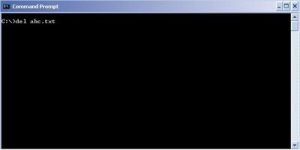
Press Win + R, type cmd and press Enter (or run Command Prompt as administrator). Navigate to the folder containing the file and use the del command to delete it.
3. End Explorer in Task Manager
First open a Command Prompt window.
Then press Ctrl + Shift + Esc to open Task Manager. On the Processes (or Details) tab, find Windows Explorer / explorer.exe, right-click it and choose End task.
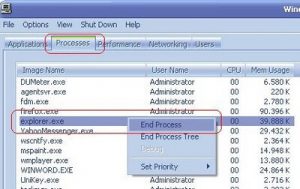
The desktop and taskbar disappear, except the Command Prompt window you opened. Now use del to delete the file.
Then type explorer in Command Prompt to restart the Windows shell.
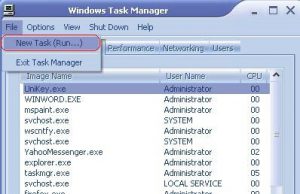
If you accidentally closed Command Prompt, press Ctrl + Shift + Esc, choose File > Run new task and type explorer.
This method requires basic command-line knowledge; if you’re not comfortable with it, try the other methods.
4. Delete the folder containing the file
If you still can’t delete the file, try deleting its folder. If that fails, go one level up: say the file is in folder A, which is inside folder B. Try deleting folder B. This sometimes works. Move any data you need out of A and B first.
5. Change File Explorer’s process setting
By default, File Explorer runs all its windows in a single process (explorer.exe). If your settings force separate processes, that can cause conflicts.
Press Windows + E to open File Explorer and go to View > Options > Change folder and search options.
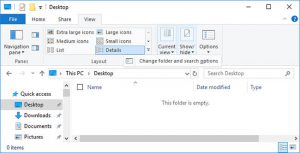
In Folder Options, open the View tab and find Launch folder windows in a separate process. Make sure it is unchecked, then click Apply.
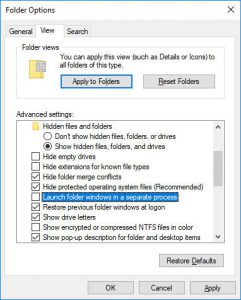
If it was already unchecked, try checking it to see if that solves the problem.
6. Turn off the Preview pane in File Explorer
File Explorer previews can cause “File is open in another program” errors. Press Windows + E, then press Alt + P to close the Preview pane.
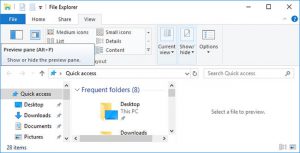
Then try again and see whether the “File in use” error has gone.
7. Use a third-party tool
Sometimes the file is locked. If Command Prompt doesn’t work or is too complicated, use one of these tools.
Microsoft Process Explorer
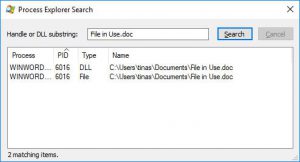
Process Explorer is a more powerful Task Manager from Microsoft Sysinternals. It lists all running processes and can tell you which one is holding your file “hostage”. Open Find > Find Handle or DLL (or press Ctrl + F), type the file name and wait for the list of processes using it.
You can’t close processes from the search window, but you can use Process Explorer or Task Manager to close the offending application.
PowerToys File Locksmith
Microsoft’s free PowerToys includes File Locksmith: right-click a file and choose “Unlock with File Locksmith” to see and end the processes using it. This is a safer modern alternative to older unlock tools.
Unlocker
Unlocker is a long-standing free tool that analyses why a file can’t be deleted and releases the system’s locks on it so you can delete it normally. Note that it hasn’t been developed for years and some download copies bundle adware, so download only from a trusted source and decline any bundled offers.
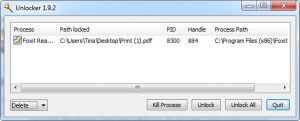
Unlocker adds itself to the right-click menu. Right-click the file and choose Unlocker, then choose Kill Process or Unlock / Unlock All. Then delete the file.
LockHunter
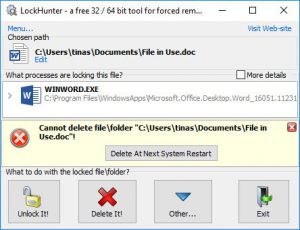
LockHunter also adds itself to the context menu. Right-click the locked file and choose What is locking this file? to see every process using it. You can then choose Unlock, Delete at next system restart or Unlock & Rename. Deleting at the next restart often works when unlocking fails.
Other tools include IObit Unlocker and similar utilities.
Need help with a Windows problem? Contact IT Systems at hotline 028.3995.03.59 or contact@itsystems.com.vn. More IT news here.
Need a technician to check your computer on site?
IT Systems repairs desktops and laptops on site in Ho Chi Minh City, offers remote support within 30 minutes and quotes for your approval before any repair.


