


How to fix a computer that starts slowly: (1) disable startup apps: Task Manager > Startup > Disable the ones you do not need; (2) upgrade to an SSD if you still use a hard disk (HDD), the most effective way to speed up startup; (3) clean up the drive (Disk Cleanup / Storage Sense) and keep at least 15% of drive C free; (4) check the Fast Startup setting (Control Panel > Power Options): turn it on for faster boots, or off if it causes problems; (5) update Windows and drivers; (6) scan for malware; (7) remove unnecessary software; (8) check drive health (CrystalDiskInfo), as a failing drive also slows startup; (9) if nothing helps, consider a clean reinstall of Windows. Slow startup is usually caused by too many startup apps or an old HDD.
Summary: A slow-starting computer is usually caused by too many programs launching with Windows, a slow or full hard disk, or faulty drivers or software. This article explains how to fix it so your computer starts faster.
Slow startup is a common problem, especially on older computers or ones with lots of pre-installed software. Before taking your computer to a repair shop, you can usually fix it yourself with a few simple steps.
This guide covers specific ways to improve startup speed, from optimising the system and cleaning the drive to disabling unnecessary programs.
1. Check startup apps
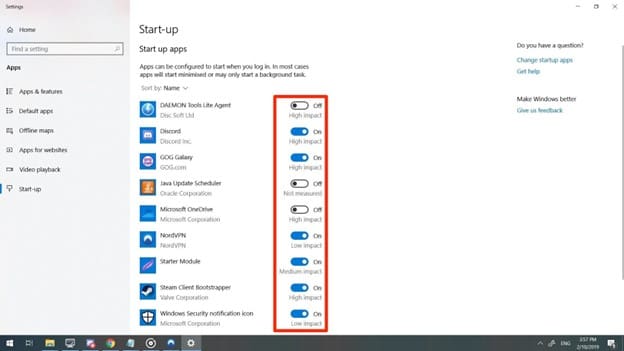
One of the main causes of slow startup is apps that launch automatically with Windows. They use system resources and lengthen boot time.
- Press Ctrl + Shift + Esc to open Task Manager.
- Open the Startup tab (Startup apps on Windows 11).
- Go through the list and disable apps you do not need (right-click > Disable).
- Keep only important apps, such as your security software and programs you use immediately after starting.
You can also use msconfig (System Configuration) to review services: press Windows + R, type msconfig and press Enter. On the Services tab, tick Hide all Microsoft services before disabling anything. (On Windows 10/11, the Startup tab in msconfig simply links to Task Manager.)
2. Clean up the drive (Disk Cleanup)
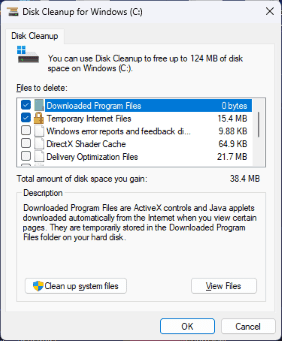
Lots of junk files take up space and can slow the system. Cleaning the drive can noticeably speed things up.
- Open File Explorer and select the drive to clean (usually C).
- Right-click the drive and choose Properties.
- On the General tab, click Disk Cleanup.
- The tool scans for junk, temporary and unneeded files and lets you delete them.
- For a deeper clean, click Clean up system files.
This frees space and helps the computer run faster.
3. Check the hardware
Slow startup can also be caused by faulty or underpowered hardware:
- Hard drive (HDD or SSD): hard disks are slow and get slower with age. Upgrading to an SSD (solid-state drive) dramatically improves startup and overall performance. To check the drive for errors, open Command Prompt as administrator and run
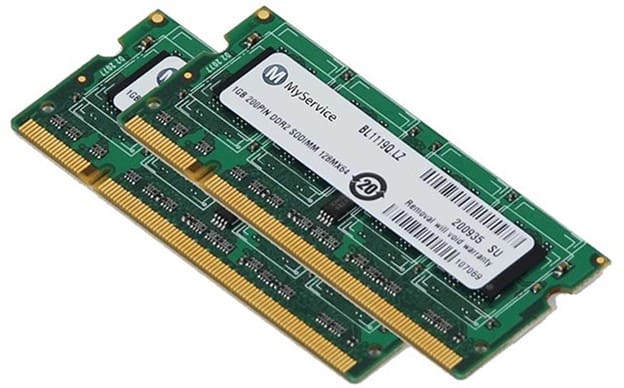
chkdsk. - RAM: with little memory (2–4 GB), Windows relies heavily on the drive as virtual memory, which slows everything down. Adding RAM improves startup and performance.
4. Check the Fast Startup setting
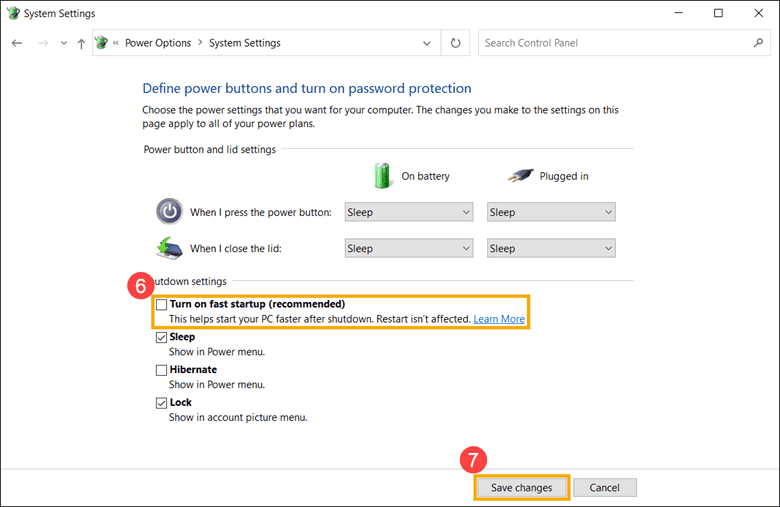
Windows’ Fast Startup feature shortens boot time from a full shutdown. Occasionally, though, it causes problems (for example with updates or drivers), and turning it off can help.
- Open Control Panel and choose Power Options.
- Click Choose what the power buttons do on the left.
- Click Change settings that are currently unavailable.
- Tick or untick Turn on fast startup.
- Click Save changes and restart.
Try both settings and keep the one that gives the best result on your computer.
5. Update drivers and Windows
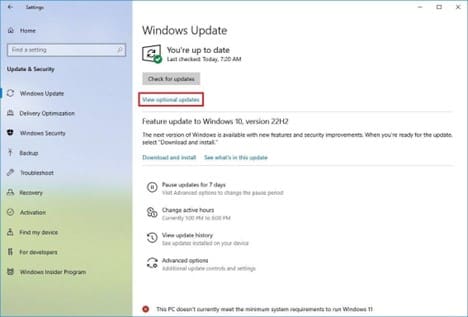
Keeping Windows and hardware drivers updated helps the computer run at its best; outdated drivers can cause performance problems.
- Update Windows: Settings > Update & Security > Windows Update > Check for updates.
- Update drivers: check in Device Manager or the manufacturer’s update tool, especially graphics, chipset and storage drivers.
6. Optimise and defragment (hard disks only)
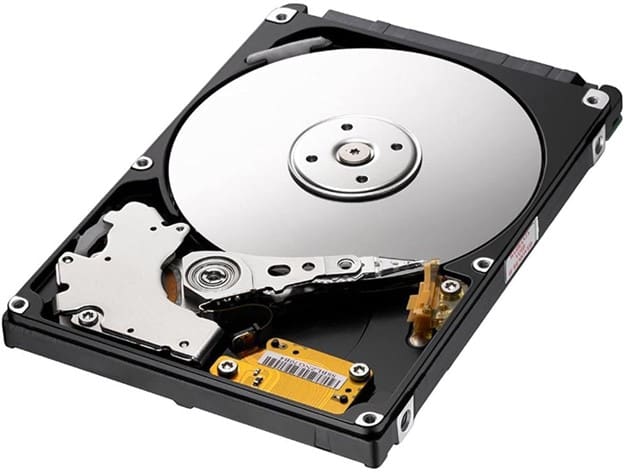
If you still use a hard disk, defragmenting can help the computer read data faster and start more smoothly.
- Open File Explorer and select drive C.
- Right-click it and choose Properties.
- On the Tools tab, click Optimize.
- Select the drive and click Optimize.
Note: you do not need to defragment an SSD; Windows optimises SSDs differently (TRIM) automatically.
7. Check heavy security software
Some security suites slow startup, especially if they scan heavily during boot. Do not run without protection: instead, avoid installing two antivirus products at once, adjust the scan schedule so it does not run at startup, or switch to a lighter product such as the built-in Microsoft Defender.
8. Reset Windows
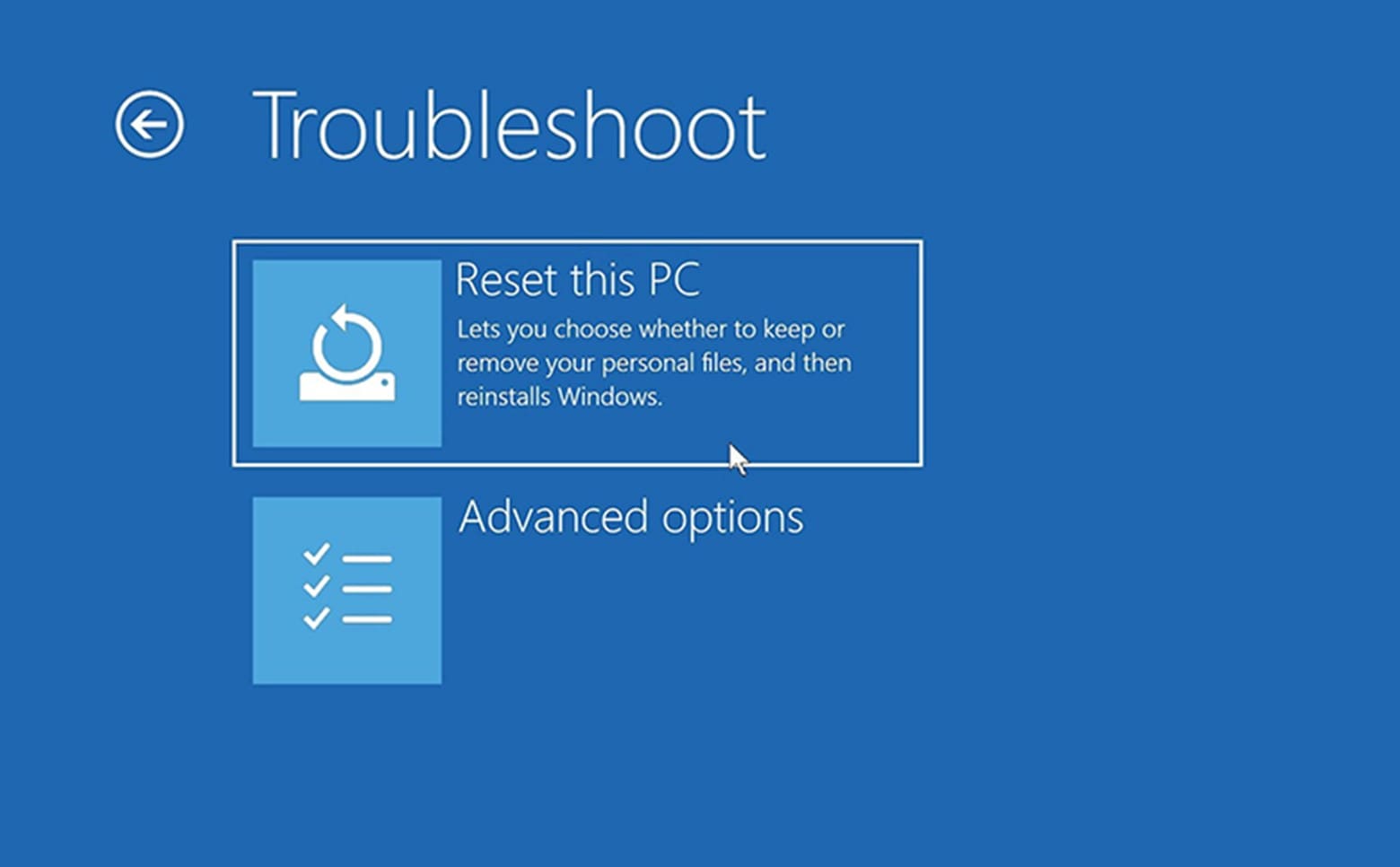
If the computer is still slow after all these steps, consider resetting Windows to remove long-standing system problems and start clean.
Go to Settings > Update & Security > Recovery and click Get started under Reset this PC. You can keep your personal files or remove everything. Back up your data first.
Slow startup is easy to fix if you work through these optimisation steps patiently. From disabling unnecessary apps and cleaning the drive to upgrading hardware, you can improve boot time without spending much.
If none of these steps help, it may be time to have IT professionals check the hardware. For business computer support, contact IT Systems at hotline 028.3995.03.59 or contact@itsystems.com.vn.
Need a technician to check your computer on site?
IT Systems repairs desktops and laptops on site in Ho Chi Minh City, offers remote support within 30 minutes and quotes for your approval before any repair.


