


How to fix a computer with no sound: (1) check the master and per-app volume: right-click the speaker icon > Volume mixer — an app may be muted on its own (for example Zalo or a browser); (2) choose the correct output device in Sound settings (speakers/headphones/HDMI); (3) check speakers or headphones are in the right port and powered on; (4) run the audio troubleshooter; (5) restart the Windows Audio service; (6) update or reinstall the audio driver (Device Manager > Sound); (7) turn off Audio enhancements; (8) check whether a browser tab is set to “Mute site”. If only one app is silent, it’s an app setting; if all apps are silent, it’s the driver or device.
How to fix a computer that has no sound
Losing sound is a common computer problem that disrupts both work and relaxation. This guide shows quick, easy ways to fix no-sound problems in Windows 10 (most steps also apply to Windows 11).
1. Check the app’s volume
If a video in one app (such as Zalo) has no sound while video files on your computer play normally, the app itself may be muted. To fix it:
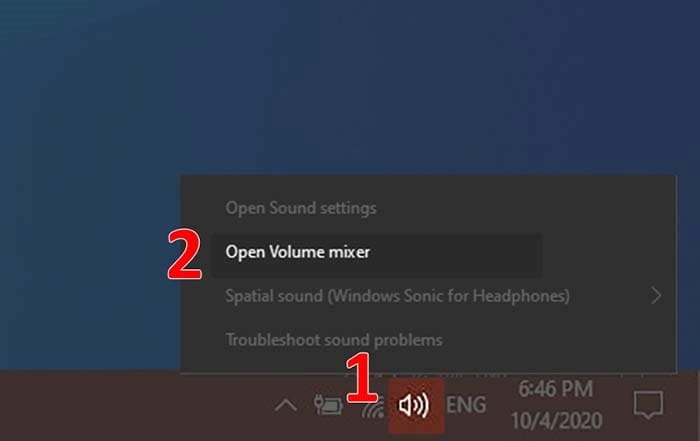
- Step 1: Right-click the speaker icon at the bottom right of the screen > Open Volume mixer.
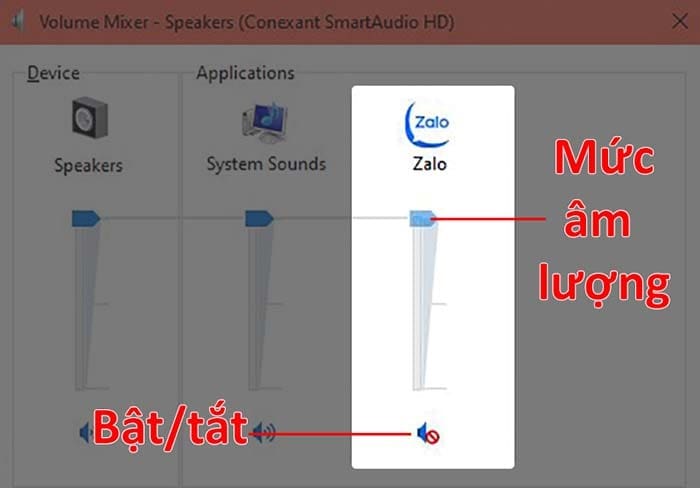
- Step 2: Click the speaker icon on the app’s volume slider to unmute it, and drag the slider to adjust the volume.
2. Check your web browser
If videos or some websites have no sound, the cause may be the browser’s sound settings. In Chrome:
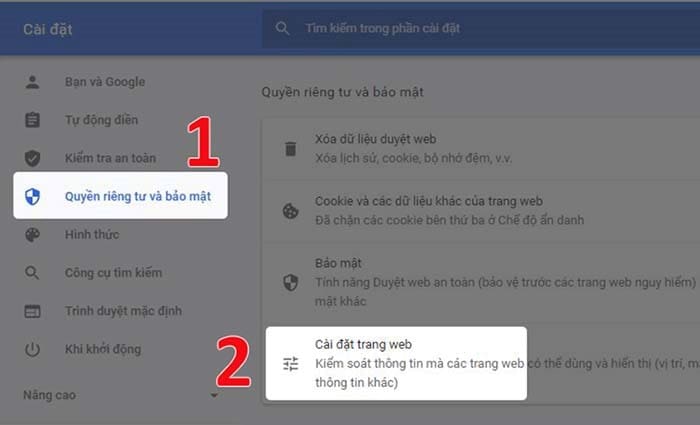
- Step 1: Open the browser’s Settings > Privacy and security > Site settings.
- Step 2: Under Content, choose Additional content settings > Sound.
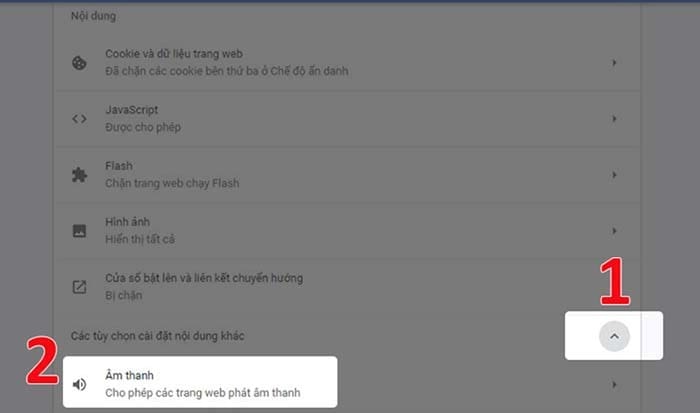
- Step 3: Turn on “Sites can play sound”. You can also see which sites are muted under the muted list; click the three-dot icon > Remove to unmute a site.

3. Check the output device
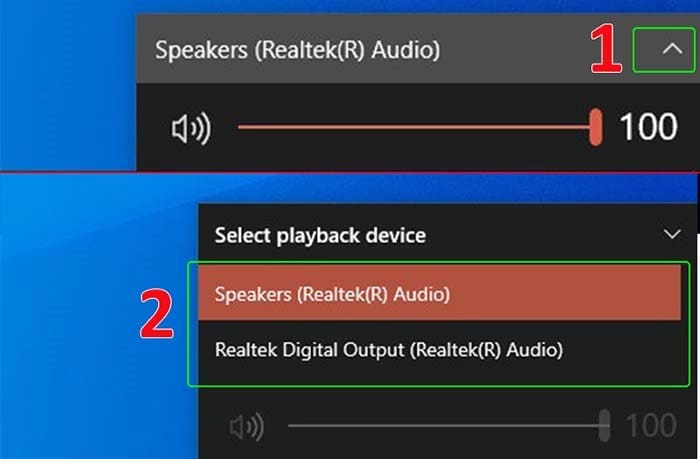
Your computer may have several audio output devices, so make sure the selected output is the one you want. Click the speaker icon at the bottom right, then click the arrow to open the list of connected audio devices and choose the right one.
4. Check the speaker or headphone port
If there’s no sound through speakers or headphones, check the connection first. Common causes are a loose plug or the wrong port (microphone and audio ports both use 3.5 mm jacks).
5. Check your audio devices
Make sure your audio devices are working normally:
- Are the speakers out of battery or not plugged in?
- Is the headphone cable broken or damaged anywhere?
- If you use Bluetooth, are both the audio device and the computer’s Bluetooth turned on and paired?
These checks also fix most cases where the computer doesn’t recognise plugged-in headphones.
6. Restart Windows
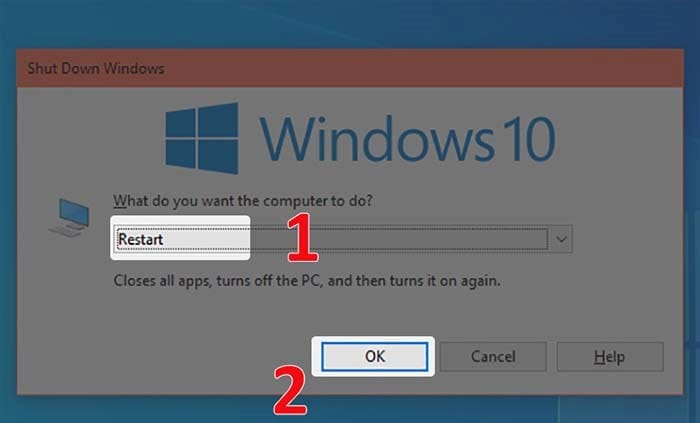
Restarting Windows can fix some sudden sound problems. Press Alt + F4 on the desktop, choose Restart from the drop-down list and click OK.
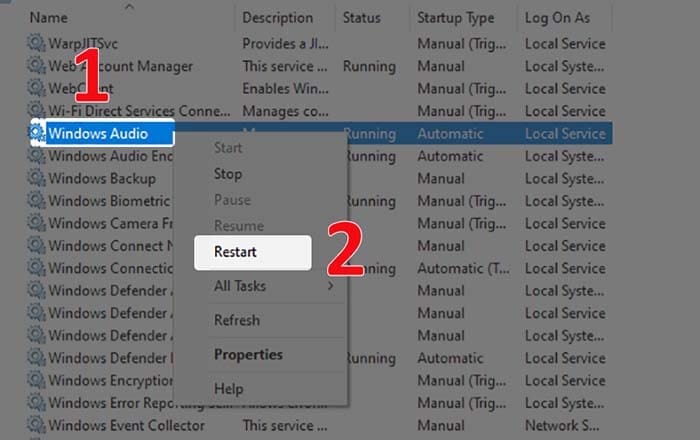
7. Restart the audio services
If the audio service is stopped or faulty, the computer may lose sound. To restart it:
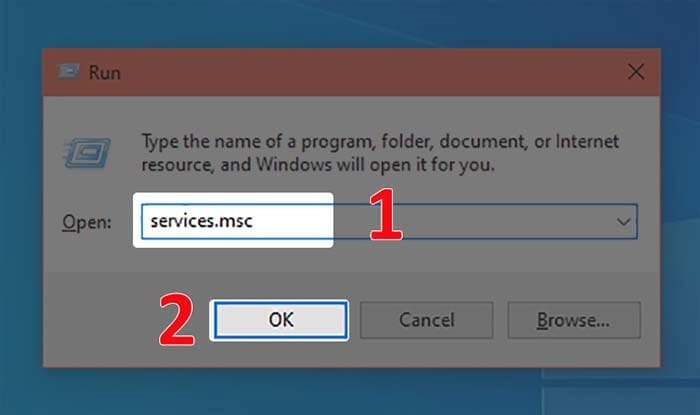
- Step 1: Press Windows + R to open Run, type services.msc and click OK.
- Step 2: Find Windows Audio, right-click it and choose Restart.
8. Use Microsoft’s troubleshooters
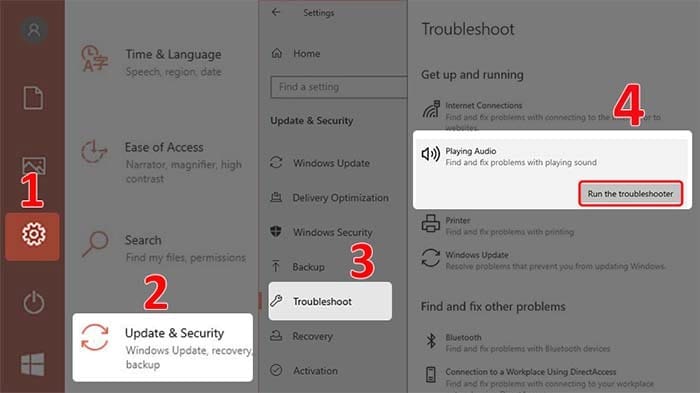
Microsoft provides tools that detect and fix common problems with sound, networking, printers and more.
Open Settings > Update & Security > Troubleshoot > Playing Audio > Run the troubleshooter (on Windows 11: Settings > System > Troubleshoot > Other troubleshooters).
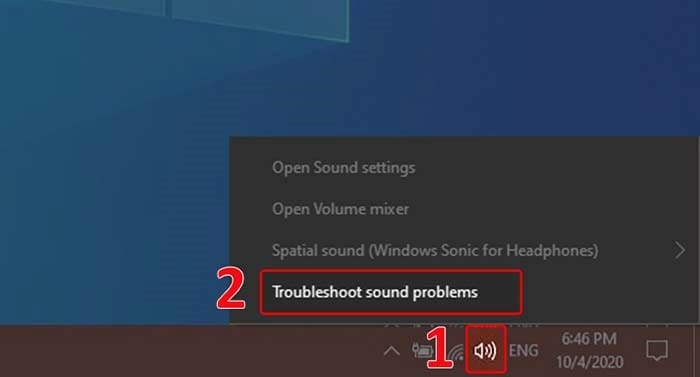
9. Use the Windows audio troubleshooter shortcut
Windows also includes a quick way to find and fix sound problems: right-click the speaker icon at the bottom right of the screen and choose Troubleshoot sound problems.
10. Reinstall the audio driver
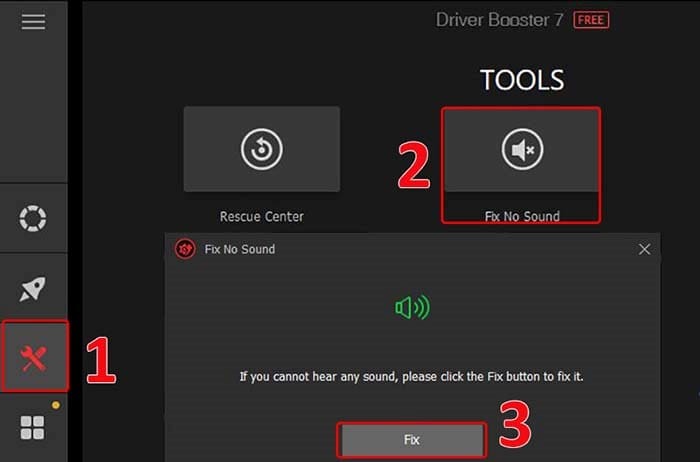
If the steps above don’t work, reinstall the audio driver: open Device Manager > Sound, video and game controllers, right-click your audio device and choose Uninstall device, then restart so Windows reinstalls it. For the best results, download the latest audio driver from your computer or motherboard manufacturer’s website rather than using third-party driver updaters.
11. Set your audio device as the default
If you use two monitors and the extra monitor has no speakers, you may have lost sound because that monitor is set as the default output device. Set your speakers or headphones as the default in Sound settings.
Why choose IT Systems Vietnam to fix computer problems?
IT Systems Vietnam provides outsourced IT services, including:
- Professional computer maintenance: keeping machines in good working order.
- Fast troubleshooting: experienced technicians ready to help when you need them.
- Cost-effective service: solutions for businesses of every size.
Conclusion
No sound can disrupt your work. Understanding the cause and applying the right fix minimises downtime.
Contact IT Systems Vietnam
Contact IT Systems at hotline 028.3995.03.59 or contact@itsystems.com.vn. Follow us on Facebook and YouTube.
Need a technician to check your computer on site?
IT Systems repairs desktops and laptops on site in Ho Chi Minh City, offers remote support within 30 minutes and quotes for your approval before any repair.


