


How to fix a desktop PC that can’t connect to the internet: (1) check the physical connection: the network cable is firmly plugged into the PC and the router/switch, and the LAN port light is on or blinking; try another cable and port; (2) restart the router/modem and the PC; (3) make sure the network adapter isn’t disabled (Network Connections > Enable); (4) run the Network troubleshooter; (5) refresh the IP: ipconfig /release, ipconfig /renew, ipconfig /flushdns; (6) change DNS to 8.8.8.8 / 1.1.1.1; (7) update or reinstall the network adapter driver; (8) reset networking (netsh winsock reset); (9) temporarily disable VPN/antivirus. If the PC uses a USB Wi-Fi adapter, check the adapter. Desktops usually use wired LAN, so the fault is often the cable, port or network card.
Fixing a desktop computer that can’t get online
Introduction
Losing network connectivity is one of the most common problems desktop users face, and it disrupts work. This guide walks you through some simple steps to fix it.
1. Check the physical connection
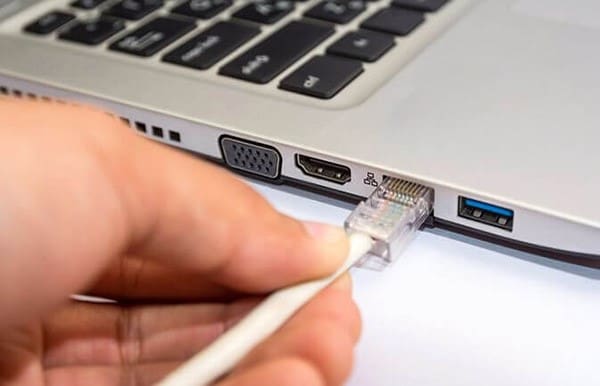
First, check the network cable and ports to make sure the physical connection is solid:
- Make sure the network cable is firmly plugged into the computer and the router/modem.
- Check whether the network port light is on or blinking.
- If you use Wi-Fi, make sure the signal is strong and stable.
2. Restart your network devices
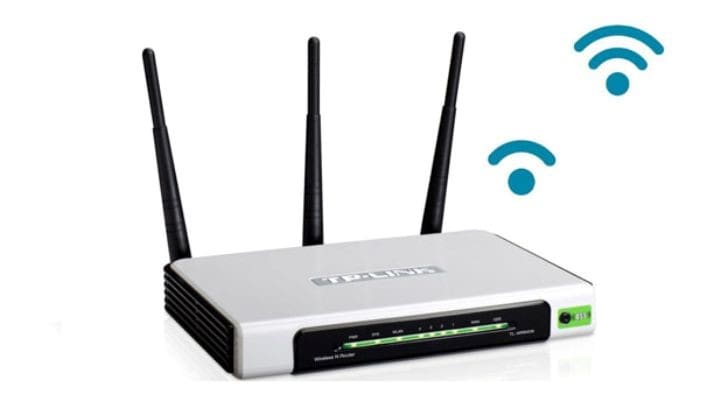
Routers and modems sometimes have connection problems. Restart them to reset the connection:
- Turn the router/modem off for 10–15 seconds, then back on.
- Once it’s running again, check whether the computer can connect.
3. Check the network settings on the computer
If restarting doesn’t help, check the computer’s network settings:
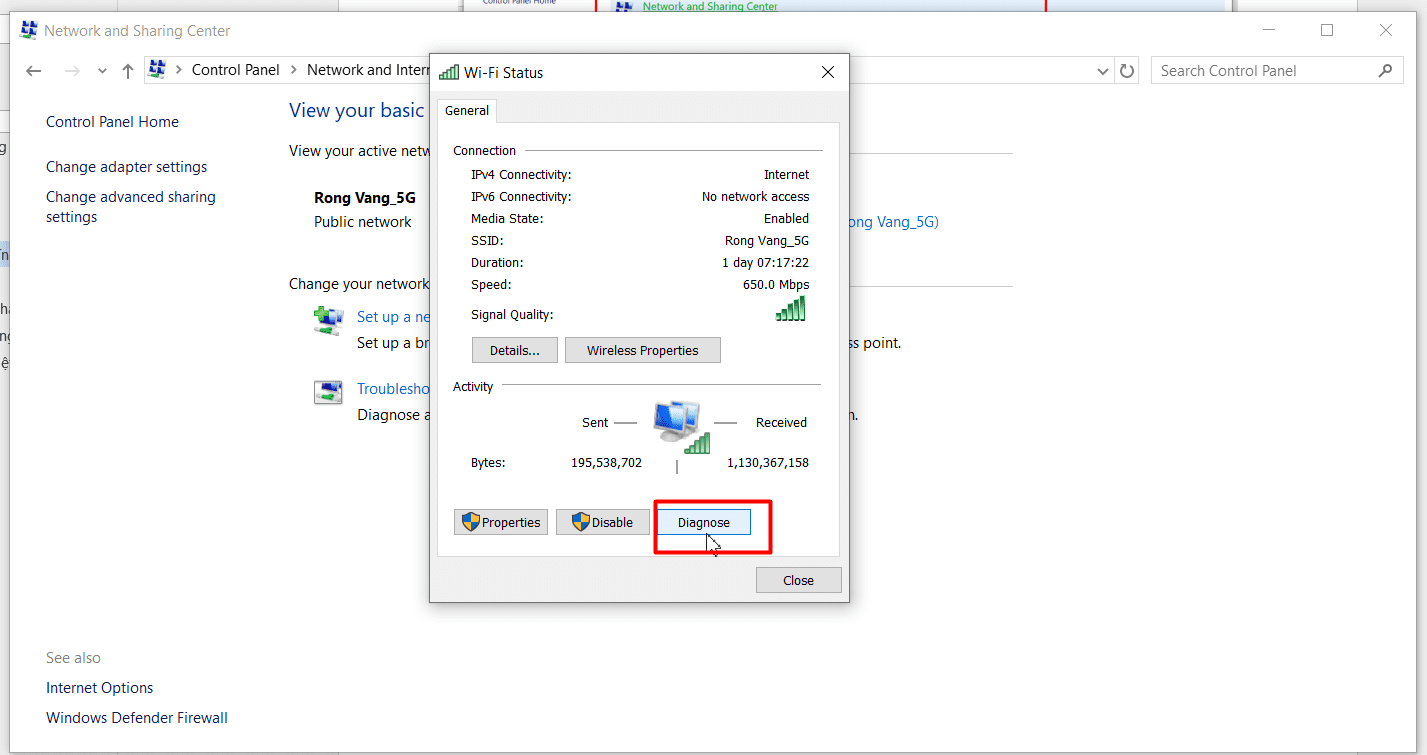
- Go to Control Panel > Network and Sharing Center > Change adapter settings.
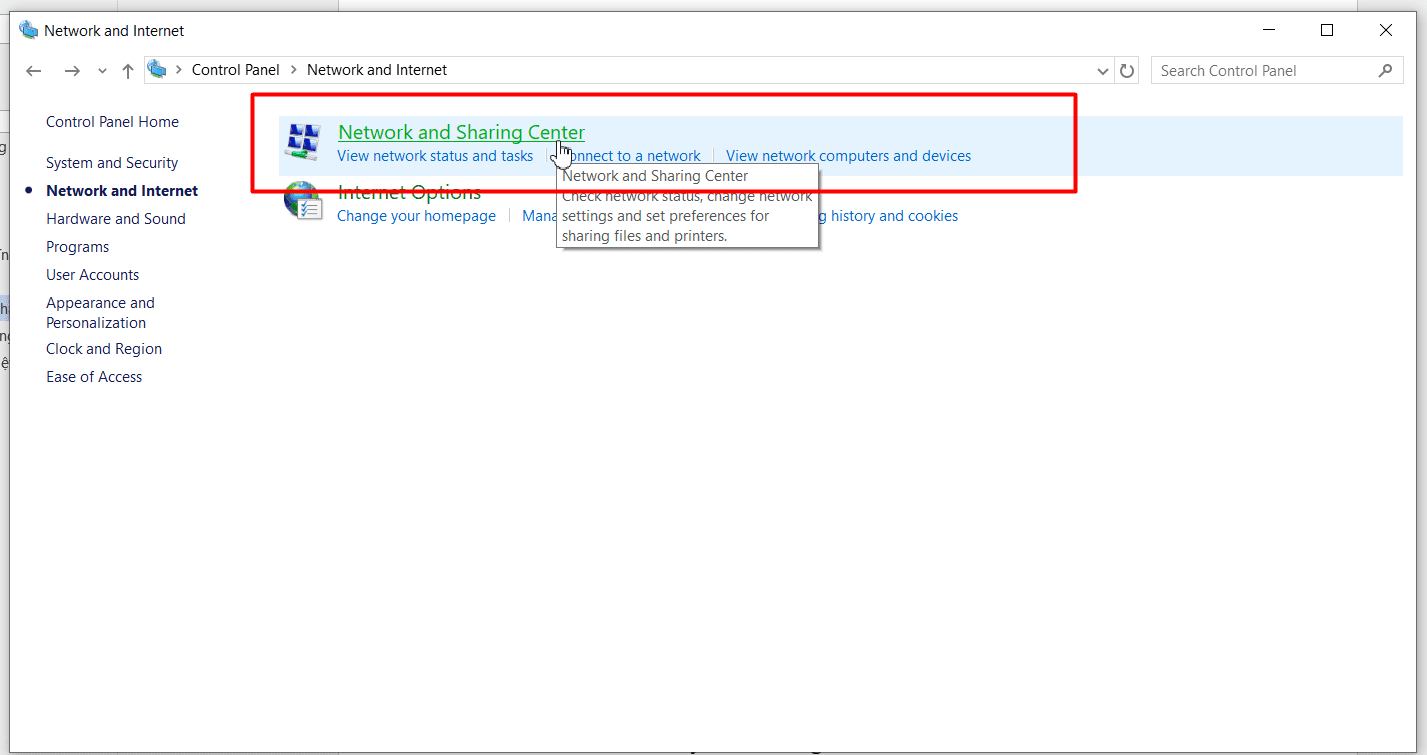
- Right-click Ethernet or Wi-Fi and choose Diagnose so Windows can detect and fix problems automatically.
4. Reset TCP/IP and renew the IP address
Some network problems can be fixed by resetting TCP/IP and renewing the IP address:
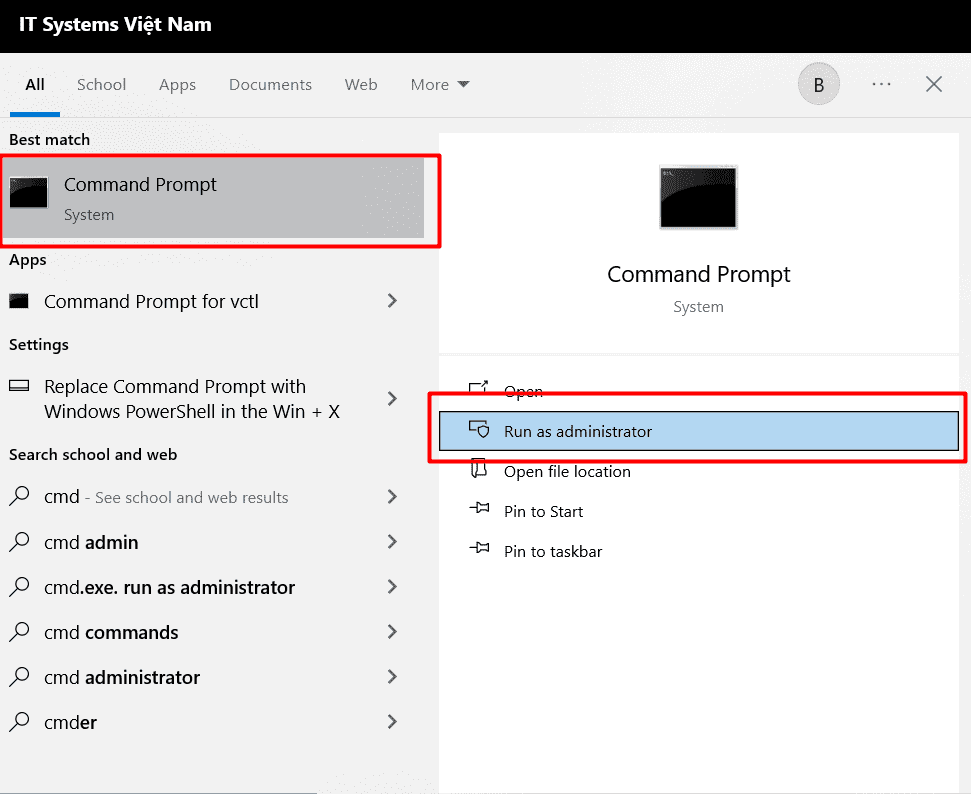
- Open Command Prompt as Administrator.
- Enter the following commands, pressing Enter after each:
netsh int ip resetipconfig /releaseipconfig /renewipconfig /flushdns
- When finished, restart the computer and check the connection again.
5. Try other browsers and websites
Sometimes the problem isn’t the network but a particular browser or website. Try different websites or another browser to see whether the problem persists.
6. Update or reinstall the network driver
Outdated network drivers can cause connection problems. To update or reinstall:
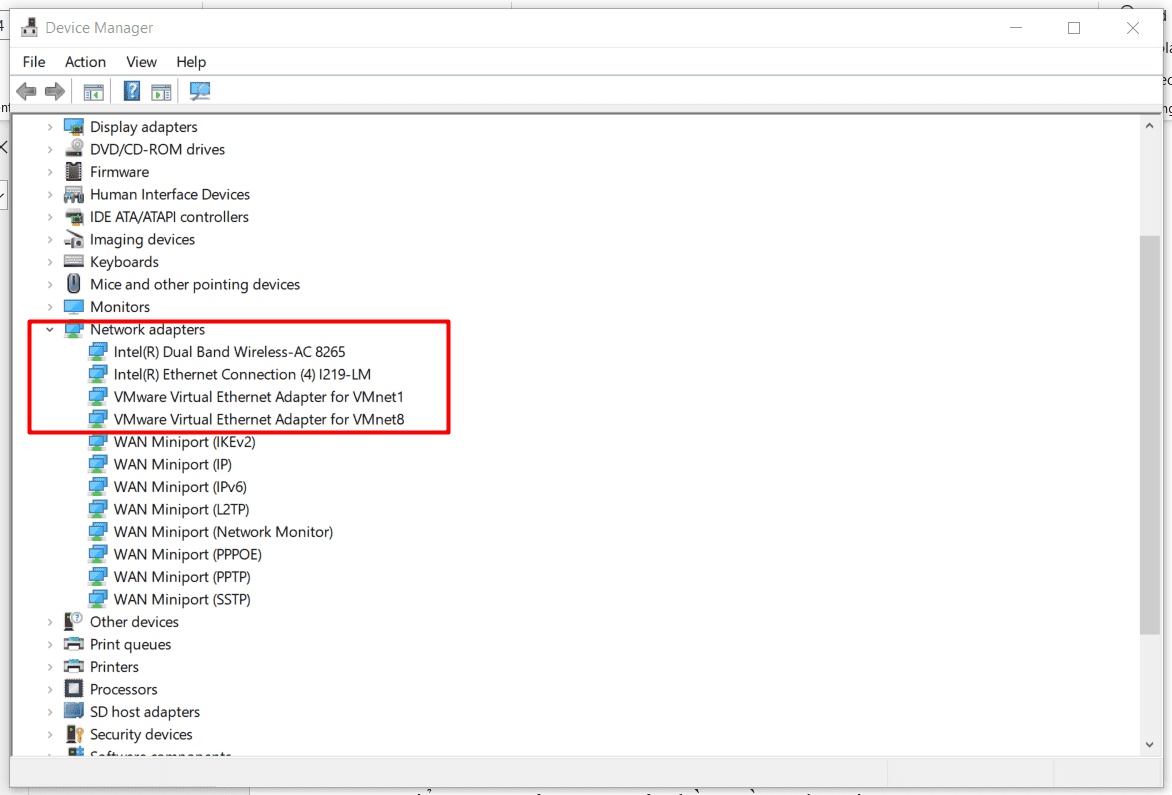
- Open Device Manager > Network adapters.
- Right-click the network adapter and choose Update driver.
- If that doesn’t help, choose Uninstall device and restart the computer so Windows reinstalls the driver.
7. Check the firewall and antivirus software
A firewall or antivirus can sometimes block the connection. Temporarily disable them to see whether they’re the cause, and remember to turn them back on afterwards.
Conclusion
We hope these steps help you fix your computer’s connection yourself. If none of them work, the cause may be hardware or your internet service provider.
Need on-site or remote help with network problems? Contact IT Systems at hotline 028.3995.03.59 or contact@itsystems.com.vn.
Unstable office network that needs redesigning?
IT Systems surveys, designs and deploys LAN, Wi-Fi, firewall and VPN for offices and branches, with full documentation.


