How to configure a TOTOLINK WiFi router: (1) power on the router, connect a cable from the modem to the WAN port, and connect your computer to a LAN port (or to the default WiFi printed under the router); (2) open a browser and go to 192.168.1.1 (or 192.168.0.1 / itotolink.net); (3) log in (the default is often admin/admin — change it straight away); (4) run Quick Setup: choose the connection type (Dynamic IP / PPPoE — enter the ISP username and password for PPPoE); (5) set the WiFi name (SSID) and a strong password (WPA2/WPA3); (6) change the admin password; (7) save and reboot. Advanced: separate 2.4/5 GHz bands, enable a Guest Network and update the firmware. If you can’t reach the setup page, reset the router (hold Reset for about 10 seconds).
1. About TOTOLINK routers
TOTOLINK routers are popular for their reasonable price, solid quality and features that suit a wide range of needs. Whether you’re setting up a home or office network, configuring the router correctly helps you get the most out of your wireless connection.
2. Before you start
2.1. Check the hardware
- Make sure the router is powered on and its lights are steady.
- Connect a network cable from your ISP’s modem to the router’s WAN port.
- Have a computer, laptop or phone ready to open the setup page.
2.2. Find the login details
The router’s default details are usually printed on the label underneath:
- IP address: 192.168.1.1 or 192.168.0.1
- Username/password: admin/admin

2.3. Connect to the router
- Join the router’s default WiFi network (the SSID is on the label).
- Or connect with a LAN cable for a more stable connection.
3. How to configure TOTOLINK WiFi
3.1. Open the setup page
- Open a web browser (Chrome, Firefox or Safari).
- Enter
http://192.168.1.1orhttp://192.168.0.1in the address bar. - Log in with the default account (username
admin, passwordadmin). If it has been changed, use the new details.
3.2. Set up the internet connection
- On the main screen, choose Network Setup or WAN Settings.
- Choose the connection type your ISP uses, usually:
- PPPoE: enter the username and password provided by your ISP.
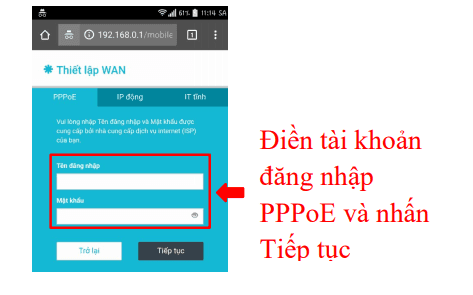
- Dynamic IP: the router gets an IP address from the modem automatically.
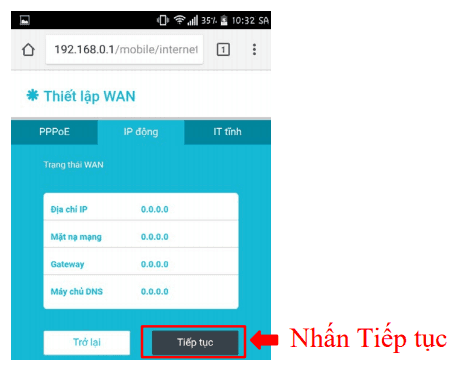
- Static IP: enter the IP address, subnet mask, gateway and DNS you were given.
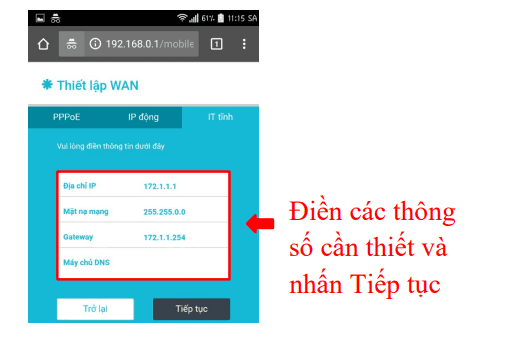
3. Click Save to store the settings.
3.3. Configure WiFi
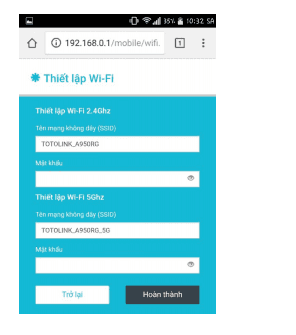
- Go to Wireless Settings.
- Set the following:
- Wireless Network Name (SSID): the name of your WiFi network.
- Channel: Auto, or a channel that avoids interference.
- Security Mode: WPA2-PSK (or WPA3 if supported).
- WiFi Password: a strong password with upper- and lower-case letters, numbers and symbols.
- Click Save to apply the changes.
3.4. Advanced settings
- Guest Network: a separate WiFi network for visitors.
- Parental Controls: limit internet access for specific devices.
- QoS (Quality of Service): prioritise bandwidth for important devices.
3.5. Change the admin password and reboot
Change the default admin password so nobody on your network can log in with admin/admin. Then go to System Tools > Reboot to restart the router and apply all changes.
4. Troubleshooting
4.1. Can’t log in to the router
- Check the connection between your device and the router.
- Make sure you entered the correct router IP address.
- Reset the router to factory defaults by holding the Reset button for 10–30 seconds.
4.2. WiFi isn’t broadcasting
- Check that WiFi is enabled on the setup page.
- Make sure the antennas are attached properly.
- Set the network name or password again if needed.
4.3. Connected to WiFi but no internet
- Check the cable between the router and the modem.
- Make sure the PPPoE username and password are correct.
- Contact your ISP if the problem continues.
5. Tips for better TOTOLINK WiFi performance
- Placement: put the router in a central, open spot away from interference such as microwaves and cordless phones.
- Firmware: download the latest firmware from the official TOTOLINK website and upgrade under System Tools > Firmware Upgrade.
- Band: if your router supports it, use 5 GHz for higher speeds and less interference.
6. Conclusion
Configuring TOTOLINK WiFi isn’t difficult if you follow the steps above. If you need help setting up or optimising your office network, IT Systems Vietnam can help.
Contact IT Systems Vietnam
Contact IT Systems at hotline 028.3995.03.59 or contact@itsystems.com.vn. Follow us on Facebook and YouTube.
Unstable office network that needs redesigning?
IT Systems surveys, designs and deploys LAN, Wi-Fi, firewall and VPN for offices and branches, with full documentation.