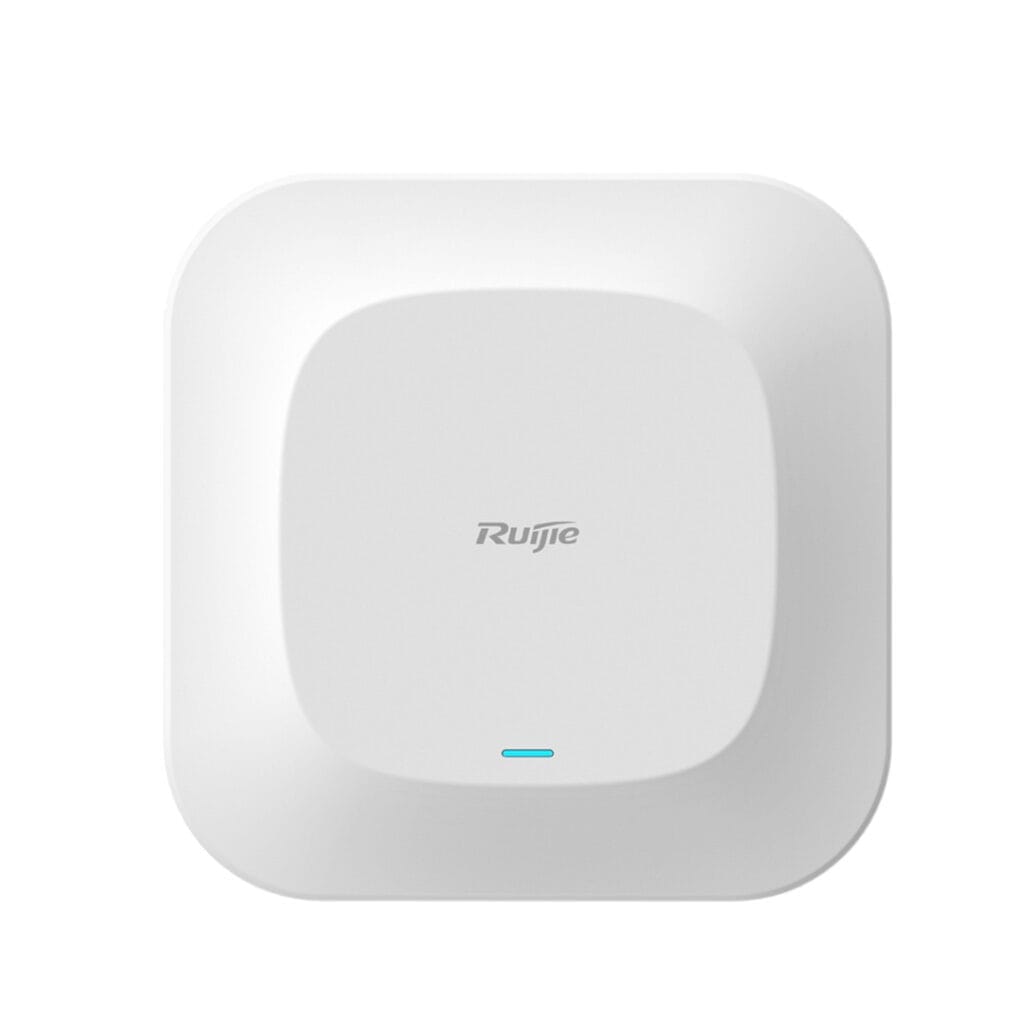
Quick summary: To configure Ruijie Wi-Fi, prepare your equipment, connect the Ruijie router, sign in to its web management page, set the Wi-Fi network name and password, then test the connection. This guide walks through each step.
Quick answer: Configuring Ruijie Wi-Fi: (1) power on the Ruijie router/AP, plug the WAN cable into your ISP modem and connect a laptop to a LAN port or the default Wi-Fi; (2) open a browser and go to the management page, usually 192.168.110.1 (or 10.44.77.254 on some models), and sign in (on first use you set the admin password yourself); (3) run the setup wizard: choose the internet connection type (PPPoE with your ISP user name and password, or DHCP) and set the Wi-Fi name (SSID) and a WPA2/WPA3 password; (4) save, wait for the restart and test the connection. Use the Ruijie Reyee app to manage multiple APs, update firmware and set up a separate guest network.
Wi-Fi is not just a convenience; it is essential infrastructure for work, study and entertainment. In a business especially, a stable, properly configured wireless network improves productivity, protects data and gives users a better experience.
Introduction
Ruijie is a well-known networking brand trusted by many homes and businesses for its stability, security and ease of setup. If you have a Ruijie Wi-Fi router and want to configure it properly, this guide takes you step by step through setting up an optimised network.
If you run into trouble during deployment or need expert help, contact the IT Support service of IT Systems. Our experienced engineers provide on-site or remote support to keep your Wi-Fi fast and reliable.
1. What you need before you start
- A Ruijie Wi-Fi router.
- Power and an Ethernet cable.
- A laptop or PC to open the management interface.
- A web browser such as Chrome, Firefox or Edge.
Note: make sure the router is powered and placed where it will give the best coverage.
2. Connecting the Ruijie Wi-Fi router
Step 1: Connect the hardware
- Plug in the Ruijie router and turn it on.
- Connect the router’s WAN port to your ISP modem, then connect your laptop or PC to a LAN port with an Ethernet cable (or join the router’s default Wi-Fi).
Step 2: Open the management interface
- Open a web browser and enter the router’s default address. On Ruijie Reyee routers this is usually
192.168.110.1; check the label on the back of the device for your model. - On first use you will be asked to create an admin password; on older models, enter the default user name and password shown on the label or in the manual.
3. Configuring Ruijie Wi-Fi
Step 1: Set up the internet connection
- Go to the Network (WAN) settings in the interface, or follow the setup wizard.
- Choose the right internet connection type:
- PPPoE: enter the user name and password provided by your internet service provider.
- DHCP: get an IP address automatically from the ISP modem (suitable for most home users).
- Click Save.
Step 2: Configure the Wi-Fi network
- Go to the Wireless (Wi-Fi) settings.
- Enter the details:
- SSID: the Wi-Fi network name you want.
- Security: choose WPA2 or WPA3.
- Password: use a strong password of at least 8 characters (12 or more is better), mixing letters, numbers and symbols.
- Band: 2.4 GHz (wider coverage) or 5 GHz (faster speeds); many models can broadcast both under one name.
- Click Apply to save.
Step 3: Advanced options (if needed)
- Bandwidth limits: use the QoS settings to prioritise bandwidth for important devices.
- Hide the SSID: hiding the network name keeps it off casual lists, but it is not real security; a strong WPA2/WPA3 password matters far more.
4. Testing the Wi-Fi connection
- Connect a smartphone or laptop to the new Wi-Fi network.
- Browse a few websites or run a speed test (Speedtest) to confirm the connection is stable.
- If something goes wrong, re-check the settings you entered or restart the router.
5. Advanced features on Ruijie Wi-Fi
Network security
- Enable the firewall: protect the network from unauthorised access.
- Restrict devices: allow only devices with registered MAC addresses.
- Guest network: put visitors on a separate SSID isolated from office devices.
User management
- See connected devices in the Client List.
- Block unwanted devices.
Mesh Wi-Fi (on supported models)
Ruijie supports mesh networking, making it easy to extend coverage by linking several devices together.
6. Tips for better Wi-Fi
- Router placement: place it centrally, away from walls and obstacles.
- Update firmware: keep the router on the latest firmware version.
- Change passwords periodically: this strengthens network security.
Conclusion
With the steps above, you can configure Ruijie Wi-Fi quickly and effectively, with good speed and solid security. If you have trouble, check the manufacturer’s documentation, or contact IT Systems at hotline 028.3995.03.59 or contact@itsystems.com.vn for help designing and deploying Wi-Fi for your office.
Upgrade office Wi-Fi: devices on IT Systems Store
- Ruijie RG-RAP2266 – ceiling Wi-Fi 6, central management · VND 2,900,000
- Ruijie RG-EW3000GX – Wi-Fi 6 mesh, about 60 users · VND 1,463,000
- UniFi U7 Lite – Wi-Fi 7, UniFi-managed (PoE injector not included) · VND 3,700,000
Need a coverage survey and installation: contact IT Systems. Prices excl. VAT, from IT Systems Store, Nov 2026.
FAQ
What is Ruijie Reyee?
Ruijie network line for small and mid-sized businesses, centrally managed through the Ruijie app and cloud, configuring many access points at once.
What should I note when setting up Ruijie Wi-Fi the first time?
Change the default admin password, set SSID and WPA2/WPA3 password, separate a guest SSID and update to the latest firmware.
Can multiple Ruijie access points roam?
Yes, when the APs are in the same managed network (Reyee/cloud) using the same SSID; users move between rooms without reconnecting.
Unstable office network that needs redesigning?
IT Systems surveys, designs and deploys LAN, Wi-Fi, firewall and VPN for offices and branches, with full documentation.