


Quick answer: common network problems and how to fix them: (1) No internet at all: restart the modem/router, check cables and call your ISP if the status lights show an error. (2) Weak or unstable Wi-Fi: move the router to an open spot, change the channel, add an extender or mesh system and avoid obstacles and interference. (3) Connected but websites will not load: change DNS (1.1.1.1 or 8.8.8.8) and run ipconfig /flushdns. (4) IP conflicts or no IP address: reset DHCP with ipconfig /release and /renew. (5) One website will not open: clear the browser cache and try another browser or device. (6) Slow network: look for devices using a lot of bandwidth, background downloads or sync, or a problem with the line. Offices with many devices should also check the firewall, switches and network configuration.
Today almost every device, from phones and laptops to TVs and cameras, depends on the internet for work, study and entertainment.
Sooner or later everyone runs into network problems: unstable connections, weak Wi-Fi, sudden outages, DNS errors or websites that will not open. These interruptions are frustrating, especially when the cause is unclear. This article covers the most common network problems and basic fixes that anyone can apply.
If you need deeper technical support, especially for a business network with many devices, contact the IT Support service from IT Systems for fast, safe and professional help.
“A network cable is unplugged” error
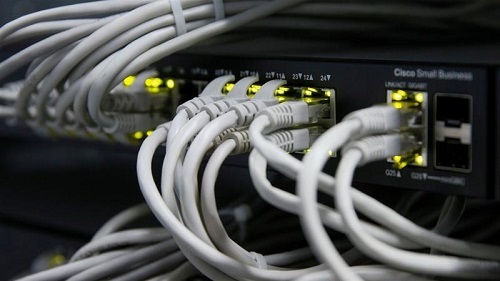
Windows shows the message “A network cable is unplugged” on the desktop.
Several things can cause it, including a damaged cable, a loose connector or a problem with the network adapter driver. On a wired connection you lose network access completely. If you are also connected by Wi-Fi, the network keeps working but the message keeps reappearing until the issue is fixed.
How to fix it
- Unplug and firmly reconnect the cable at both ends, and try another cable and switch or router port.
- Check the link lights on the network port; if they stay off, the cable or port is likely faulty.
- Update or reinstall the network adapter driver in Device Manager.
- If you only use Wi-Fi, disable the unused Ethernet adapter in Network Connections to stop the message.
“Cannot connect to the server” error
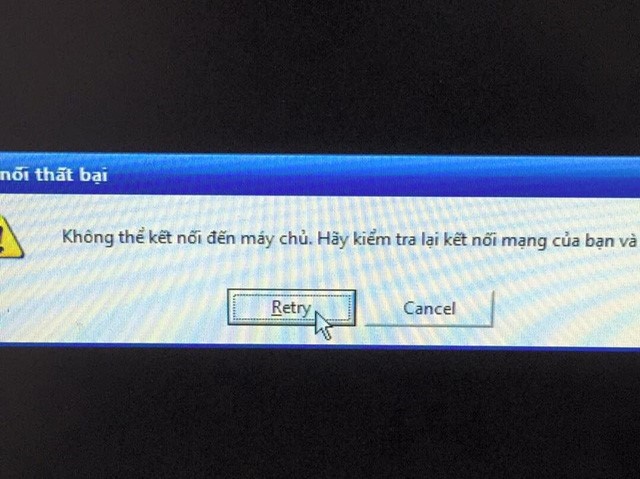
This is one of the most common messages. It is natural to assume the internet is down, but that is not the only possible cause.
If the error happens frequently even though the computer has a valid IP address, there may be a routing problem between the workstation and the server, which you can check quickly with ping and tracert. If it happens only occasionally, the server may be overloaded and unable to respond.
How to fix it
If routing is not the problem, check the server’s resource usage: is it overloaded by tasks such as backups running at the same time? If not, check whether the network link between workstation and server is saturated. The best approach is an SNMP-based monitoring tool that tracks link performance.
Ethernet errors (FCS errors, alignment errors or late collisions) on switches and routers can also cause packet loss between workstation and server.
DNS errors
With a DNS problem you cannot reach the internet or use apps that need the network, and the system may show “No internet”.
The workstation cannot resolve server names, so it cannot send connection requests. Causes include incorrect DNS settings on the workstation, a DNS server that cannot answer the requests, or packet loss on the line. DNS usually runs over UDP, so lost packets are not automatically retransmitted.
How to fix it
Check the workstation’s DNS settings. If they are wrong, correct them on the workstation or fix the DHCP server so it hands out the right information.
If packets are being lost, look for Ethernet errors between the workstation and the server.
Ideally, set up a tool that continuously checks the DNS servers and alerts you when there is a problem.
Browser set to use a proxy
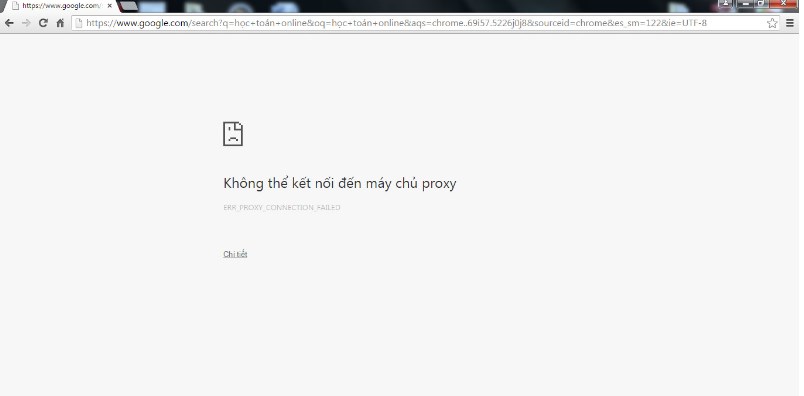
In Chrome, Edge or Firefox you may see a message such as “There is something wrong with the proxy server, or the address is incorrect”, and you cannot browse even though the device is connected.
How to fix it
Chrome and Edge use the Windows proxy settings: open Settings > Network & internet > Proxy in Windows (or in Chrome: Settings > System > Open your computer’s proxy settings). Turn off Use a proxy server unless your company requires one.
In the classic Internet Options dialog: Connections tab > LAN settings, untick Use a proxy server for your LAN and click OK.
Firefox: Settings > General > Network Settings > Settings, then choose No proxy or Use system proxy settings.
If the proxy keeps turning itself back on, scan for malware or ask your IT team, as it may be set by company policy.
IP address problems
A wrong static IP address is a common reason a device cannot get online.
How to fix it
Open Control Panel > Network and Sharing Center > Change adapter settings, right-click the Wi-Fi or Ethernet adapter and choose Properties. Select Internet Protocol Version 4 (TCP/IPv4) > Properties, set Obtain an IP address automatically and Obtain DNS server address automatically, then click OK. Do not change this on devices that need a fixed address, such as printers or servers.
Conclusion
Network problems are unavoidable, but understanding the causes and applying the right fix keeps business networks stable and efficient. IT Systems can help troubleshoot network issues and optimise company networks. Contact us at hotline 028.3995.03.59 or contact@itsystems.com.vn.
Unstable office network that needs redesigning?
IT Systems surveys, designs and deploys LAN, Wi-Fi, firewall and VPN for offices and branches, with full documentation.

