



As more work moves online, Google offers convenient cloud storage, most notably Google Drive. Mac users who find iCloud’s free 5 GB too small can use Google Drive on their MacBook for more space and an extra copy of their data. Here is what Google Drive is and how to use it on macOS.
How to install and use Google Drive on macOS: (1) download Google Drive for desktop from google.com/drive/download; (2) open the .dmg file and run the installer; (3) sign in with your Google account; (4) choose Stream files (files stay in the cloud and download when needed, saving disk space) or Mirror files (keep a local copy); (5) Google Drive appears in Finder like a drive, so you can drag and drop files to sync them; (6) optionally choose folders on your Mac to back up to Drive automatically. Google gives you 15 GB free. If macOS blocks it, allow it in System Settings > Privacy & Security.
What is Google Drive? Key features
Google Drive is one of the most popular online backup and cloud storage services. You get 15 GB of free storage, and individual uploaded files can be up to 5 TB. You can use Drive to back up and sync data across laptops, MacBooks, iMacs and PCs. Keep these limits in mind for Google’s own file types:
- Google Docs: up to 1.02 million characters; converted text files up to 50 MB.
- Google Sheets: up to 10 million cells.
- Google Slides: converted presentations up to about 100 MB.
- Drawings, Forms and other files also count towards your 15 GB of free storage.
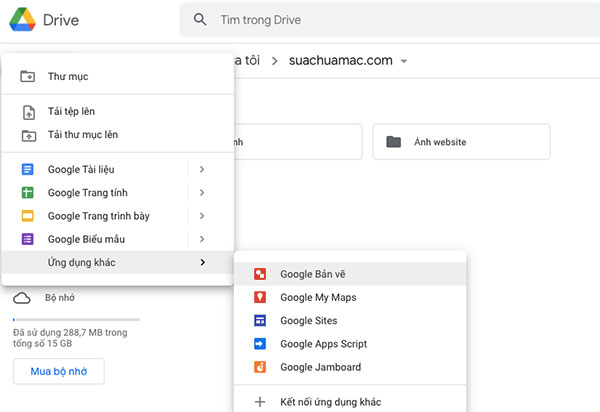
If the free storage is not enough, you can buy more through Google One. Drive offers backup and sync for files, photos and other data on your MacBook, and lets friends and colleagues view and edit the files and folders you share with them.
Google also has a dedicated Mac app. The older version from 2017, called Backup and Sync, has been replaced by Google Drive for desktop, which lets you browse and open your Drive files quickly from Finder.
How to install and use Google Drive on macOS
Any Google account (Gmail, YouTube, Google Play) can use Google Drive. You can use it in a web browser, but installing the Google Drive app on your Mac makes files faster to access and easier to manage. These steps work on MacBook Air, MacBook Pro and iMac, including Apple silicon models:
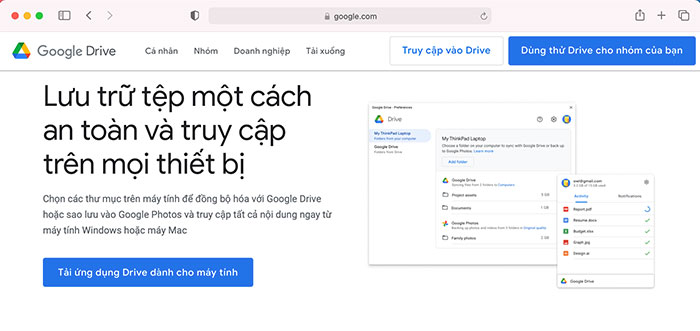
Step 1: Go to the Google Drive website and click Download Drive for desktop.
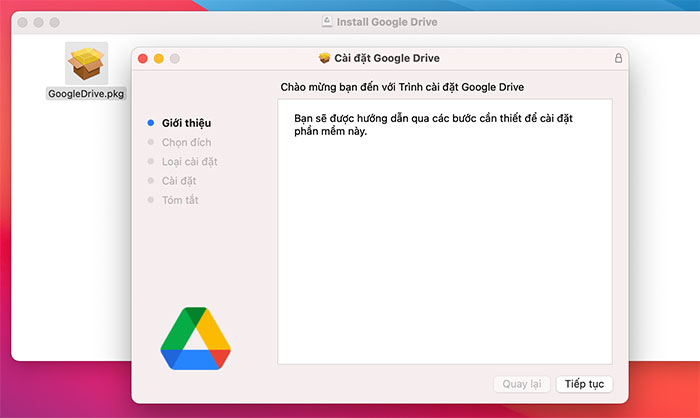
Step 2: Open the downloaded file. A window with the .pkg installer appears; double-click it, click Continue, follow the steps and enter your Mac password to finish installing.
Step 3: After a few seconds, the Google Drive icon appears in the menu bar at the top of the screen. (If it does not, open Launchpad and click Google Drive.)
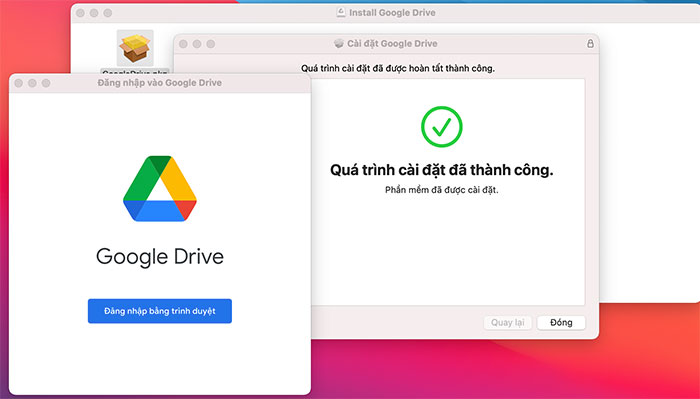
Step 4: Click the Google Drive icon in the menu bar and choose Sign in. The Google sign-in page opens; choose your account and click Sign in to grant access.
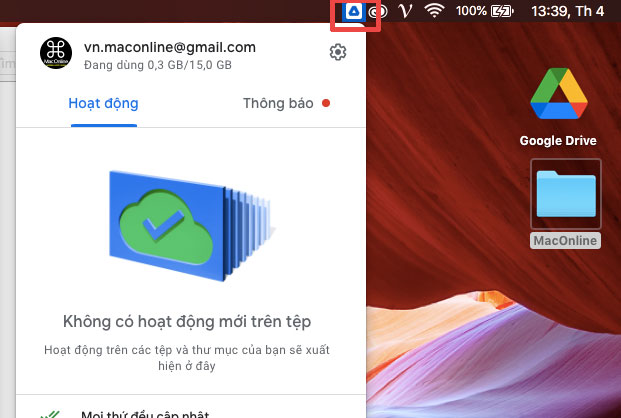
When sign-in succeeds, your browser shows a confirmation. From now on, you receive notifications on your Mac about changes in that Drive account.
Step 5: To access your Drive files, open Finder; Google Drive appears in the sidebar on the left. You can also create an alias of the folder on your desktop for quick access.
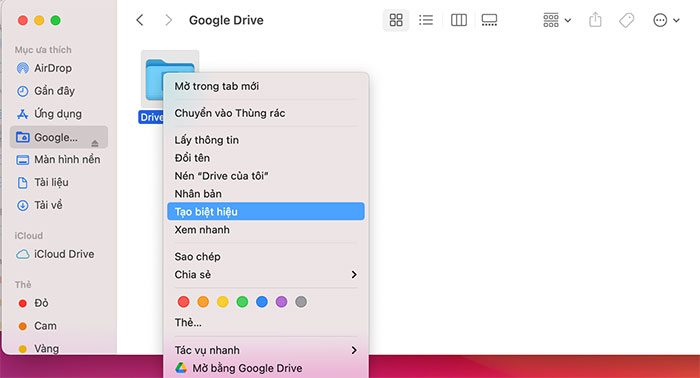
Using Google Drive on macOS is simple: your files are synced and kept up to date. To share files with others, you can also use the Google Drive website directly. If you no longer need the app, follow the steps below to remove it.
How to uninstall Google Drive and remove its data on macOS
To uninstall completely, first disconnect your account and quit the app:
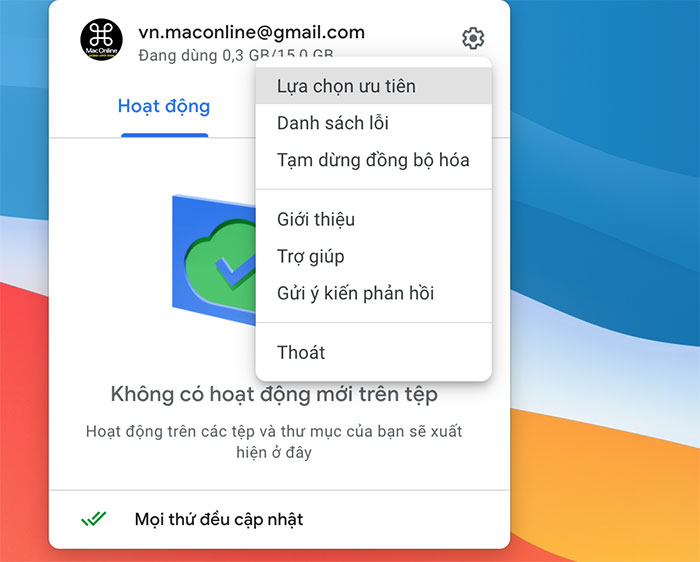
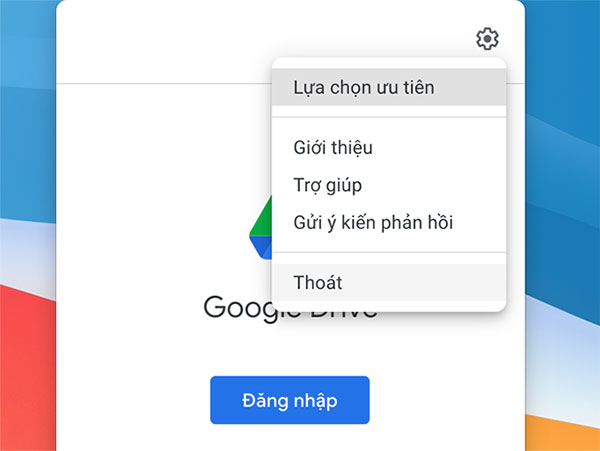
Step 1: Click the Google Drive icon in the menu bar, click the gear icon next to your account and choose Preferences.
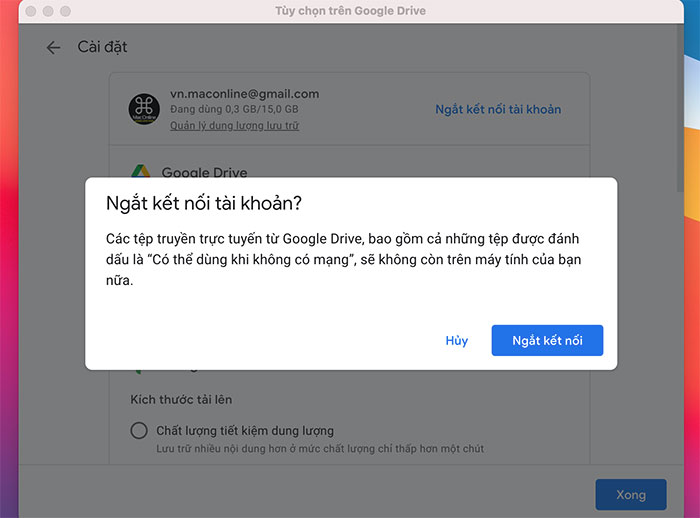
Step 2: Click Disconnect account and confirm to disconnect Google Drive from your Mac.
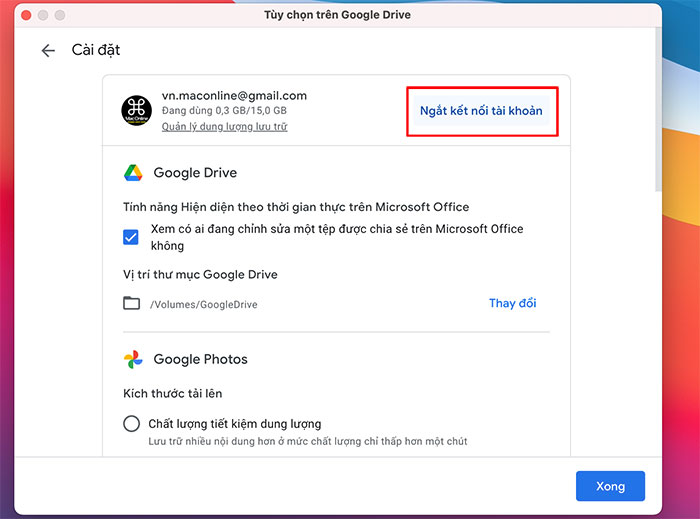
A warning explains that the locally cached copies of your files will be removed from this computer (files in the cloud are not deleted). Click Disconnect to continue.
Step 3: Click the Google Drive icon, open Settings and choose Quit to close the app completely.
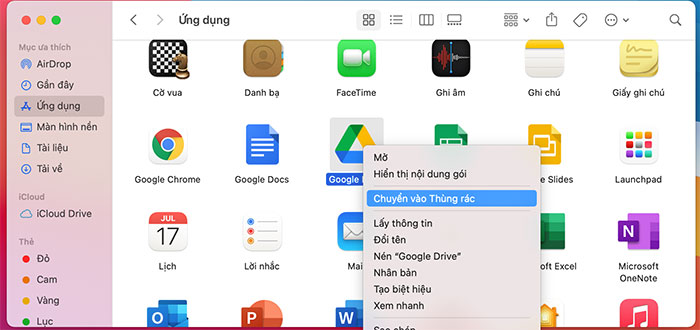
Step 4: To remove the app, open Finder > Applications, right-click Google Drive, choose Move to Trash and enter your password to confirm.
That covers what Google Drive is and how to install, use and remove it on macOS. For Google Workspace and file-sharing setup for your business, contact IT Systems at hotline 028.3995.03.59 or contact@itsystems.com.vn.
Does this keep happening in your office?
The IT Systems Helpdesk logs requests as tickets, responds remotely within 30 minutes and comes on site in Ho Chi Minh City and Hanoi when needed.


