


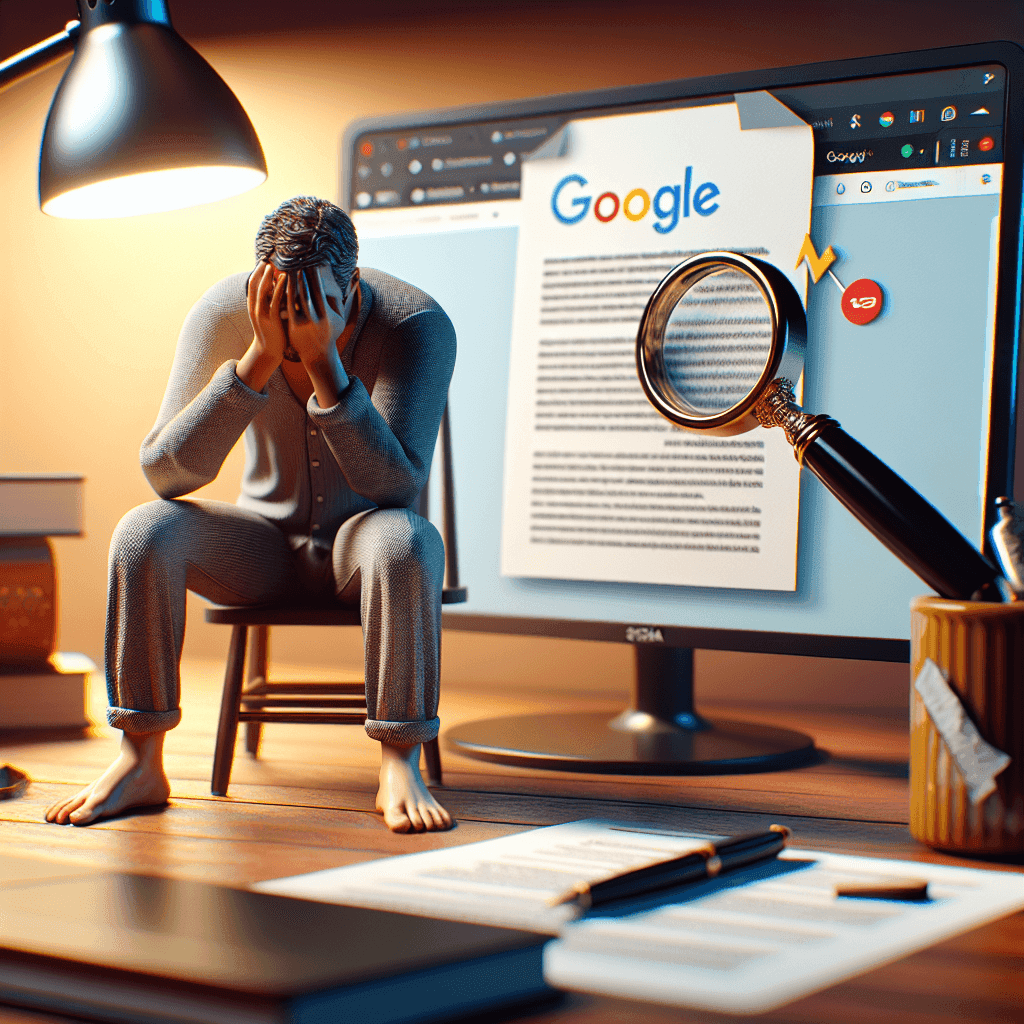
Google Docs Cannot Be Edited: Causes & Solutions
Google Docs has become an essential tool in the daily work of many users. However, the inability to edit uploaded documents on Google Docs can be frustrating and affect your work. Below, we will explore the causes leading to this issue as well as effective solutions.
Why Does Google Docs Not Allow Edits? Identifying the Culprits
There are many reasons why Google Docs may not let you edit a document. Here are the most common causes users encounter:
1. Access Error: ‘View Only’ on Google Docs
If your document is in ‘view only’ mode, you will not be able to edit the content. This may occur because you do not have editing permissions or the document has been assigned to another user for management.
2. Document Format Incompatible with Google Docs
Google Docs supports various document formats, but not all can be edited. If your document has an incompatible format, it may prevent you from making changes.
3. Google Account Issues or Not Logged In
Not being logged into your Google account or having account-related errors may also lead to the inability to access editing features in Google Docs. Make sure you are logged into the correct account with document access rights.
4. Unstable Internet Connection Causing Google Docs Errors
An unstable Internet connection can cause errors while using Google Docs. If you frequently encounter this issue, check your connection and try restarting your router or connecting to a different network.
5. Add-ons Conflict with Google Docs
Add-ons can sometimes cause unwanted issues in Google Docs. Try disabling any active add-ons to see if they are the source of the problem.
6. Temporary Google System Error (Rare Occurrence)
It is possible that Google may experience a temporary issue that prevents you from editing documents. Regularly check Google’s official website for service status updates.
[Detailed Guide] How to Fix ‘Cannot Edit’ Error on Google Docs
In this section, we will explore quick and easy ways to resolve the inability to edit issue on Google Docs.
Method 1: Check and Change Google Docs Access Permissions
To check access permissions, click on the ‘Share’ button on your document. See if you have the necessary permissions to edit the document. If not, request the document owner to adjust permissions for you.
Method 2: Convert Document Format to Google Docs (Google Documents)
If your document has an incompatible format, you may try re-uploading the document and converting it to Google Docs format. This could make it easier to edit content in Google Docs.
Method 3: Log Back into Your Google Account
Sometimes, logging back into your Google account can fix the editing issue. Sign out and sign back in to refresh your session.
Method 4: Check Internet Connection and Reload the Page
Check if your Internet connection is stable. If there are issues, restart the router or switch to another network. Then, reopen Google Docs to check the situation.
Method 5: Disable Add-ons on Google Docs
By going to the ‘Tools’ section in the toolbar, you can disable the add-ons currently active on Google Docs. After disabling, try again to see if you can edit the document.
Method 6: Copy Content to a New Google Docs Document
Finally, you can copy all the content of the problematic document and paste it into a new Google Docs document. This is a simple yet effective method if the other approaches do not work.
Q&A: Common Questions about Google Docs Editing Errors
Here are some common questions users often have when encountering the ‘cannot edit’ error in Google Docs:
Why can’t I edit Google Docs even though I have access?
The document may be in ‘View Only’ mode; you need to check and request editing permissions from the document owner.
How do I know if a Google Docs document is in ‘View Only’ mode?
When you open the document, if you see ‘View’ notification next to the document’s name, it means you do not have editing rights.
Does Google Docs auto-save changes?
Yes, Google Docs automatically saves changes you make. However, if there is a poor Internet connection, you may experience issues.
Can I edit Google Docs offline?
Yes, but you need to be online first and enable the offline editing feature in Google Docs settings.
In Conclusion: Adequately Handle Google Docs Editing Errors
The inability to edit documents on Google Docs can occur for various reasons. However, with the above guidance and tips, you can identify the cause of the issue and apply the necessary solutions. Hopefully, you will no longer face troubles while using Google Docs in the future.
If you need assistance, please contact us right away
IT SYSTEMS VIETNAM CO., LTD
IT Solutions – Your Business IT Department
HOTLINE: 028.3995.03.59
Email: contact@itsystems.com.vn
Website: https://itsystems.vn/
Facebook: https://www.facebook.com/ITSystems.VIETNAM
Youtube: https://www.youtube.com/@ITSYSTEMS
HCM: 321/10 Phan Dinh Phung, Cau Kieu Ward, Ho Chi Minh City, Vietnam.
Hanoi: House No. 22, Garden Villa Area, Vinh Hoang Urban Area, 431 Tam Trinh Street, Hoang Mai District, Hanoi, Vietnam.
FAQ
Why can I only view a Google Doc and not edit it?
You have Viewer or Commenter access, are signed in to the wrong account, or the file is a Word (.docx) file opened in preview. Check which account is shown at the top right.
How do I get edit access?
Click Request edit access to notify the owner, or ask the owner to change your role to Editor under Share.
Can I edit a Word file stored in Google Drive?
Yes, in Office editing mode, but use File > Save as Google Docs for long-term collaboration to avoid formatting issues.
Does this keep happening in your office?
The IT Systems Helpdesk logs requests as tickets, responds remotely within 30 minutes and comes on site in Ho Chi Minh City and Hanoi when needed.


