


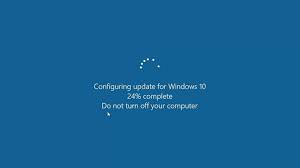
Quick fixes when Windows Update is stuck: (1) be patient: large updates can take a long time; only treat it as stuck if the percentage has not moved for about 3 hours; (2) restart the computer (hold the power button if necessary) and let Update run again; (3) run the Windows Update troubleshooter: Settings > System > Troubleshoot > Windows Update; (4) reset it manually: open Command Prompt as administrator, run net stop wuauserv and net stop bits, rename C:\Windows\SoftwareDistribution to SoftwareDistribution.old, then run net start wuauserv and net start bits; (5) run sfc /scannow and DISM /Online /Cleanup-Image /RestoreHealth; (6) make sure drive C has more than 20 GB free; (7) if one update keeps failing, download it manually from the Microsoft Update Catalog.
Sooner or later, most laptop users see Windows Update freeze or fail. Here are tips you can use to fix it yourself before calling a technician.
Windows Update can get stuck on any version of Windows, including during Windows 10 feature upgrades. Sometimes the update hangs for hours or even a whole day, leaving you unable to use the computer.
Summary: Windows Update getting stuck on a laptop is usually caused by network problems, corrupted update files, low disk space or software conflicts. This article shares tips for fixing a stuck Windows Update without calling a technician.
If it happens to you, do not worry: there are several fixes you can try at home.
How to fix a stuck Windows Update
First, do not be impatient: some large updates take a long time to install.
However, if the update has not progressed for 3 to 4 hours, it is probably stuck. Hold the power button to turn the computer off, wait about 10 minutes and turn it on again. Then go to Start > Settings > Update & Security > Check for updates (on Windows 11: Settings > Windows Update).

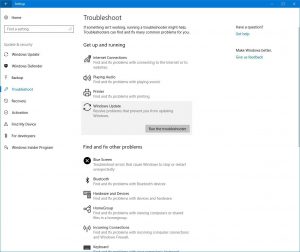
If that does not work, use the Windows Update troubleshooter. On Windows 10, go to Settings > Update & Security > Troubleshoot > Additional troubleshooters > Windows Update > Run the troubleshooter. On older versions, open Control Panel, choose View by Category, then under System and Security choose Find and fix problems > Fix problems with Windows Update. Click Advanced, make sure Apply repairs automatically is ticked and click Next. Windows checks the system and fixes any Windows Update problems it finds. Click Close when it finishes.
You can also reset Windows Update manually. Right-click the Start button and choose Command Prompt (Admin), Windows PowerShell (Admin) or Terminal (Admin).
Type net stop wuauserv and press Enter to stop the Windows Update service (also run net stop bits). Leave the window open, then open File Explorer and go to C:\Windows\SoftwareDistribution. To be safe, you can copy this folder somewhere else first.
Open the SoftwareDistribution folder and delete everything inside it. These are temporary update files that Windows will download again.
Go back to Command Prompt, type net start wuauserv (and net start bits) and press Enter to restart the service. Then check whether updates download correctly.
Fixing Windows Update that keeps failing
Clear the update download folder
If downloads get stuck or updates are repeatedly rejected during installation, the downloaded files are probably corrupted. Delete the folder contents so Windows Update downloads everything again.

Press Windows + R to open Run, enter C:\Windows\SoftwareDistribution\Download and click OK. Press Ctrl + A to select all files and press Delete. Do not delete the folder itself.
If any file cannot be deleted, start the computer in Safe Mode and try again (or stop the Windows Update service first as above). Then restart and run Windows Update.
Temporarily disable antivirus software
Antivirus software rarely interferes with updates, but it is possible, so temporarily disabling it can help solve update errors.
Each antivirus program has its own method, but usually you can open it and turn protection off, look in its Settings or Options, or right-click its icon in the system tray. Remember to turn it back on afterwards.
Disconnect external drives and disable VPN
External storage such as DVD drives, USB drives or card readers can also cause update failures. Remove them with Safely Remove Hardware in the system tray, or disable them under Disk drives in Device Manager.
If Windows Update shows specific errors such as 0x80200056 or 0x800F0922, the cause may be the network connection (0x800F0922 can also mean the System Reserved partition is too small). Disconnect any VPN running on the computer and try again.
See more technology news. For Windows update management on business computers, contact IT Systems at hotline 028.3995.03.59 or contact@itsystems.com.vn.
FAQ
How long at one percentage before Windows Update is stuck?
Large updates can take hours. Treat it as stuck only after about 3 hours with no progress and no drive activity.
Will powering off during an update damage the PC?
It can corrupt system files. If you must, Windows usually rolls back the update on restart; if it won’t boot, use Startup Repair or System Restore.
How should a business manage Windows Update?
Control update rings centrally (Intune, WSUS or Group Policy), pilot on a few PCs first and install outside working hours.
Need a technician to check your computer on site?
IT Systems repairs desktops and laptops on site in Ho Chi Minh City, offers remote support within 30 minutes and quotes for your approval before any repair.


