


Quick answer: an overheating computer — harms and fixes. When the CPU/GPU exceeds its temperature limit, the computer throttles, causing slowdowns and lag; prolonged heat can cause freezes, sudden shutdowns or restarts and shortens the life of components and the battery. Causes: dust in fans and vents, dried thermal paste, failed fans, placing the machine on soft surfaces (blankets, cushions) that block airflow, hot rooms, heavy workloads or malware using the CPU. Fixes: (1) clean fans and vents; (2) replace thermal paste (on older machines); (3) use a flat, hard surface and a laptop cooling pad; (4) check CPU-hungry processes in Task Manager and scan for malware; (5) update BIOS and drivers; (6) monitor temperatures with HWMonitor or Core Temp; (7) replace fans that are noisy or not spinning.
Overheating computers: harms and prevention
Computers are essential for work, study and entertainment. But if your computer runs too hot, performance suffers and both hardware and software can be seriously affected. In this article, IT Systems Vietnam explains the harms of overheating, its causes and how to prevent it.
1. Harms of overheating
1.1. Reduced performance
When CPU or GPU temperature exceeds the safe limit, the system automatically reduces performance to protect components — “thermal throttling”. As a result:
- The computer slows down and applications stutter or lag.
- Heavy tasks such as gaming, video editing or data processing are interrupted.
- Work takes longer, directly affecting productivity.
1.2. Component damage
Heat is hardware’s biggest enemy. When a computer runs hot continuously:
- CPU and GPU: shorter lifespan from frequent thermal stress.
- Motherboard: small circuits can burn out or fail.
- Hard drives: especially HDDs, heat reduces durability and risks data loss.
- Battery (laptops): drains faster, degrades, and in extreme cases can swell or catch fire.
1.3. Higher risk of data loss

Overheating increases the risk of sudden shutdowns, which can lead to:
- Loss of unsaved work.
- Operating system or software errors.
1.4. Danger to users
An overheating laptop is uncomfortable to touch, especially on your lap. In serious cases, high temperatures can lead to battery fires, endangering people and property.
2. Causes of overheating
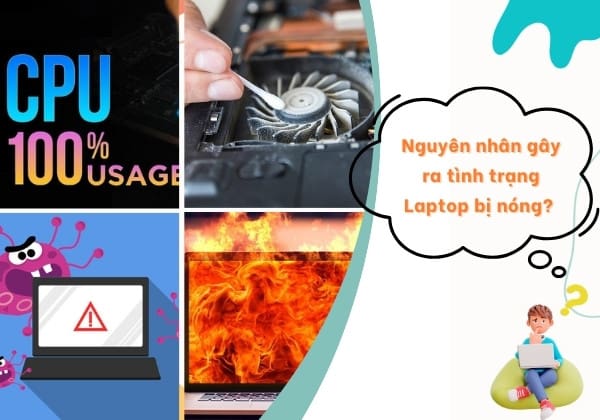
Overheating is a sign that the device is struggling to control its temperature. Understanding each cause helps you fix the problem properly.
2.1 Dust build-up
Fans and vents collect dust over time. Dust blocks airflow so the cooling system can’t work efficiently; heat from the CPU and GPU can’t escape and temperatures rise.
Dust can also slow the fans, making them loud but less effective. A dusty system heats up faster than a clean one.
2.2 Dried or degraded thermal paste
Thermal paste is the thin layer between the CPU/GPU and the heatsink that transfers heat. Over time it can dry out and lose conductivity, so heat isn’t transferred efficiently.
A system with poor thermal paste can overheat even during light tasks such as web browsing or word processing.
2.3 Faulty or unstable fans
Fans are vital for cooling. When a fan fails, spins weakly or gets loud, cooling drops significantly — usually because the fan is worn out, dusty or its lubricant has dried.
A failing fan makes temperatures spike during heavy tasks such as gaming or video rendering, or even at idle.
2.4 Running too many heavy applications
Games, graphics software or a browser with dozens of tabs push the CPU and GPU to full load and generate a lot of heat. If the cooling can’t keep up, temperatures rise, slowing the computer and shortening component life.
Even powerful hardware overheats if it is constantly overloaded.
2.5 Malware and viruses
Malware can run in the background and consume CPU and GPU resources uncontrollably, slowing the computer and generating heat.
A warning sign is the computer getting unusually hot even when no applications are open.
2.6 Blocked vents or poor design
Many thin laptops and compact PCs have small vents, so hot air can’t escape efficiently. Placing the machine on a blanket, sofa or cushion blocks the vents and temperatures rise quickly.
Design limitations also make some machines run hot, especially during long sessions without breaks.
2.7 Unstable power
Non-original chargers or unstable power can make a laptop run abnormally hot. Unstable power can overload or heat the charger, which directly affects the computer’s temperature, and can also degrade the battery and cause heat while charging.
2.8 No regular maintenance
Without regular cleaning and maintenance, dust, dried paste and failing fans get worse, making the computer heat up faster, perform worse and wear out sooner.
2.9 Overclocking
Overclocking runs the CPU or GPU faster than designed. It boosts performance but produces more heat; without strong enough cooling, temperatures climb quickly.
2.10 Outdated operating system and drivers
An outdated OS, BIOS or drivers may manage power and thermals poorly, especially chipset and graphics drivers.
2.11 Hot environments
Using a computer in a closed room without a fan or air conditioning adds to its heat — a particular concern outdoors or in direct sunlight.
3. How to prevent and reduce overheating
Keeping a computer stable and cool needs a systematic approach. Here are the steps in detail.
3.1 Regular maintenance and cleaning
Regular cleaning is the most important way to prevent heat build-up from dust and blocked cooling.
- Clean fans and vents: use compressed air to blow dust off fans and vents. Open PC cases carefully, or ask a technician to clean laptops.
- Replace thermal paste: paste between the CPU/GPU and heatsink degrades over time; fresh paste improves heat transfer and lowers temperatures.
- Inspect cooling parts: replace or repair fans that make strange noises or spin unevenly, and check for bent or damaged blades.
3.2 Use the computer properly in a suitable environment
- Use a hard, flat surface: avoid beds, blankets and sofas, which block vents; use a desk or cooling pad.
- Keep the room ventilated: avoid direct sunlight and heat sources; use a fan or air conditioning in hot weather.
- Don’t block the vents: keep space around them, especially near walls or other objects.
3.3 Monitor temperatures with software
- Install monitoring software: tools such as HWMonitor, Core Temp or MSI Afterburner show CPU, GPU, drive and motherboard temperatures, and some can alert you when limits are exceeded.
- Adjust fan speeds: use the BIOS/UEFI fan settings, the manufacturer’s utility or tools such as Fan Control to raise fan speeds under heavy load.
- Reduce system load: close unnecessary applications using Task Manager (Windows) or Activity Monitor (macOS).
3.4 Upgrade the cooling system
- Fit stronger fans: on a PC, replace the stock cooler with a larger, more efficient one.
- Liquid cooling (if needed): an effective option for high-performance gaming PCs and workstations; it costs more but keeps temperatures stable under heavy load.
- Laptop cooling pads: raise the laptop for better airflow and add fans to cool it noticeably.
3.5 Hardware and power adjustments
- Check the power supply (PSU): an underpowered or unstable PSU can cause heat; use a quality PSU with adequate capacity.
- Use an SSD instead of an HDD: SSDs produce less heat and are faster.
- Underclock or use power-saving modes: if you don’t need maximum performance, lowering clock speeds reduces power use and heat.
3.6 Update the operating system and drivers
- Update drivers and BIOS: keep chipset, graphics and other drivers current from the manufacturer; newer versions often improve power management.
- Update the OS: new versions fix performance issues and manage thermals better. On Windows, check Windows Update regularly.
3.7 Use sensibly and take breaks
- Shut down when not in use for long periods instead of leaving the computer in Sleep.
- Rest the computer every 2–3 hours of continuous heavy use such as gaming or graphics work.
- Avoid prolonged heavy use while charging a laptop, which heats both the laptop and the adapter.
3.8 Limit overclocking
- Upgrade cooling first if you want to overclock, for example with liquid cooling or premium fans.
- Stay within safe limits using controlled tools such as MSI Afterburner to keep temperatures in range.
Why choose IT Systems Vietnam to fix computer problems?
IT Systems Vietnam provides outsourced IT services, including:
- Professional computer maintenance: keeping machines in good working order.
- Fast troubleshooting: experienced technicians ready to help when you need them.
- Cost-effective service: solutions for businesses of every size.
Conclusion
Overheating is a serious problem but can be solved with simple, effective measures. Regular maintenance, proper use, hardware upgrades and software optimisation keep your computer stable and extend its life, while also improving overall performance.
Let IT Systems Vietnam help keep your computer systems stable and safe — hotline 028.3995.03.59 or contact@itsystems.com.vn.
Need a technician to check your computer on site?
IT Systems repairs desktops and laptops on site in Ho Chi Minh City, offers remote support within 30 minutes and quotes for your approval before any repair.


