



An IP (Internet Protocol) address is a unique number assigned to each device on a network. It works like a home address, letting devices identify and communicate with each other. Knowing your computer’s IP address is useful for troubleshooting network problems, accessing network settings or sharing files with other devices on the same local network.
There are two main types of IP address: IPv4 and IPv6. IPv6 is gradually replacing IPv4, but IPv4 is still widely used. This guide shows how to find your IPv4 address on macOS (Sonoma and later) quickly and easily.
How to find your IP address on macOS: Method 1 (System Settings): click the Apple logo > System Settings > Network > select the connected Wi-Fi or Ethernet > Details… > TCP/IP tab, where the IPv4 address is shown. Method 2 (quick): hold Option and click the Wi-Fi icon in the menu bar; the IP appears in the list. Method 3 (Terminal): open Terminal and type ipconfig getifaddr en0 (Wi-Fi) or en1, or ifconfig | grep inet. This is your private (local) IP; to see your public IP, search “what is my IP” or visit an IP-checking site. Your IP helps with network troubleshooting, local file sharing and network configuration.
Method 1: Find your IP address in System Settings
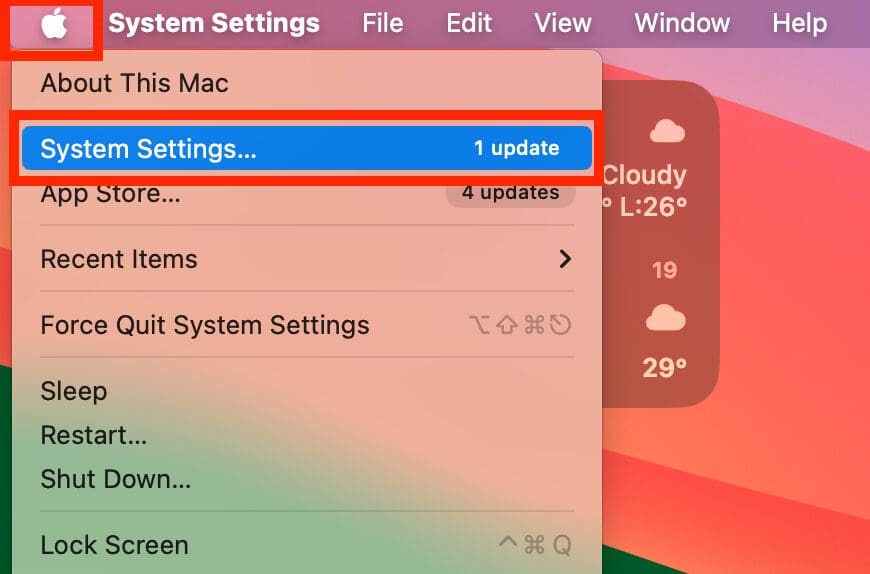
On a Mac, the options are similar to Windows. Click the Apple logo and choose System Settings.
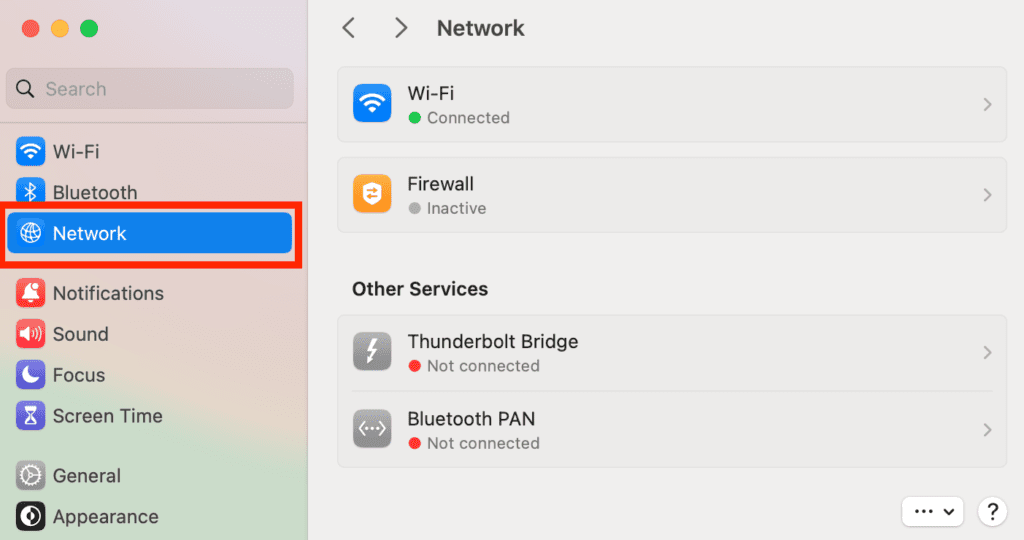
In the System Settings window, click Network.
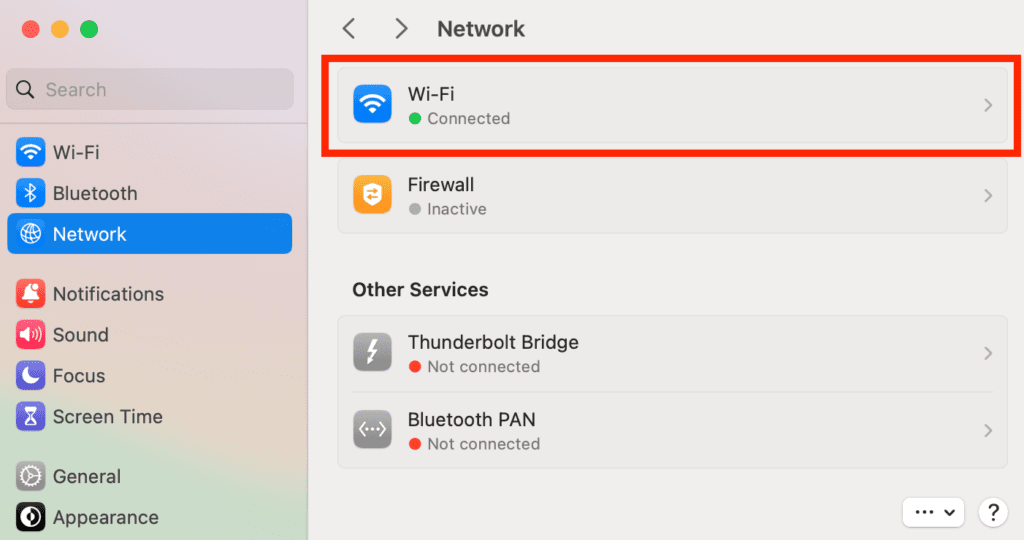
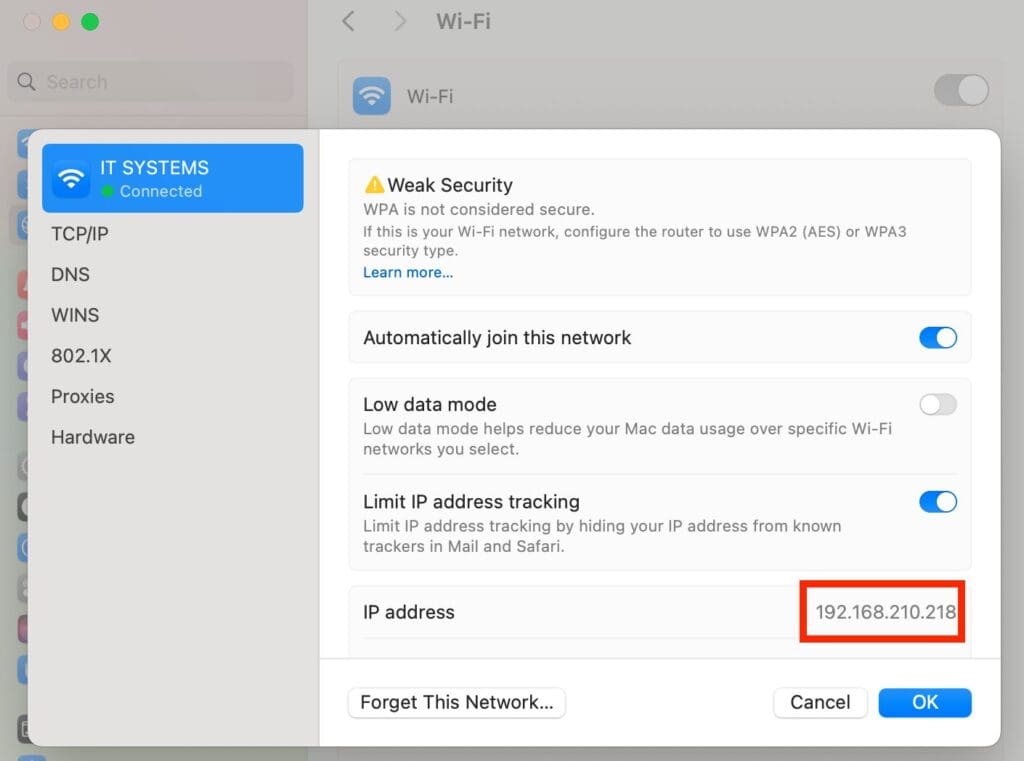
The Network pane lists all your connections. If you use Wi-Fi, select Wi-Fi, then click Details next to the network you are connected to.
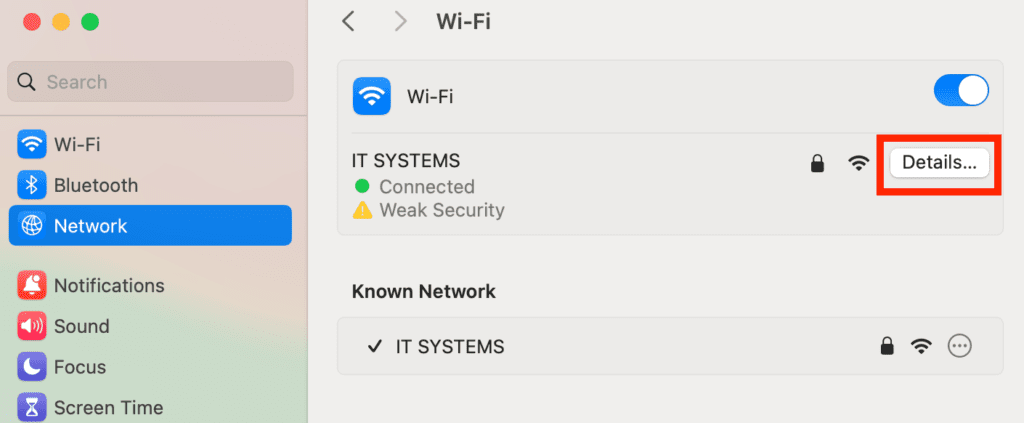
Your address is shown under IP Address. Most are IPv4 addresses: four numbers separated by dots, for example 192.168.210.218.
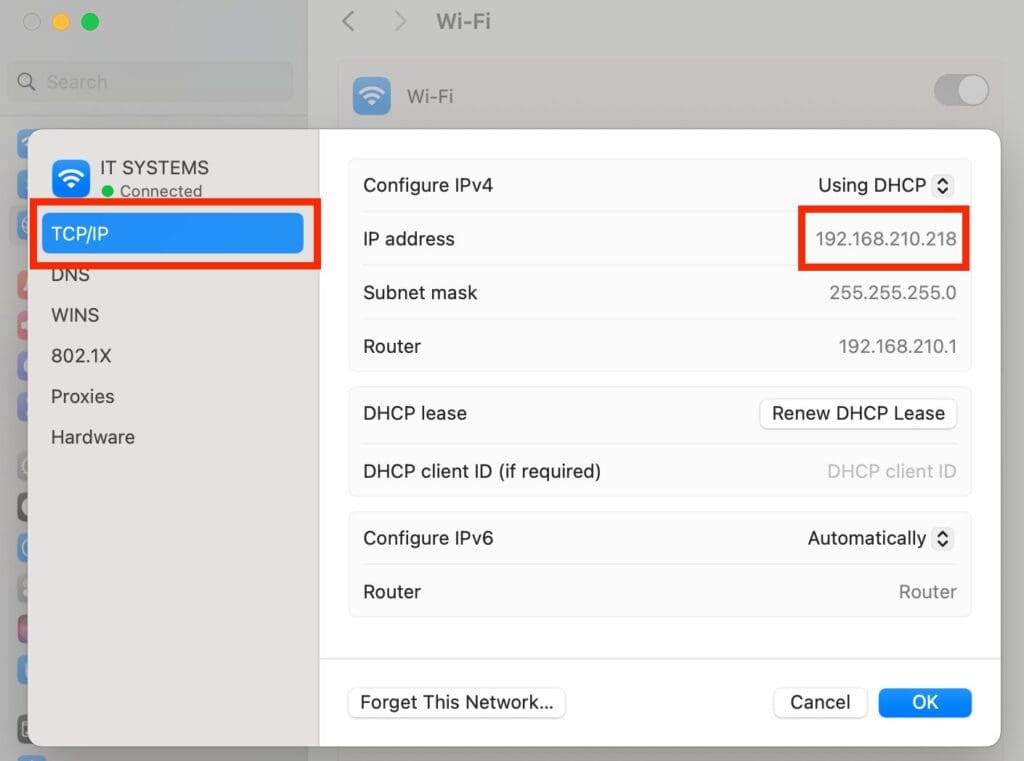
For more details, such as the subnet mask, router and IPv6 address, choose the TCP/IP tab on the left. Click OK to close the window.
Method 2: Check your IP address in Terminal
A faster way is the built-in Terminal app. Press Command + Space to open Spotlight, type “terminal” and open Terminal.
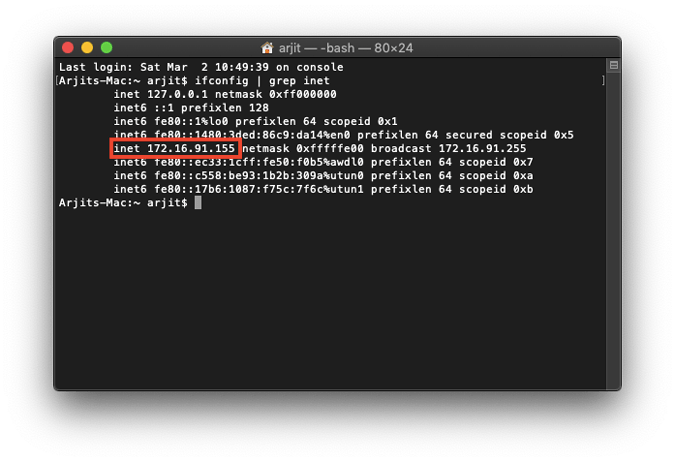
Type ifconfig | grep inet. The output lists the network interfaces and their addresses; your IP address follows “inet”. For just the Wi-Fi address, use ipconfig getifaddr en0.
Notes:
- Your IP address may differ depending on the connection type (Wi-Fi or Ethernet) and network configuration.
- With DHCP, your IP address can change over time.
- You can set a manual (static) address in your network settings if needed.
Finding your IP address on macOS is straightforward. For more help, see Apple‘s documentation. For network support for your business, contact IT Systems at hotline 028.3995.03.59 or contact@itsystems.com.vn.
FAQ
How do private and public IP addresses differ?
Private IPs (like 192.168.x.x) work only inside the LAN; the public IP is the router’s Internet address, shown by IP check websites.
Which Terminal command shows the IP on macOS?
ipconfig getifaddr en0 for Wi-Fi or the main interface; ifconfig shows full details for all interfaces.
Where do I set a static IP on a Mac?
System Settings > Network > select the connection > Details > TCP/IP, set Configure IPv4 to Manually and enter IP, subnet and router.
Unstable office network that needs redesigning?
IT Systems surveys, designs and deploys LAN, Wi-Fi, firewall and VPN for offices and branches, with full documentation.


