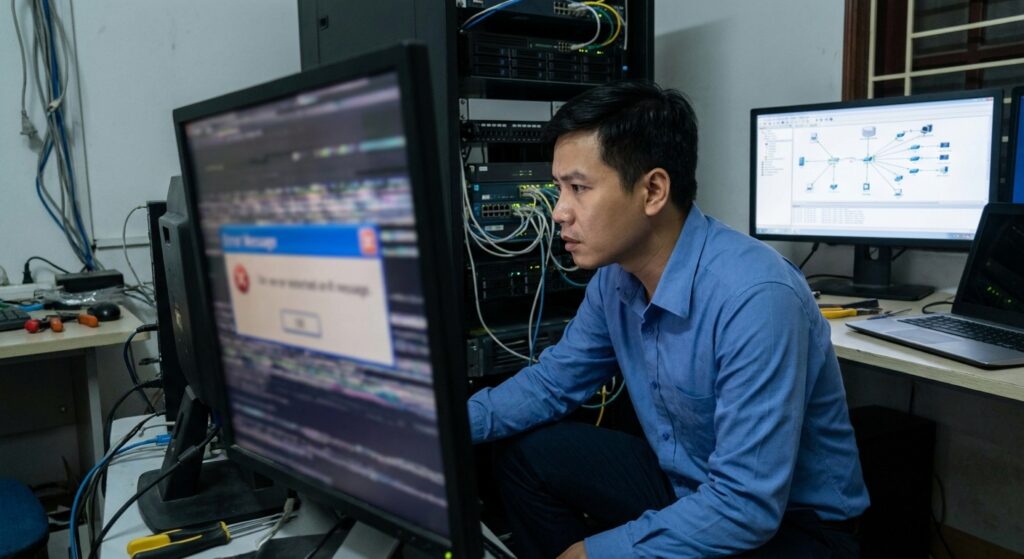
A blurred computer screen is one of the most common display issues that many users encounter during their daily work. This condition not only causes eye strain but also significantly reduces productivity, especially in office environments that require high concentration. If you are experiencing a blurry monitor, fuzzy display, or unclear images, this article will help you understand the root causes and provide effective solutions without needing to replace your device.
Many people often overlook a blurred computer screen, assuming it is only a temporary problem. However, if not addressed promptly, it can lead to eye fatigue, reduced detail observation, and even long-term health effects. Drawing from our IT support troubleshooting experience, we will analyze the technical causes in detail and guide you through practical steps to resolve the issue effectively.
Recognizing Clear Signs of a Blurred Computer Screen
Before diving into the causes, accurately identifying the symptoms will help you diagnose the problem quickly. A blurry monitor typically manifests in various ways, ranging from mild blur to more severe cases. Below are the typical signs commonly experienced by regular users.
- Text displayed on the screen becomes blurry and difficult to read even after adjusting brightness to the maximum level.
- Images and icons appear unclear, giving a slight vibrating or overlapping sensation.
- The screen shows fuzzy text in specific areas, especially when opening documents or spreadsheets.
- Colors appear distorted, shifting toward yellow or gray tones, along with display issues at the screen edges.
- The blurring effect gradually increases with usage time and becomes worse when running graphics-heavy applications.
If you notice one or more of the above signs, your computer is likely experiencing a screen clarity issue. These symptoms occur not only on laptops but are also very common with desktop monitors, especially devices that have been used for several years.
Main Causes of Blurred Computer Screen Issues
Understanding the root cause is the key to permanently fixing a blurry monitor or fuzzy display. Based on our IT support experience, we categorize the causes into two main groups: hardware and software. It is not always due to serious damage — many cases stem from usage habits or incorrect settings.
Hardware and Physical Connection Problems
Hardware is the leading cause of a blurred computer screen or fuzzy display. Loose HDMI, VGA, or DisplayPort cables can interrupt the signal, resulting in display errors. Additionally, dust buildup on the screen or camera lens (on laptops) also reduces image sharpness.
High temperatures from the graphics card or aging monitors after years of use can degrade the liquid crystals, creating a blurring effect. In some cases, incompatible screen resolution with the onboard graphics card also triggers this issue. If your monitor is over 3–4 years old, the likelihood of hardware failure increases significantly.
Driver, Software, and System Configuration Errors
Software-related problems are often overlooked but account for a large proportion of cases. Outdated graphics drivers or conflicts after Windows updates are typical causes of a blurred computer screen. The operating system automatically changing resolution or using inappropriate DPI scaling can also make text appear fuzzy.
Furthermore, malware, corrupted registry entries, or conflicts between graphic editing applications can interfere with display output. In enterprise environments, shared networks and multiple management software installations sometimes unintentionally cause these screen clarity issues.
Detailed Guide to Fix Blurry Monitor and Fuzzy Display
You don’t need to be an expert to fix a blurred computer screen. You can resolve it yourself using the following simple steps. We will guide you in logical order, starting with the easiest causes. Perform each step and test the result before moving to the next.
First, check the physical connections. Power off your device, unplug the monitor cable, and reconnect it firmly. Try using a different cable if available to rule out cable failure. Clean the screen surface with a soft microfiber cloth to remove dust and fingerprints — this is a simple but very common cause of a fuzzy display.
Next, adjust the display settings in Windows. Right-click on the desktop and select Display settings. Ensure the resolution is set to the Recommended level. If you have blurry text, try changing the scaling from 125% to 100% or vice versa, depending on your screen size. Restart your computer to apply the changes.
Updating your driver is the most critical step to fix display issues. Open Device Manager (press Windows + X), expand Display adapters, right-click your graphics card (Intel, NVIDIA, or AMD), and select Update driver. Choose to search automatically or download the latest version from the manufacturer’s website. Restart after installation.
- Check for new Windows updates via Settings > Update & Security.
- Run the ClearType Text Tuner to optimize text clarity: type “cleartype” in the search bar.
- If using a laptop, check whether any power-saving mode is limiting graphics card performance.
If the above methods do not resolve the problem, a deeper hardware diagnosis may be needed. In this case, contacting IT Support services will help you accurately diagnose the issue without wasting time.
Long-term Advice to Prevent Recurring Blurred Computer Screen Issues
Temporary fixes only address the symptoms. To prevent fuzzy display and blurry monitor problems from returning, you should implement regular maintenance habits. As a provider of IT support services for businesses, we recommend checking drivers monthly and using software to monitor graphics card temperature.
For businesses, implementing a centralized device management system helps detect abnormalities early. Avoid keeping the monitor running for long hours without breaks, and use blue light filters to protect your eyes and reduce strain on the display.
If your workplace frequently faces technology issues, consider using IT Helpdesk services for fast expert support. This not only solves screen clarity issues but also optimizes your entire IT system, improving long-term business efficiency.
Additionally, investing in high-quality monitors from reputable brands and replacing them every 4–5 years is a smart decision. Combined with proper computer usage training for employees, you can significantly reduce similar incidents.
Conclusion: Take Action Now to Restore Screen Clarity
A blurred computer screen is not overly complicated if you understand the causes and apply the correct fixes. From checking cables and updating drivers to optimizing display settings, most screen clarity issues can be resolved at home. However, if the problem persists, don’t hesitate to seek professional help to avoid impacting your work.
Apply the instructions above immediately and monitor the results. A sharp, clear screen not only reduces eye strain but also significantly boosts your productivity. If you need more troubleshooting information or solutions for other IT issues, follow our blog for regular useful updates.