



Thunderbird is an open-source email application from Mozilla (now developed by MZLA Technologies, a Mozilla subsidiary). With a friendly interface, support for multiple email accounts and strong security features, it is a favourite with many users.
Quick answer: adding email to Thunderbird: (1) download and install Mozilla Thunderbird (free) from its official website; (2) open Thunderbird > Account Actions > Add Mail Account (or menu ☰ > New > Existing Mail Account); (3) enter your display name, email address and password > Continue; (4) Thunderbird detects the settings automatically; choose IMAP (syncs across devices, recommended) or POP3; (5) if detection fails, enter the settings manually: incoming server (IMAP port 993 SSL / POP 995), outgoing server (SMTP port 587 STARTTLS or 465 SSL) with authentication enabled; (6) click Done and send a test message. Microsoft 365 and Gmail accounts may require OAuth sign-in. Thunderbird supports many accounts at once.
Key features of Thunderbird
- Multiple email accounts: manage email from many accounts in one application.
- Search and filters: powerful search and message filters make it easy to find and organise email.
- Strong security: support for encrypted connections and end-to-end encryption (OpenPGP, S/MIME) protects your data.
- Add-ons: install extensions to add more features.
How to set up email in Thunderbird
Step 1: Download and install Thunderbird from the official website.
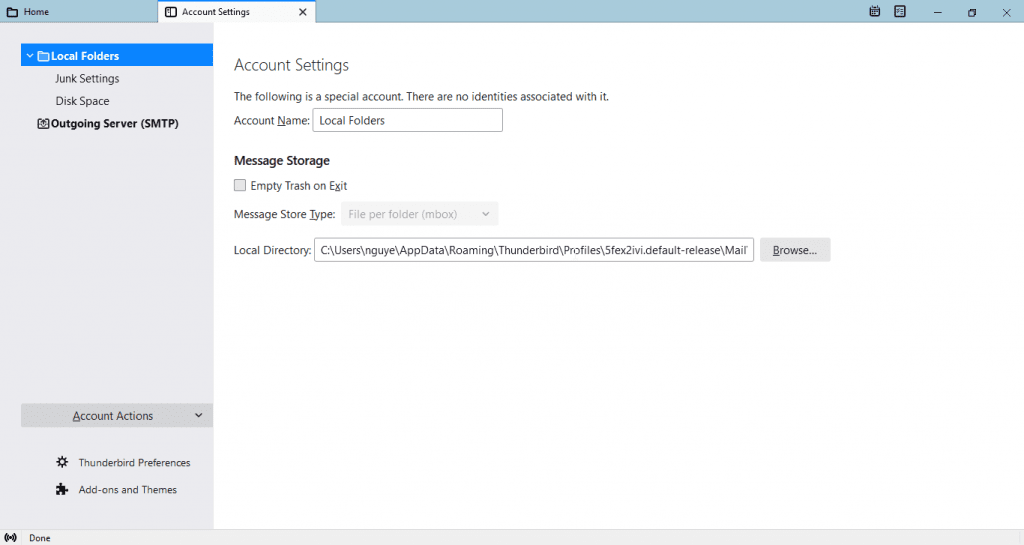
Step 2: Open Thunderbird.
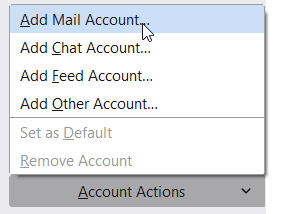
Step 3: Choose Account Actions > Add Mail Account.
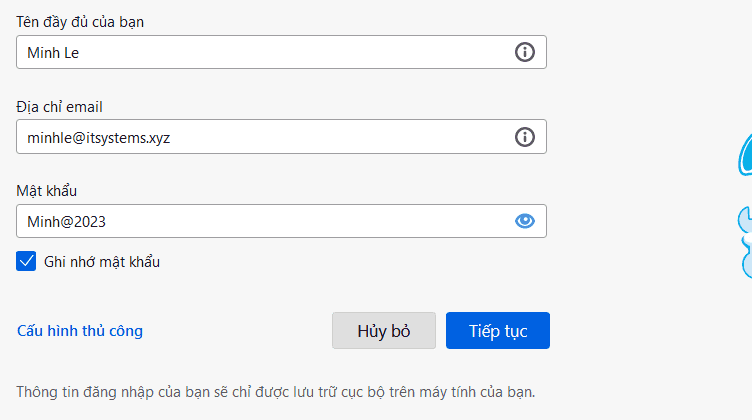
Step 4: Enter your name, the email address to set up and its password.
To check that your password is correct, sign in to your webmail first, for example http://mail.yourdomain.com/webmail or the webmail address provided by your email host (such as https://proXX.emailserver.vn:2096/).
Step 5: Thunderbird automatically looks up the server settings for your email. If it cannot find them, enter the server details manually.
Example: choose IMAP or POP3 as needed.
- Hostname: proXX.emailserver.vn (provided by your email host)
- Connection security: SSL/TLS
- Authentication: Normal password
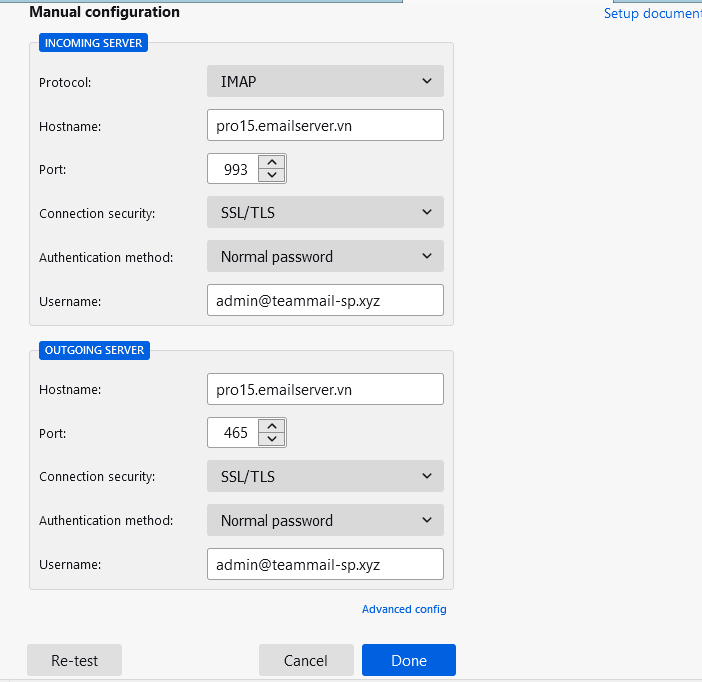
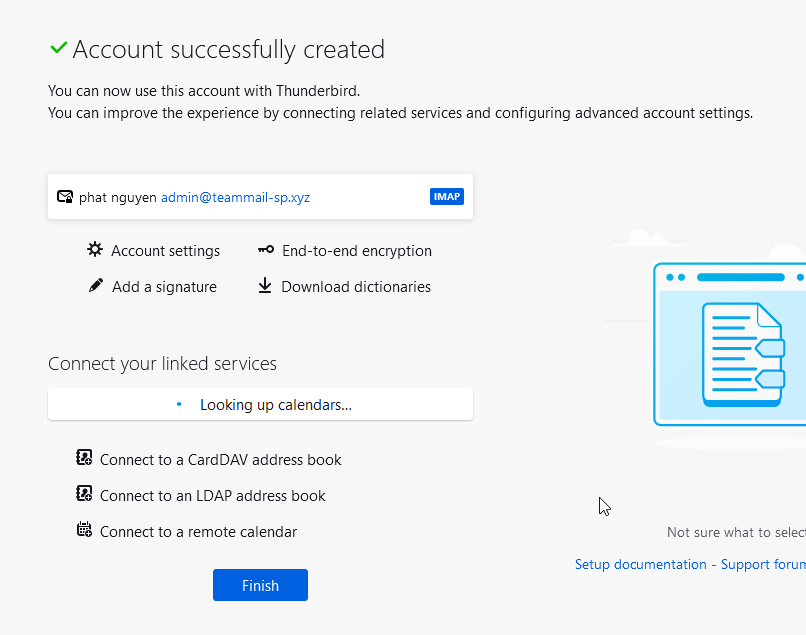
Step 6: Click Done > Finish.
Troubleshooting common problems
Not receiving email
- Check your internet connection.
- Make sure the server names and ports are correct.
- Check whether a firewall or antivirus is blocking Thunderbird.
Cannot send email
- Check the SMTP server settings.
- Make sure your email account is not locked.
- Check the security and authentication settings.
Thunderbird freezes or is slow
- Check whether too many add-ons are running.
- Archive or delete old email you no longer need to reduce data size.
- Update to the latest version.
Conclusion
Thunderbird is a powerful, easy-to-use and secure email client, and setting it up is straightforward if you follow the steps above.
For company email setup and support, see our IT Support service or contact IT Systems at hotline 028.3995.03.59 or contact@itsystems.com.vn.
Email or Outlook problems across your team?
IT Systems deploys Microsoft 365, migrates email, sets up security and supports users on Outlook, Teams and OneDrive.


