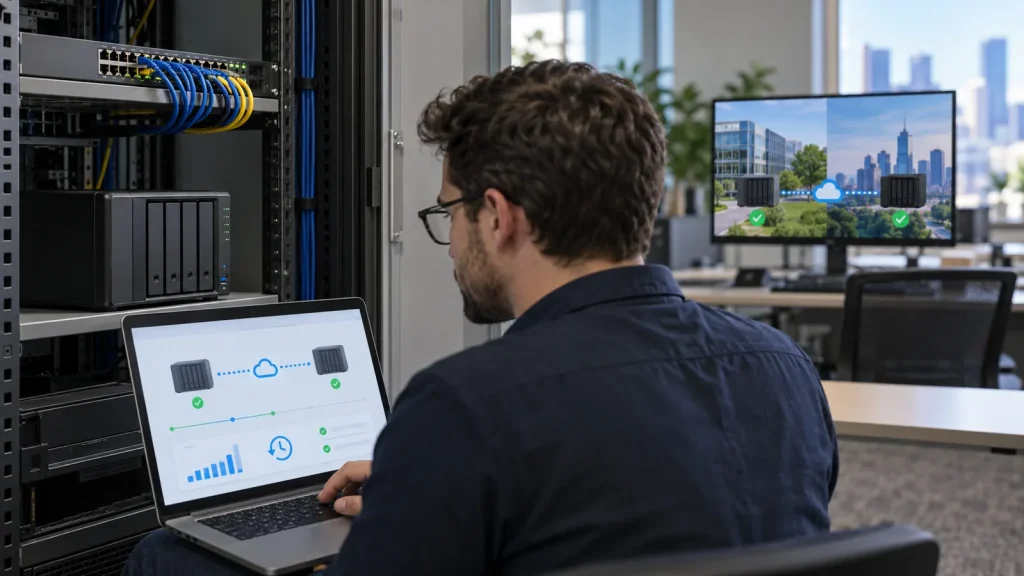
Short answer: A snapshot captures a supported folder or volume state for rapid rollback. Snapshot Replication can transfer those recovery points to a compatible second Synology NAS. Confirm actual model, DSM, Btrfs and source/destination support before planning schedules, retention, bandwidth and recovery. Local snapshots do not replace a separate backup.
This guide addresses replication and recovery between two NAS systems, not device shopping. See business Synology solutions for architecture and Hyper Backup for a separately governed copy.
Verify support and define recovery scope
Check the supported model and package features for the installed DSM release. Confirm Btrfs volumes on source and target, available capacity, administration rights, application dependencies and network connectivity. Do not promise replication for every workload: shared folders, LUNs and package data have different support conditions. Databases, VMs and open files may require application-consistent protection beyond a storage snapshot.
Write an RPO and RTO for each data set. Hourly snapshots do not guarantee one-hour data loss if transfers to the second NAS stall. Monitor the most recent recovery point actually present at the destination, plus the time needed to reconnect users. Name the person who may change retention or delete snapshots, the alert owner and the failover approver.
Choose snapshot schedule, retention and secure connectivity
In Snapshot Replication, choose a supported object and set snapshot frequency and retention from the rate of change and available space. Test local file or folder recovery before adding replication. Select the destination NAS and compatible volume through a protected connection with only necessary privileges. Do not expose DSM administration publicly merely to connect two appliances; consider a private route or VPN.
Initial seeding may be large. Estimate source size, link capacity, transfer window and daily change volume. Alert on overdue jobs, full destinations and a stale last-successful snapshot. Source and destination retention must serve the recovery objective without assuming identical settings are always appropriate. Keep independent backups under separate access controls for broader compromise.
Create the replication task and accept a recoverable point
Once source and target are connected, select the correct folder or volume and schedule the initial transfer deliberately. Verify a recovery point arrived at the destination, its timestamp, size and task health. With an authorized test account, recover a deleted file, compare content and filename, and check permissions. Opening it in the actual business application is stronger evidence than a green dashboard status.
Record both NAS models and DSM versions, package version, protected objects, schedule, retention, source/target timestamps, sample-file result, elapsed time and approver. Repeat the exercise after model, network, account or retention changes. If this is a disaster-recovery path, rehearse service cutover during an approved window rather than stopping at replication screenshots.
Distinguish planned switchover from failover
A planned switchover can normally synchronize remaining changes before roles change, provided both NAS systems are healthy and the business accepts a cutover window. When the source is unavailable or isolated, failover may rely on the last replicated point and lose changes not yet transferred. Never push a potentially compromised source state to the destination before identifying a clean recovery point.
Prepare DNS and SMB mappings, user permissions, dependent applications, a test user and a rollback path. After cutover, verify files, rights, services, monitoring and the new backup schedule; document actual RPO/RTO. Replication can shorten recovery, but a tested independent backup is still needed for shared-site loss or a compromise affecting both appliances.
Frequently asked questions
Does Snapshot Replication replace Hyper Backup?
No. Replication supports rapid recovery on compatible systems; independent backup serves different failure scenarios and retention needs.
Can every Synology NAS use Snapshot Replication?
No. Check model, DSM, Btrfs and supported workload types on both source and destination.
Should we switchover immediately after ransomware?
Avoid synchronizing a suspected infected source. Isolate it, identify a clean destination point and use an approved failover or restore plan.
Technical sources
Synology: Snapshots; Synology: Replication; Synology: Quick Start. Features depend on model, DSM and workload.