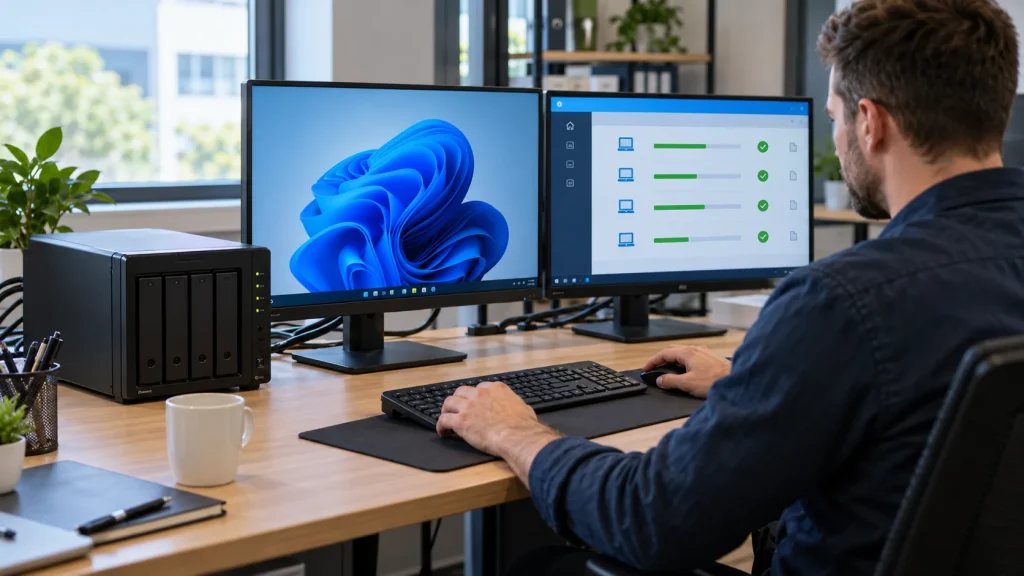
Short answer: Synology Active Backup for Business (ABB) can back up supported Windows PCs to a compatible Synology NAS, giving administrators centralized schedules, job status and recovery points. Before installing an agent, confirm the NAS model, DSM and ABB versions, Btrfs destination, Windows version and file system, encryption state and network path. A successful job is not proof that a PC can be restored; run a recovery test.
This guide focuses on Windows personal computers. Physical servers, virtual machines and file servers have different requirements and recovery options. For storage design, off-appliance copies and ongoing operations, see Synology solutions for business.
When ABB helps, and what it does not replace
ABB is useful when an organization has multiple PCs to protect under one policy, needs to identify missed backups, and wants to restore deleted files or an entire Windows machine after a failure. Central visibility, retention and proven recovery matter more than merely installing an agent. ABB does not replace an independent copy of the NAS repository, access governance or a ransomware response plan.
If important data resides only in Microsoft 365, Google Workspace or another SaaS application, evaluate a backup method for that platform as well. A PC image does not automatically protect all cloud-hosted data. If devices use BitLocker or Windows EFS, read Synology’s current requirements and limitations before approving the recovery design.
Predeployment checklist
| Area | Check | Why it matters |
|---|---|---|
| NAS | Supported model/CPU, DSM, ABB version and Btrfs backup destination | Not every appliance can support the same PC-backup workload |
| PC | Windows edition, NTFS, disk health, BitLocker/EFS and agent installation rights | Sets the backup and recovery scope |
| Network | Reachability to NAS, documented ABB port and a secure path for remote users | The PC agent cannot connect through QuickConnect |
| Policy | Priority devices, schedule, retention, error notifications and second copy | Prevents silent failures and an overflowing repository |
Synology lists port 5510 for PC backup and says the PC agent does not support QuickConnect connectivity. Do not expose a service to the public Internet as an automatic workaround; design a protected network path with your network administrator. Confirm the exact appliance and software support in the ABB technical specifications before purchasing or promising a feature.
Deploy Windows PC backups in a controlled pilot
- Inventory devices: asset ID, owner, Windows version, used space, important local data and recovery priority. Identify whether the source of truth is the PC, a file server or a cloud service.
- Prepare the NAS: update DSM and ABB under change control, create the supported backup destination and appropriate administrative rights, and reserve capacity for versions and growth.
- Install agents on a small pilot group: obtain the correct installer from Synology, connect over the planned secure path, and verify that each device appears under its correct identity. Avoid a shared administrator account used by everyone.
- Set scope and schedule: choose entire device, system volume or selected volumes according to the recovery objective. Schedule a large first backup around business traffic and observe network load and duration.
- Set retention and alerts: identify who receives failed-job, missed-device and low-capacity warnings, and how quickly they must act. Measure actual storage after the pilot before rolling out company-wide.
- Roll out by groups: expand only after a representative restore works, retaining a device-by-device record and named owner.
Test recovery, not only backup status
Test at least two scenarios. First, choose a recovery point and restore representative files or folders through the portal; verify contents and permissions. Second, prepare recovery media and test boot and full-device recovery of a representative PC in a controlled environment. Do not overwrite a production workstation without an agreed rollback plan. Synology’s Windows PC and physical-server admin guide distinguishes their recovery options; do not assume PC tasks offer every server/VM instant-restore feature.
Record device, backup version, chosen data, operator, start/end time, successful opening or booting, errors and follow-up actions. Compare measured recovery time and data loss with the business RTO/RPO. The broader backup and restore-testing process provides a reporting framework.
Protect the backup repository itself
ABB stores a copy on the NAS, but a NAS can fail, be stolen, be encrypted or be erased through compromised credentials. Plan another copy outside the same appliance and preferably outside the same administrative boundary. Restrict admin rights, use strong authentication, monitor job health and test restoration from the second copy. Follow Synology guidance for transferring or protecting ABB data between systems; copying repository folders manually is not a verified disaster-recovery method.
Frequently asked questions
Does a green backup status guarantee full-PC recovery?
No. Test file restoration, recovery media and a representative full-device recovery path. Confirm the restored system and key applications work.
Can a remote PC agent use QuickConnect?
No. Synology’s ABB requirements say PC agent connections through QuickConnect are unsupported. Design and test another protected network route.
Does ABB PC backup replace Microsoft 365 backup?
Not automatically. PC data and SaaS-resident data are separate scopes. Inventory where the source data lives and protect each accordingly.
How often should jobs be reviewed?
Set monitoring to the value and frequency of the data. At minimum, someone must act on failures, missed schedules and near-full storage, with restore drills based on risk rather than dashboard color.
Technical sources
Synology: ABB requirements and limitations; Synology: ABB technical specifications; Synology: Windows PC and physical-server administration. Confirm model, DSM and ABB versions before deployment.