Short answer: Configure a business NAS by defining the data and applications it will serve, who may access them, how capacity will grow, and what must be recoverable after an incident. Only then choose a compatible appliance and drives, storage pool, file permissions, network access and backup policy. RAID or Synology Hybrid RAID (SHR) may tolerate specified drive failures, but it is not a separate backup.
This guide covers the configuration and acceptance of a shared NAS, not the purchase of a particular model. If the platform choice is still open, read our NAS, file server and SharePoint comparison. For survey, deployment and ongoing operation, see Synology solutions for business.
Start with the workload, not the number of drive bays
Inventory each shared folder and dependent application. Record current data volume, expected growth, file types, concurrent users, branch locations and whether software requires an SMB path. Name a business owner for each dataset. A NAS serving Office files has different network, locking and recovery needs from one serving CAD/BIM projects, camera recordings or virtual-machine backups. Employee count alone is not a sizing method.
| Discovery area | Questions | Design output |
|---|---|---|
| Data | How much exists, how quickly does it grow, and what must be retained? | Usable-capacity and retention target |
| Access | Who may read, edit, delete and share each folder? | Group-based access matrix and approver |
| Network/applications | SMB or other protocols, simultaneous users, sites and secure remote access? | Connectivity and pilot tests |
| Recovery | How much data loss and downtime can the business accept? | RPO/RTO and backup design |
Choose compatible hardware and estimate usable capacity
Verify the actual NAS model, DSM release, approved drives and features against the manufacturer’s product and compatibility documentation. Budget for the appliance, disks, UPS, networking, an independent copy and operations. Raw disk totals are not usable capacity: RAID/SHR mode, mixed drive sizes, file-system overhead, snapshots, retained versions and future growth all matter.
For illustration, four 8 TB drives offer 32 TB of raw nominal capacity. A one-drive-tolerant layout provides substantially less usable space before operational reserve; this example is not a quote or guaranteed capacity. Run the exact model and disk combination through the vendor’s current calculator, then reserve headroom for growth and backup versions. On a two-bay system, adding a second drive to a one-disk SHR pool may add fault tolerance without increasing capacity. Synology documents SHR behavior and states that RAID is not backup.
Ask how the pool can be expanded, how a failed disk is replaced and rebuilt, and how data can be restored if the entire appliance is lost. Do not choose RAID 0 for data that must tolerate a disk failure. Nor should a RAID 1/5/SHR status screen be presented as proof of a tested recovery plan.
Prepare network, power and administrative access
Check switch capacity, LAN speed, DNS, fixed addressing or DHCP reservation, UPS and a ventilated, access-controlled location. For remote users, design an authenticated, protected connection appropriate to the data and application; do not expose DSM administration directly to the Internet merely for convenience. Separate daily users from administrators, enable strong authentication where supported, and document account ownership and recovery arrangements.
Build the storage pool and test permissions with real accounts
- Confirm model/firmware, drive health and an independent copy of any existing data before initializing a pool. Select a supported layout, volume and file system for the required applications.
- Organize shares by business owner and role, not by an uncontrolled collection of personal folders. Grant rights through groups; avoid a shared administrator login or blanket full control for everyone.
- Test a real user from each group: can a read-only role edit or delete, can outsiders see restricted files, and is a departing employee’s access removed? Capture the result in a departmental access matrix.
- Enable only the protocols and applications actually required. For synchronization across devices or offices, define the source of truth and conflict procedure; synchronization does not automatically become backup.
Design backup and prove recovery
State whether the NAS contains primary files or is a backup target for PCs and servers. If primary data is on the NAS, make another copy away from that same appliance and preferably separate administrative credentials. If the NAS receives backups, protect the backup repository itself. Snapshots can support quick rollback for some incidents, but they do not cover every appliance-loss or credential-compromise scenario.
Set backup schedules and retention from accepted data-loss limits. Monitor failed jobs and near-full storage. Restore a sample file, a permission-sensitive folder and an important workload in a controlled environment. Record the owner, date, start/end times, result and actual recovery time. Use our backup and restore-testing process. Feature availability for Active Backup for Business, Snapshot Replication and Hyper Backup depends on the specific model, DSM and workload; verify before proposing a service.
Handover and ongoing operations
A useful acceptance pack contains the device and drive inventory, network diagram, pool/volume layout, usable capacity, access matrix, safely handed-over administrator credentials, update responsibility, backup schedule, disk/capacity alerts and restore-test evidence. When moving files from another NAS or file server, reconcile counts and key folders, pilot real-user permissions and agree a rollback point. See the business data migration checklist.
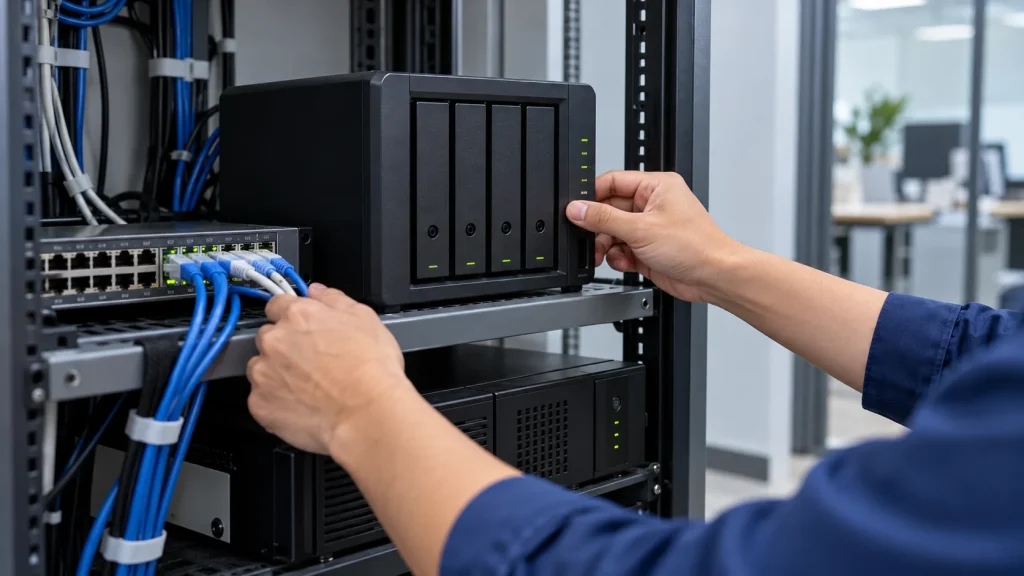
Monthly operations should review drive health, free space, failed backup jobs, patches, unusual sign-ins and access changes. Repeat recovery drills at a frequency proportionate to the data risk. A photograph of an installed NAS is not acceptance evidence.
Frequently asked questions
Is the data safe once RAID/SHR is configured?
No. Fault tolerance covers only certain disk failures. Accidental deletion, ransomware, administrative error and loss of the whole appliance still require an independent copy and tested recovery.
Can we choose bay count from employee count?
Not reliably. Consider current and projected data, simultaneous use, application behavior, failure tolerance, network and expansion. Two 30-person businesses can need different architectures.
Should the NAS be directly available over the Internet?
Not as a default. Design secure remote access around identity, strong authentication, updates and minimal public exposure, then test it with the applications involved.
What can IT Systems deliver?
IT Systems can scope the need, propose a compatible configuration, implement permissions, migrate data, configure backup and hand over test evidence under an agreed project scope. Hardware, price and feature support are confirmed per deployment.
Technical sources
Synology: SHR and RAID limits; Synology: Storage Manager Quick Start; Synology: NAS security guidance. Confirm the actual model and DSM version before implementation.