


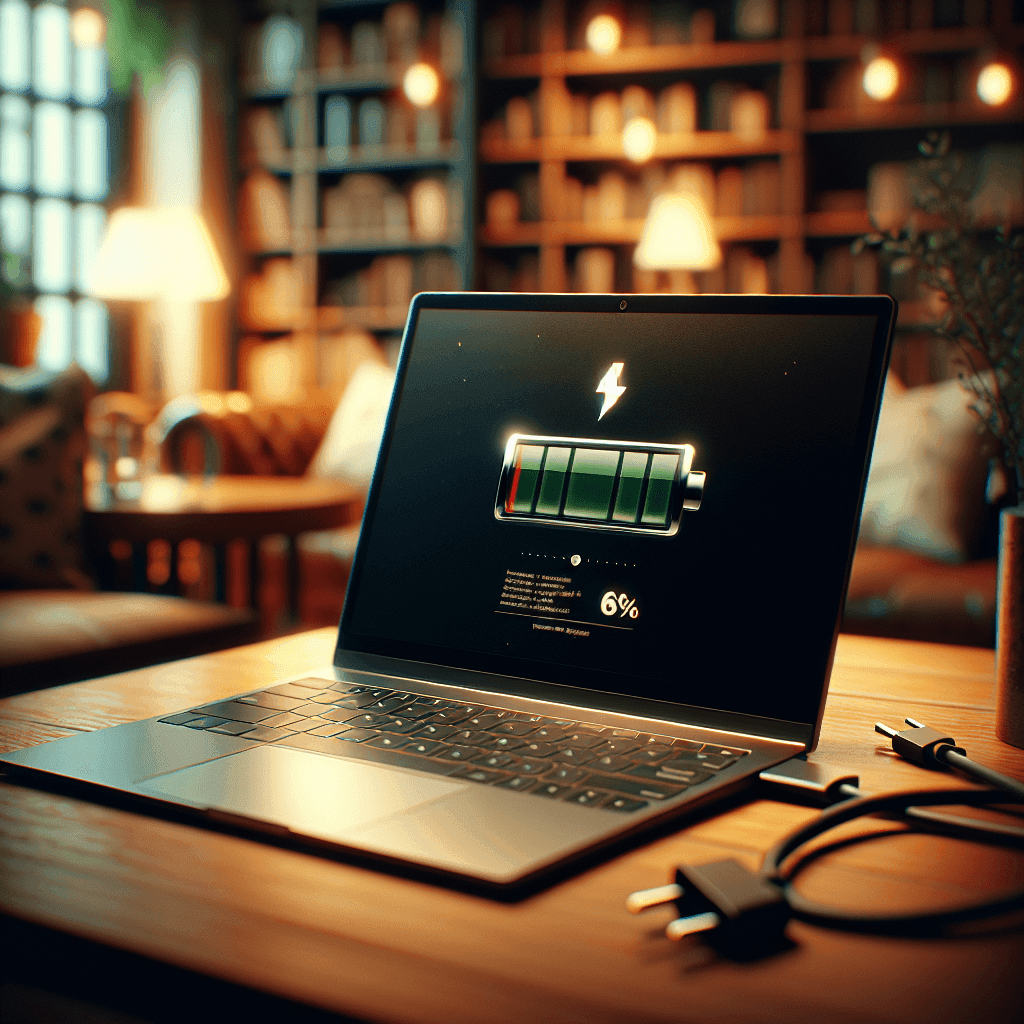
Save Laptop Battery: Introduction and Important Issues
Laptop battery is one of the key factors affecting user experience. However, laptop batteries often deplete quickly due to various reasons. Saving laptop battery not only helps you extend usage time but also contributes to increasing device lifespan. In this article, we will explore the most effective methods for saving laptop battery.
Save Laptop Battery: Why Does Your Laptop Battery Drain Quickly?
Potential “culprits” that can reduce your laptop’s battery usage include:
- High screen brightness: The demand for brightness while using the laptop can cause rapid battery drain.
- Background applications: Many unnecessary applications continue to run and consume power.
- Wi-Fi and Bluetooth continuously on: These connections can significantly reduce battery life.
- Suboptimal power settings: Default settings may not be the best battery-saving options.
Save Laptop Battery: Detailed Guide on Methods
Optimize Power Settings
The easiest way to save laptop battery is to optimize power settings in Windows. You can choose battery saver mode in the power settings. You should also reduce CPU performance in battery saver mode to extend usage time.
Reduce Screen Brightness
Reducing screen brightness not only helps save battery but also protects your eyes when working for long periods. You can do this through keyboard shortcuts on the laptop or from the settings control panel.
Close Unnecessary Applications
When not in use, remember to close unnecessary applications to prevent resource waste. This will help free up RAM and storage space, thus allowing the laptop battery to consume less energy.
Disconnect Wi-Fi and Bluetooth
When not needed, disconnect Wi-Fi and Bluetooth. This not only helps save battery but also minimizes the risk of security threats from wireless networks.
Use Battery Saver Mode
Windows versions have built-in battery saver mode. You should activate this feature to automatically adjust settings to save energy.
Disable Startup Software with Windows
Checking and disabling unnecessary applications that startup with Windows will help the computer boot faster and save battery.
Upgrade to SSD
If your laptop has an HDD, upgrading to an SSD will not only improve performance but also save battery, as SSDs consume less energy than HDDs.
Regularly Clean Your Laptop
Regularly cleaning your laptop helps lower machine temperature, thereby extending battery life. Be sure to remove dust from the fan and ventilation slots.
Turn Off Visual Effects
Turning off unnecessary visual effects can significantly impact battery usage time. Do this in the display settings of Windows.
Update Graphics Card Driver
Updating the graphics card driver is a way to optimize laptop performance, especially when gaming. This can help reduce graphics card load and save battery.
Use Laptop Battery Saving Applications
There are many applications that effectively support laptop battery saving. Explore these applications for additional solutions to battery drain issues.
Save Laptop Battery While Gaming
For gaming enthusiasts, saving battery while gaming is very important. To extend the time without interruption, you can:
- Optimize game settings: Adjust settings to reduce the load on the system.
- Use optimization software: Some optimization software can improve performance and save battery.
- Reduce resolution and graphic detail: This will help reduce the pressure on the system and save battery.
FAQ: Answering Common Questions About Saving Laptop Battery
How to check laptop battery status?
You can check battery status using built-in tools on Windows or through third-party apps.
Should I charge my laptop continuously?
Continuous charging can cause laptop battery wear, so try not to keep the laptop plugged in when not necessary.
Does worn laptop battery affect performance?
Yes, a worn battery affects the power supply to the computer, leading to poor performance and shorter usage time.
Conclusion: If you need assistance, please contact us right away
IT SYSTEMS VIETNAM CO., LTD
IT Solutions – Your Business IT Department
HOTLINE: 0283 9950 359
Email: contact@itsystems.com.vn
Website: https://itsystems.vn/
Facebook: https://www.facebook.com/ITSystems.VIETNAM
Youtube: https://www.youtube.com/@ITSYSTEMS
HCM: 2nd Floor, 184/1A Le Van Sy Street, Ward 10, Phu Nhuan District, Ho Chi Minh City, Vietnam
HCM: 321/10 Phan Dinh Phung Street, Ward 15, Phu Nhuan District, Ho Chi Minh City, Vietnam.
Hanoi: House No. 22, Garden Villa Area, Vinh Hoang Urban Area, 431 Tam Trinh Street, Hoang Mai District, Hanoi, Vietnam.
Bình Dương: Binh Duong Boulevard, Phu Hoa Ward, Thu Dau Mot City, Binh Duong Province, Vietnam
FAQ
When should a business ask IT Systems for support?
Ask for support when the issue affects users, business data, security, licensing compliance, service availability or daily operations. A short technical review often prevents repeated incidents and hidden costs.
Can IT Systems help review the current environment before proposing a solution?
Yes. IT Systems can review the current setup, identify risks, map the issue to the right service scope and recommend a practical next step for your business.
Does this topic connect to ongoing IT operations?
In most cases, yes. Problems around software, cloud, endpoint, network, backup or security should be connected to a broader IT operations plan instead of being handled as isolated incidents.
Need help applying this to your business?
IT Systems Vietnam can help assess the issue, recommend the right service path and support implementation for your team.


