


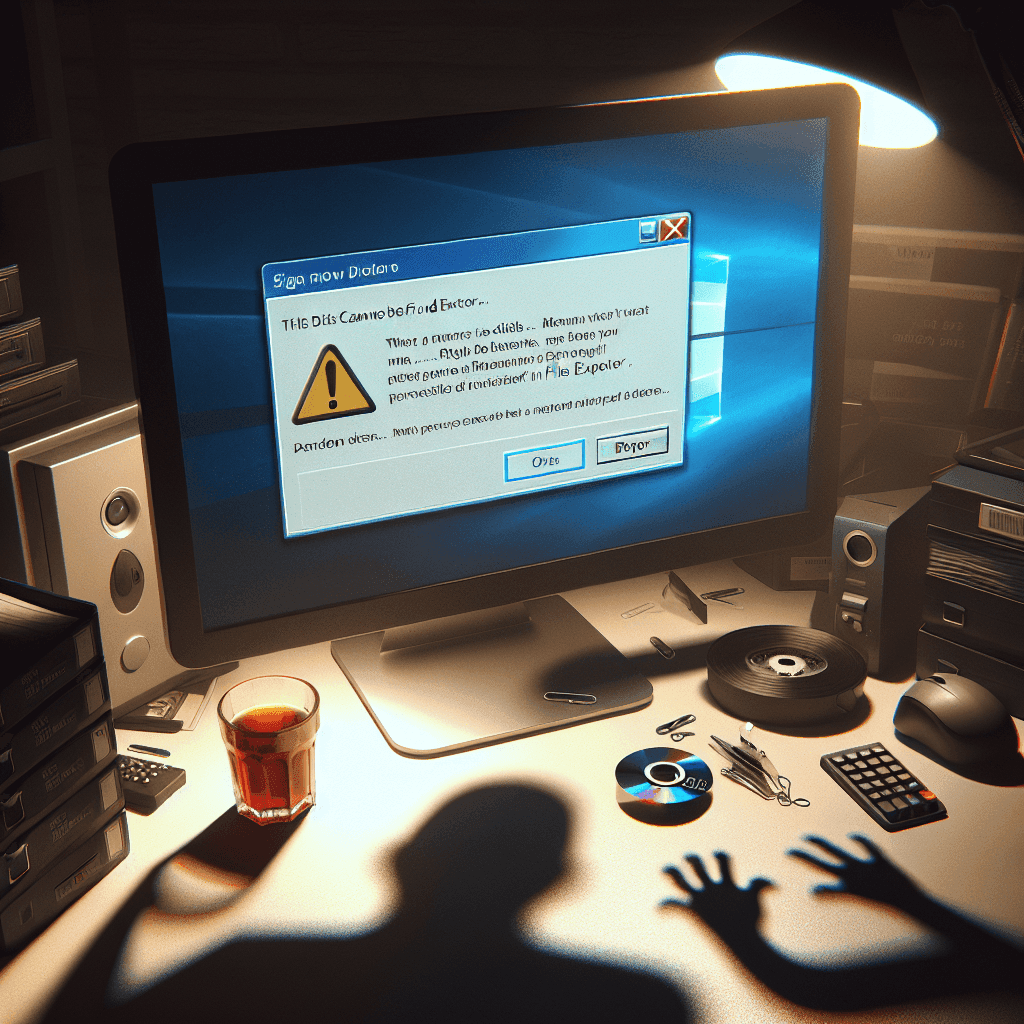
Error: Drive Not Found in File Explorer: Why is the Drive Not Displaying in File Explorer?
If you are experiencing the issue of the drive not displaying in File Explorer, this is a common problem that many computer users encounter. There are many causes that can lead to this situation. Understanding the causes will help you address the issue effectively.
Common Causes of Drive Not Found Errors
Driver Errors
One of the main reasons for the drive not being found in File Explorer is due to driver errors. Incompatible or corrupted drivers will prevent the system from recognizing the drive.
Drive Not Formatted
If the drive is not formatted or is in an unsupported format, it will not appear in File Explorer. New drives or drives that have been incorrectly formatted can encounter this issue.
Drive Hidden in Disk Management
Sometimes a drive may be hidden in Disk Management, preventing it from displaying in File Explorer. This is a quite common situation and easily fixable.
Hardware Connection Issues
Hardware issues, such as loose connections or failures at the connection port, can also cause the drive to not display. Checking the physical connection of the drive is necessary.
Viruses and Malware
Viruses or malware can interfere with the system operation and make drives not visible. Scanning and removing threats is crucial to resolve this issue.
Error: Drive Not Found in File Explorer: Step-by-Step Guide to Fix Drive Not Found Error
Below is a specific guide to fix the drive not found error in File Explorer. You can try each step to identify and resolve the issue:
Method 1: Check Hardware Connections
First, check the physical connection of the drive to the computer. Ensure that the drive is securely plugged in and that there are no issues with the connection port.
Method 2: Update or Reinstall the Drive Driver
Open Device Manager and look for your drive. If you see a question mark or an exclamation mark, this indicates a driver issue. Update or uninstall the driver and restart the computer to reinstall a new driver.
Method 3: Reassign Drive Letter
Open Disk Management, find the non-displaying drive, right-click, and select Change Drive Letter and Paths. Reassign a new letter to the drive to make it show up in File Explorer.
Method 4: Show Hidden Drives in Disk Management
Sometimes you need to show hidden drives in Disk Management. Right-click the drive and select Online or Change Drive Letter to make it display in File Explorer.
Method 5: Run Hardware Diagnostics
Use hardware testing tools to scan and identify any issues that may be occurring with your hard drive. Software like CHKDSK can be used to scan and fix drive errors.
Method 6: Scan for Viruses and Malware
Finally, use antivirus software to scan for and remove any threats that may affect the drive operation. Ensure that you use trusted and high-performance software.
Important Notes When Fixing Drive Not Displaying Issues
When you perform troubleshooting steps, there are a few important notes to remember:
Backup Data Before Making Changes
Before making any changes, ensure that you have backed up important data to avoid loss in case any issues arise.
Be Cautious When Editing the Registry (If Applicable)
If you need to edit the Registry to fix the issue, be cautious and only proceed when you fully understand the settings. A small mistake can cause significant problems.
Error: Drive Not Found in File Explorer: Preventing Future Drive Not Displaying Errors
To avoid experiencing similar issues in the future, take the following preventive measures:
Keep Drive Drivers Updated
Regularly check and update drive drivers to ensure all software components are working smoothly and effectively.
Perform Regular Drive Health Checks
Conduct regular drive health checks using available tools to detect potential issues early and resolve them before they become serious.
Use Reputable Antivirus Software
Lastly, use reputable antivirus software to protect your computer from viruses and malware. A good application will help safeguard your drives and data.
If you need assistance, please contact us right away
IT SYSTEMS VIETNAM CO., LTD
IT Solutions – Your Business IT Department
HOTLINE: 0283 9950 359
Email: contact@itsystems.com.vn
Website: https://itsystems.vn/
Facebook: https://www.facebook.com/ITSystems.VIETNAM
Youtube: https://www.youtube.com/@ITSYSTEMS
HCM: 2nd Floor, 184/1A Le Van Sy Street, Ward 10, Phu Nhuan District, Ho Chi Minh City, Vietnam
HCM: 321/10 Phan Dinh Phung Street, Ward 15, Phu Nhuan District, Ho Chi Minh City, Vietnam.
Hanoi: House No. 22, Garden Villa Area, Vinh Hoang Urban Area, 431 Tam Trinh Street, Hoang Mai District, Hanoi, Vietnam.
Bình Dương: Binh Duong Boulevard, Phu Hoa Ward, Thu Dau Mot City, Binh Duong Province, Vietnam
FAQ
When should a business ask IT Systems for support?
Ask for support when the issue affects users, business data, security, licensing compliance, service availability or daily operations. A short technical review often prevents repeated incidents and hidden costs.
Can IT Systems help review the current environment before proposing a solution?
Yes. IT Systems can review the current setup, identify risks, map the issue to the right service scope and recommend a practical next step for your business.
Does this topic connect to ongoing IT operations?
In most cases, yes. Problems around software, cloud, endpoint, network, backup or security should be connected to a broader IT operations plan instead of being handled as isolated incidents.
Need help applying this to your business?
IT Systems Vietnam can help assess the issue, recommend the right service path and support implementation for your team.


