


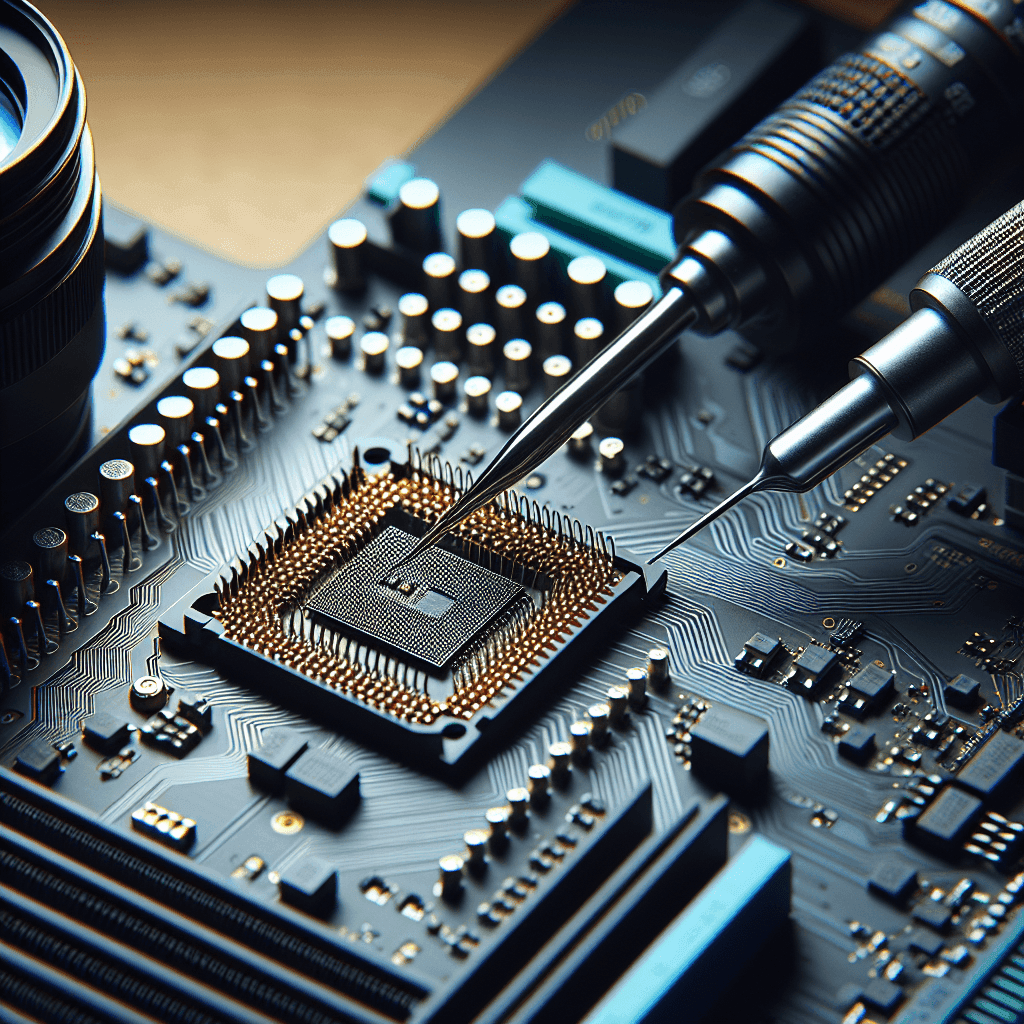
What is a CMOS Battery and Why is it Important?
The CMOS battery (Complementary Metal-Oxide-Semiconductor) is a type of battery on the motherboard responsible for storing important settings in the BIOS, including date and time information and system configuration. If this battery fails, the computer will not be able to store these settings, leading to continuous restarts or error messages.
The Function of the CMOS Battery in the Motherboard
The CMOS battery provides power to the CMOS memory, where important system information is stored. With this function, the battery ensures that even if the computer is powered off, the information remains intact. This helps the computer boot up correctly with the settings defined by the user.
Signs That Your CMOS Battery is Having Issues
When the computer starts to show abnormal signs, it could be due to a weak or failing CMOS battery. Some obvious signs to look for include:
- The computer continuously displays wrong date and time
- The BIOS resets to default
- CMOS checksum error messages appear
- The computer fails to boot
Why You Need to Replace the CMOS Battery?
Replacing the CMOS battery is necessary to ensure the computer operates stably and accurately. Failing to replace it in time can lead to the computer failing to boot or not remembering your settings, causing annoyance during use.
Signs ‘Pointing’ to a Weak CMOS Battery in the Motherboard
When the CMOS battery encounters issues, here are some signs you may notice:
The computer continuously displays wrong date and time
If you frequently have to reset the date and time after each startup, your CMOS battery may be weak.
The BIOS resets to default
If your BIOS automatically returns to default settings without reason, there’s definitely an issue with the battery.
CMOS checksum error message appears
This message indicates that the computer cannot verify the information stored in the CMOS.
The computer fails to boot
If your computer does not boot or frequently freezes, this could be a sign of a failed CMOS battery.
Simplified and Effective Self-Testing of CMOS Battery ‘Health’
To test the CMOS battery, you can use a voltmeter or simply check for signs on the computer. If you detect any signs mentioned above, it’s time to replace the battery.
Things You Need to Prepare Before ‘Taking Action’
Before replacing the CMOS battery, ensure you have prepared the following items:
Necessary tools (Screwdriver, tweezers, etc.)
You will need some basic tools like a small screwdriver and tweezers to make the process easier.
Purchase a new CMOS battery (the type suitable for your motherboard)
Before you start, determine the type of CMOS battery you need to replace, which is often a CR2032 battery for many motherboards.
Static electricity precautions
Remember to follow static electricity safety measures, such as using an anti-static wrist strap to protect the computer components.
Step-by-Step Guide to Replace the CMOS Battery ‘At Home’
Below is a detailed step-by-step guide:
Step 1: Turn off the computer and disconnect the power
Before performing any tasks, you need to completely turn off the computer and disconnect the power.
Step 2: Open the computer case
Use a screwdriver to open the computer case, ensuring a safe feeling while working inside.
Step 3: Locate the CMOS battery on the motherboard
The CMOS battery is typically located on the motherboard, near the chipset or CPU area. Be sure to find this location carefully before proceeding.
Step 4: Remove the old CMOS battery
Use tweezers or your fingers to gently take the old CMOS battery out of its position.
Step 5: Install the new CMOS battery
Make sure to insert the new CMOS battery in the correct orientation, ensuring good contact with the socket.
Step 6: Close the computer case and power on the computer
After finishing, reassemble the computer case and reconnect the computer to the power supply. Restart the computer and check that everything is functioning as expected.
Configure BIOS After Replacing the CMOS Battery: Don’t Overlook!
After replacing the battery, you need to reconfigure the BIOS to set up the date, time, and necessary parameters.
Access BIOS (usually by pressing Delete, F2, F12…)
When the computer starts, press the BIOS access key as indicated on the screen.
Set the system date and time
In BIOS, select the time and date tab to update this information.
Reconfigure other BIOS settings (if necessary)
If you have specific settings like boot order or other options, reconfigure them to ensure everything works optimally.
Save changes and restart the computer
Don’t forget to save your changes before exiting BIOS!
Still Having Issues After Replacing the CMOS Battery? Check These Fixes!
If you encounter issues even after replacing the battery, check the following:
The computer does not recognize the new CMOS battery
Recheck the battery installation to ensure it is oriented correctly and making good contact.
CMOS checksum error still appears
If this error persists, consider issues related to the motherboard or other hardware.
Cannot access BIOS
If you cannot access BIOS, check if the connections are properly connected.
Important Notes When Replacing the CMOS Battery
When replacing the CMOS battery, keep these points in mind:
Select the correct type of CMOS battery
Ensure you purchase the correct type of battery suitable for your motherboard.
Be cautious with static electricity
Always use anti-static measures when working with computer components.
Clean the motherboard (if necessary)
While replacing the battery, you may also clean the motherboard using a brush or compressed air.
Tips to Extend the Lifespan of the CMOS Battery
To help extend the lifespan of the CMOS battery, you can implement some simple tips such as:
- Power on the computer regularly
- Avoid sudden power cuts
- Keep the motherboard clean and cool
Conclusion: Replacing the CMOS Battery is Not as Difficult as You Think!
Replacing the CMOS battery not only helps the computer run stably but also saves time and effort for the user. We hope this article has helped you understand the process of effective battery replacement and maintenance.
Explore related services at IT Systems, providing professional and multi-channel technical support
Dịch vụ IT Support
If you need assistance, please contact us right away
IT SYSTEMS VIETNAM CO., LTD
IT Solutions – Your Business IT Department
HOTLINE: 0283 9950 359
Email: contact@itsystems.com.vn
Website: https://itsystems.vn/
Facebook: https://www.facebook.com/ITSystems.VIETNAM
Youtube: https://www.youtube.com/@ITSYSTEMS
HCM: 2nd Floor, 184/1A Le Van Sy Street, Ward 10, Phu Nhuan District, Ho Chi Minh City, Vietnam
HCM: 321/10 Phan Dinh Phung Street, Ward 15, Phu Nhuan District, Ho Chi Minh City, Vietnam.
Hanoi: House No. 22, Garden Villa Area, Vinh Hoang Urban Area, 431 Tam Trinh Street, Hoang Mai District, Hanoi, Vietnam.
Bình Dương: Binh Duong Boulevard, Phu Hoa Ward, Thu Dau Mot City, Binh Duong Province, Vietnam
FAQ
When should a business ask IT Systems for support?
Ask for support when the issue affects users, business data, security, licensing compliance, service availability or daily operations. A short technical review often prevents repeated incidents and hidden costs.
Can IT Systems help review the current environment before proposing a solution?
Yes. IT Systems can review the current setup, identify risks, map the issue to the right service scope and recommend a practical next step for your business.
Does this topic connect to ongoing IT operations?
In most cases, yes. Problems around software, cloud, endpoint, network, backup or security should be connected to a broader IT operations plan instead of being handled as isolated incidents.
Need help applying this to your business?
IT Systems Vietnam can help assess the issue, recommend the right service path and support implementation for your team.


