In the age of rapidly evolving technology, the internet has become an indispensable part of our lives. However, the network is not always stable; There are times when you will encounter network problems that affect your work and play. To help you troubleshoot these issues easily and efficiently on your own, this article will provide detailed instructions on how to identify the problem, check your hardware and software, and use support tools to ensure your network is running smoothly.
Basic steps to troubleshoot network issues
When there is a network problem, setting the basic steps to solve the problem is like embarking on a journey that you know will reach your destination, even though the path may not be easy. First, you need to determine the source of the problem, followed by checking the hardware connection. These steps are like inspecting each part of a machine for faults. Then, restart the network device to refresh any connections, bringing you closer to the solution. Each step builds on a logical analysis platform, like a puzzle where each piece has a specific place in the whole.
Identifying the source of the problem
The first step in the network troubleshooting process is to determine the source of the problem. This is similar to having to find the right direction in a map to reach the destination in the most accurate way. Network issues can be clearly seen through symptoms such as slow network speeds, lost connections, or even the inability to access the internet. To do this effectively, you need to understand the factors that affect your network.
A good example is when you suddenly lose your internet connection. First, check if the signal light on your modem or router is working properly. If these lights don’t turn on or blink, there may be a problem with the device or the connection from your internet service provider. You can compare this situation to considering a car that won’t start – the lights not coming on may be due to a faulty battery or a problem with the starter system.
In addition, you also need to check the network configuration on your devices. Often, operating systems such as Windows or macOS provide network diagnostic tools. For example, on Windows, you can use the “Network and Sharing Center” tool to check the connection status.
The steps include opening the Control Panel, then selecting “Network and Internet” and finally “Network and Sharing Center.” Here, you will see a network status icon indicating whether your device is connected to the network or not.
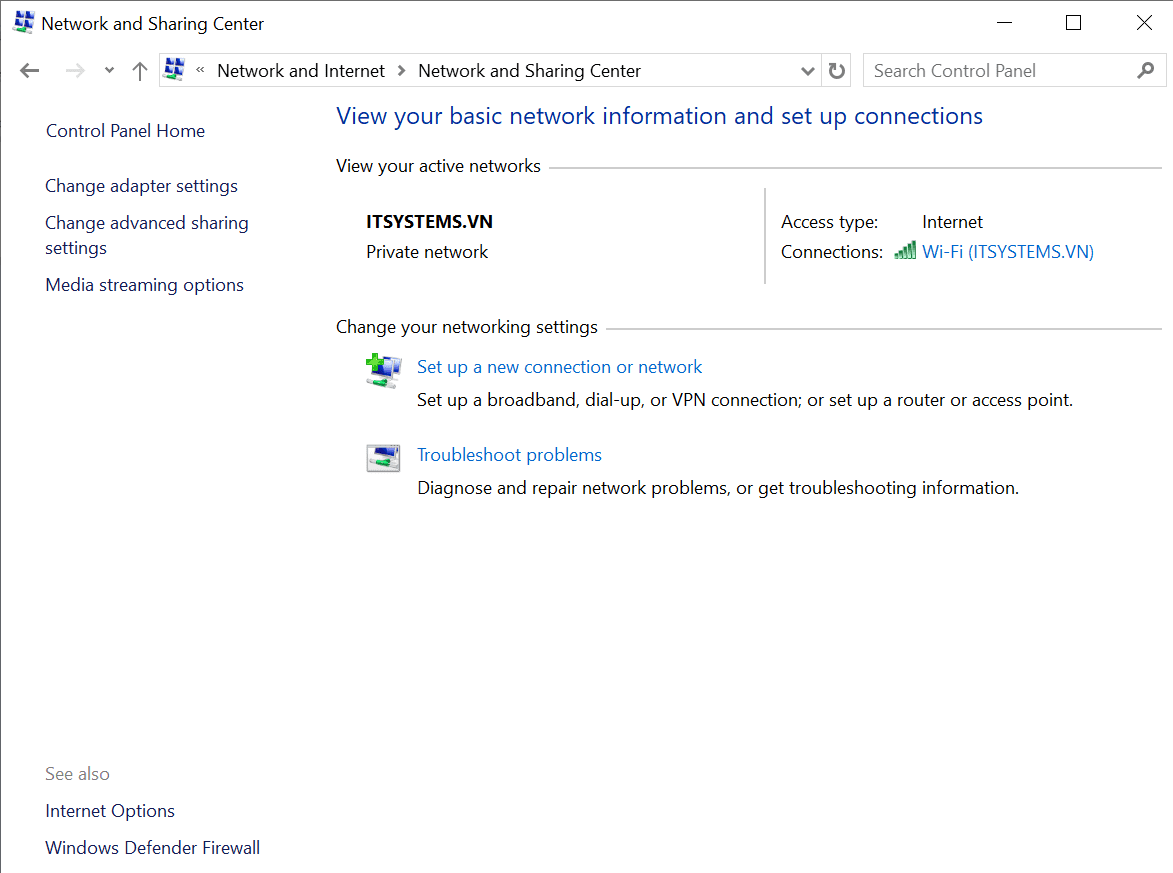
Check the Network and Sharing Center for network issues.
Another way to determine the cause is to use the automatic diagnosis feature. Most network devices such as routers today have this feature. You just need to access the router’s settings through a web browser (by entering the router’s IP address, usually 192.168.1.1 or 192.168.0.1), select the diagnostic feature. This feature will automatically check factors such as IP addresses, DNS, and connections to service providers.
In case the above steps do not help solve the problem, the next step is to check the cables and physical connections. Sometimes, a network problem can simply be a loose or damaged cable. You can try replacing another cable to check if the problem is fixed.
Through these steps, you will determine which part is causing the problem and from there have a specific direction to fix it. This is like having to find out the cause of the disease before prescribing medication. It is important that you take each step carefully and logically, which will find the source of the problem and solve it effectively.
Check the hardware connection
Once you have identified the source of the problem, the next step is to check the hardware connection. This is similar to a doctor examining a patient’s physical factors before making a final diagnosis. Network hardware includes devices such as routers, modems, network cables, and network cards in your computer.
First of all, check the network cables. Make sure that the cables from the modem to the router, from the router to the computer are plugged in securely and not damaged. Network cables can be damaged due to a variety of reasons such as excessive bending, rat bites, or exposure to a humid environment. You can try replacing the cable with a different one to check if the problem is fixed.
Another point to note is the status of signal lights on network devices. Signal lights on modems and routers usually indicate connection status. The power light needs to be on steadily, the network light (LAN) needs to blink to indicate that there is data traffic in circulation, and the network signal light (WAN) also needs to be active. If one of these lights is not working as expected, there may be a problem with the device or connection.
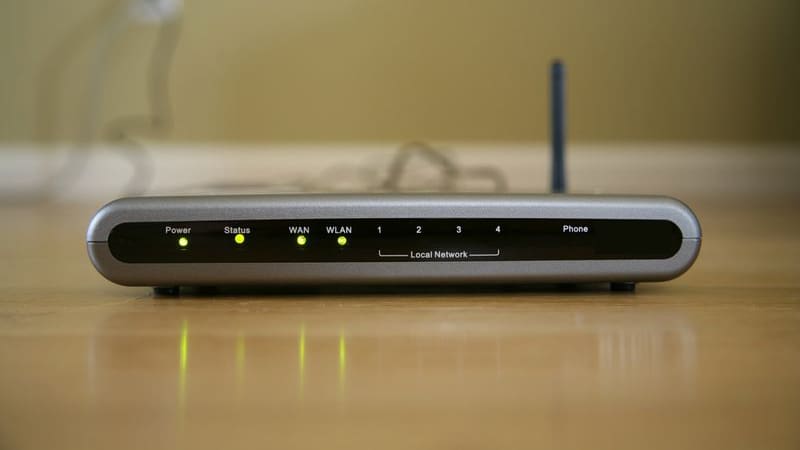
Checking network devices when encountering network issues
Also, you can check the ports on your network device. These ports need to be clean and not dusty or shielded by debris. Plug in and unplug the cable a few times to make sure that the plugs are all securely connected.
In case there are multiple devices connected to the network, try checking them one by one to determine if the problem is caused by a specific device. For example, you can try connecting your computer directly to the modem, bypassing the router, to see if the problem persists. It’s like you rule out the factors one by one to figure out what’s causing the problem.
If you use a switch to distribute network connections, check the switches as well. A switch is a device that helps spread network connections to various devices in an internal network (LAN). If the switch has a problem, the entire network connection in your intranet will be affected. Check if the switch is working properly and if there is a working signal light.
Hardware testing also includes making sure that the network card drivers on your computer are up to date. Sometimes, network issues can be caused by outdated or incompatible drivers. You can check and update drivers through your device manufacturer’s website or use tools like Windows Update.
In summary, checking the hardware connection is like a doctor checking the patient’s general health before making a final diagnosis. By making sure that all the physical elements are working properly, you’ll be one step closer to completely troubleshooting your network.
Restart the network device
Restarting a network device is one of the simple but effective troubleshooting measures, similar to restarting your computer when you have a problem. This process helps to refresh the connection, remove temporary errors, and help the device run more smoothly.
First, you need to power off network devices such as modems, routers, and switches by unplugging them or pressing the power button on the device if any. Wait about 10 seconds before plugging it back in to make sure all components in the device are completely disconnected. This eliminates accumulated faults due to long-term continuous operation.
Restarting the devices in a logical order is also important. It is recommended to start by plugging the modem back in first, and then wait until all the signal lights on the modem are on steadily and the internet connection indicator is working properly. Next, you proceed to start the router by plugging it back in. Wait until all the signal lights on the router are on steadily. If you’re using a switch, restart the last switch.
Sometimes, restarting the device not only helps solve the problem immediately, but it can also tell you more about the network status. For example, if after a reboot the signal lights do not work as they should, there may be a hardware problem or improper configuration. This is like when you restart your computer and the problem persists, you will know that something more serious needs attention.
In addition, periodic reboots of network equipment can also help maintain network performance. Network devices, when operating continuously for a long time, can experience performance degradation due to various reasons such as full cache, unknown connections, and some other temporary errors. Some network equipment manufacturers such as Cisco, TP-Link, or D-Link also recommend that users restart their devices at least once per week to ensure a smooth connection.
Restarting a network device doesn’t always solve every problem, but it’s the most important and easiest step, which almost anyone can do without a lot of technical knowledge. This way, you not only resolve temporary issues, but also help ensure that your device is always working at its best.
In conclusion, restarting a network device is a simple but extremely effective method for fixing common network problems. This helps to refresh the connection, free up memory, and improve the performance of the device, just like restarting the computer when it goes down. Take care to do this step regularly to maintain the stability of the network.
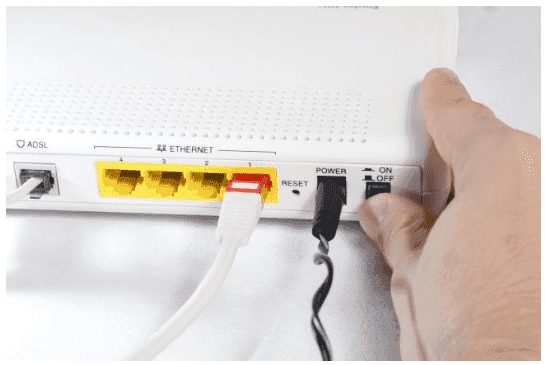
Restart the network equipment when there’s a network issue.
Common troubleshooting methods
Troubleshooting a network problem always requires a methodical approach, similar to finding a solution to a complex problem. Some of the most common methods include changing DNS settings, checking IP addresses, using ping commands to check connections. Each method serves as a support tool in the network engineer’s toolkit, helping them identify and eliminate the root cause of the problem.
Change DNS settings
Changing your DNS settings can solve many problems related to your internet connection, similar to changing your contact phone number to improve call quality. DNS (Domain Name System) is a system that translates IP addresses into domain names and vice versa, helping you access websites easily.
To change your DNS settings on a Windows computer, you need to follow these steps:
- Open the “Network Connections” window: You can do this by pressing Windows+R, then typing ‘ncpa.cpl‘ and pressing Enter. The “Network Connections” window will appear, showing a list of all the network connections available on your computer.
- Select the network connection to change: Right-click on the network connection you are using, whether it is Ethernet (wired connection) or Wi-Fi, select “Properties” from the context menu.
- Edit Internet Protocol Version 4 (TCP/IPv4) settings: In the “Properties” window, find and select “Internet Protocol Version 4 (TCP/IPv4)”, then click the “Properties” button.
- Change DNS servers: Select the “Use the following DNS server addresses” option and enter the address of the DNS server you want to use. For example, you can use Google’s DNS with the address ‘8.8.8.8‘ for the Preferred DNS server and ‘8.8.4.4‘ for the Alternate DNS server. You can also try using Cloudflare’s DNS service with the addresses ‘1.1.1.1′ and ‘1.0.0.1‘.
- Confirm and restart: Press “OK” to save the changes, then restart your computer to apply the new settings.
Changing the DNS address improves the speed of internet access, while also fixing many network errors related to the inability to resolve domain names. For example, if your internet service provider’s default DNS server is down or overloaded, switching to a different DNS server can help you get back to normal internet access.
Alternatively, you can use the Dns Jumper or DNS Benchmark tool to find out the fastest DNS server for your connection. These tools will check the response speed of different DNS servers and recommend the best server based on your location and access speed.
If you’re working in a corporate environment, changing your DNS can also help solve many of the issues associated with internal access. In many cases, internal DNS servers have restrictive rules and policies, so switching to a public DNS server can help bypass these restrictions.
IP Address Check
IP address testing is an important method for identifying and resolving network problems. An IP (Internet Protocol) address is more than just a postal address, it pinpoints the location of a device in the network so that data is sent to the right place where it needs to go. Checking and verifying your IP address helps you better understand the status of your network connection and detect potential issues.
First, you need to open the Command Prompt by pressing the Windows + R key combination, typing ‘cmd‘, and then pressing Enter. Once the Command Prompt window appears, you can type the command ‘ipconfig‘ and press Enter to display the details of the device’s network configuration.
When you run the ‘ipconfig‘ command, you will see information related to the device’s current network connections such as IP address, subnet mask, default gateway. For example, if you see your IP address starting with ‘169.xxx.xxx.xxx’, this means that the device is not receiving a valid IP address from the router or DHCP server. This is an indication that there is a problem with the IP allocation.
Next, you need to verify that there are no IP address conflicts in the network. This can happen when two devices in the same network have the same IP address, causing conflicts and making it impossible for both to connect to the internet.
To check for IP address conflicts, you can use the ‘arp -a‘ command in the Command Prompt to display the ARP cache table, which allows you to see a list of IP addresses and MAC addresses associated with them. If you see the same IP address associated with multiple MAC addresses, this indicates that there is an IP address conflict.
If you are using a static IP, double-check the configuration of the device to make sure that the IP address, subnet mask, default gateway, DNS server are configured correctly. If you are unsure about these parameters, you should switch to DHCP mode so that the device automatically recognizes and configures the network parameters from the router.
In many cases, refreshing the IP address can help fix the problem. You can do this by running the command ‘ipconfig /release‘ to release the current IP address and then running the command ‘ipconfig /renew‘ to request the allocation of a new IP address from the router or DHCP server.
In addition to checking the IP address on the computer, you should also check on other devices in the network such as printers, smartphones, or IoT devices to ensure that all devices have unique IP addresses and are free of conflicts.
By checking and verifying IP addresses, you can identify and resolve a variety of network issues related to IP address allocation and conflicts, thereby ensuring that your network is stable and efficient.
Use ping to test the connection
The ‘ping’ command is a useful tool that helps check network connectivity and identify problems in your network. It’s similar to calling to check if the recipient is listening. When you use the ‘ping’ command, the computer sends packets (ICMP Echo Request) to a specific IP address or domain name and waits for a response (ICMP Echo Reply). This process helps you know if the connection is working and how long the response time is.
To use the ‘ping’ command, you need to open the Command Prompt window by pressing Windows+R, typing ‘cmd‘, and then pressing Enter. Once the Command Prompt window appears, you can type the ‘ping’ command with the IP address or domain name of the device you want to check. For example, you can type ”ping google.com’ or ‘ping 8.8.8.8’ (the IP address of Google’s DNS server) to check the connection. After typing this command, you will get a series of results that show parameters such as the number of packets sent, received, and lost, as well as the average response time (Round Trip Time).
This information helps you assess your current network connection. Here are some important points to keep in mind when using the ‘ping’ command:
- Request Timed Out: If you receive a ‘Request timed out‘ message, this means that the computer is not receiving a response from the destination IP address within the specified time. This could be because the destination device doesn’t exist, is being turned off, or there is a problem with the network connection between the two devices.
- Destination Host Unreachable: This message implies that no path reaches the destination device. This could be due to a misconfigured network or a router or firewall blocking traffic.
- Packet loss: If you see packet loss, this indicates a problem with the quality of the network connection, which may be due to a weak signal, electromagnetic interference, or network overload. To fix this problem, you can try rechecking the physical connections, optimizing the router location, etc. or minimize high-bandwidth applications.
- High Latency: If the latency is high, this may be due to an overload or an attempt between intermediaries. You can use the ‘tracert’ command to determine exactly which network segment is causing this high latency. The way to use the ‘tracert‘ command is to open the Command Prompt and type ‘tracert [IP address or domain name]‘.
The ‘ping’ command is not only useful for checking the internet connection, but it also helps you identify problems in the intranet. For example, you can check the connection between your computer and the router by ping the router’s IP address (usually ‘192.168.1.1’ or ‘192.168.0.1’). If the ping is unsuccessful, this indicates a problem with your intranet connection.
Tools to help fix network outages
In addition to manual methods, you can also use support tools to test and fix network outages more effectively. The following are some common tools.
Use command-line tools
Command-line tools help save time and efficiency in diagnosing and troubleshooting network problems. In addition to the ‘ping’ and ‘tracert’ commands, you can use:
- Ipconfig/Ifconfig: Displays the network configuration of the device.
- Netstat: View the current network connection status.
- Nslookup: Determines DNS information.
- Pathping/Mtr: Combines the functionality of ping and tracert, providing details about the packet path.
Applications that solve network problems
Some apps and software make it easier to test and fix network problems, including:
- Wireshark: Network traffic analysis software that helps determine the cause of the problem.
- PingPlotter: A network diagnostic tool that helps monitor connection status.
- NetSpot: Wi-Fi survey software that helps identify weak signal areas and optimize router location.
- SolarWinds Network Performance Monitor: Monitor network performance and alert when something goes wrong.

Applications that solve network problems
Hardware Equipment Required
In addition to software and tools, you’ll also need a few hardware devices to support network testing and troubleshooting:
- TDR (Time Domain Reflectometer): This device helps identify faults on network cables.
- Multimeter: Used to check the voltage and connection of cables.
- Cable Tester: A device that tests the contact of conductors in network cables.
Common troubleshooting scenarios
Some common situations and specific solutions include:
- Conflicting IP addresses: Check and reassign IP addresses to devices to make sure no devices are using the same IP address.
- Slow internet connection: Check network speed, upgrade Internet packages, optimize router location, limit high-bandwidth devices.
- Temporary connection loss: Restart network equipment, check and replace cables, verify IP address configuration, power interruption.
In the process of fixing network problems, analytical knowledge and skills, knowledge of protocols, and the use of network tools are important factors that help you solve problems effectively and quickly. By mastering the basic steps and using the support tools, you will be more confident in handling any difficult situation related to the network.
Skills needed to fix network outages
Problem Analysis Skills
Problem analysis skills are one of the most important skills when troubleshooting network problems. You need to know how to collect information about the incident, understand the signs and symptoms, and then make hypotheses about the cause of the incident. This skill is like a detective who needs to learn every little detail to make an accurate conclusion.
Knowledge of network protocols
To fix it effectively, you need to have a good understanding of network protocols such as TCP/IP, HTTP, FTP, DNS, DHCP. These protocols govern how data is transmitted and received within the network. Knowledge of network protocols helps you distinguish and solve problems related to connectivity, data, security.
Skills in using network tools
Proficient use of network tools such as ‘ping’, ‘tracert’, ‘nslookup’, ‘ipconfig’ helps you save time and increase efficiency in diagnosing and troubleshooting. These tools make it easy to identify connectivity issues, DNS, network configurations.
Further references and learning
Online courses on network troubleshooting
If you want to improve your knowledge and skills, online courses are a great option. You can refer to courses on platforms such as Coursera, EdX, Udemy, especially courses with Vietnamese subtitles or Vietnamese language support.
Books and manuals
Many books and manuals on computer networking and network troubleshooting have been published in Vietnam. You can find related books at major bookstores or online bookselling sites such as Fahasa, Tiki. Books such as “Computer Networks” by Andrew S. Tanenbaum or “Cybersecurity” are valuable references.
Forum and community support network
Participating in online forums and communities such as Tinhte.vn forums and Facebook groups “Network Technical Support” will help you exchange and learn practical experiences from other users. It’s also a great place to ask questions and get support from the community.
Conclusion
In the process of fixing network consolidation, it is extremely important to understand and apply basic steps such as identifying the source of the problem, checking the hardware connection, and rebooting the network device. Using support tools and software applications and hardware devices can help you resolve issues more effectively. Common situations such as IP address conflicts, slow internet connections, temporary disconnection all have specific solutions that you can apply.
In addition, constantly improving your knowledge and skills through online courses, reading books and tutorials, participating in forums, and supporting communities are essential for you to stay up-to-date with the latest techniques and become an expert in the field of network troubleshooting. Your problem analysis skills, knowledge of network protocols, and skills in using network tools will become more and more perfect over time.
Taking the right steps and applying the knowledge you have learned will help you be more confident in handling all network-related issues, thereby ensuring that your network system always works stably and efficiently.
Contact Information for IT Systems Vietnam
IT SYSTEMS VIETNAM CO., LTD
IT Solutions – IT Department for Businesses
☎️ HOTLINE: 0283 9950 359
Email: contact@itsystems.com.vn
Website: https://itsystems.vn/
Facebook: https://www.facebook.com/ITSystems.VIETNAM
YouTube: https://www.youtube.com/@ITSYSTEMS
321/10 Phan Dinh Phung, Ward 15, Phu Nhuan District, Ho Chi Minh City.
House No. 22, Garden Villa, Vinh Hoang Urban Area, 431 Tam Trinh, Hoang Mai District, Hanoi.
Binh Duong Avenue, Phu Hoa, Thu Dau Mot, Binh Duong.
FAQ
When should a business ask IT Systems for support?
Ask for support when the issue affects users, business data, security, licensing compliance, service availability or daily operations. A short technical review often prevents repeated incidents and hidden costs.
Can IT Systems help review the current environment before proposing a solution?
Yes. IT Systems can review the current setup, identify risks, map the issue to the right service scope and recommend a practical next step for your business.
Does this topic connect to ongoing IT operations?
In most cases, yes. Problems around software, cloud, endpoint, network, backup or security should be connected to a broader IT operations plan instead of being handled as isolated incidents.
Need help applying this to your business?
IT Systems Vietnam can help assess the issue, recommend the right service path and support implementation for your team.