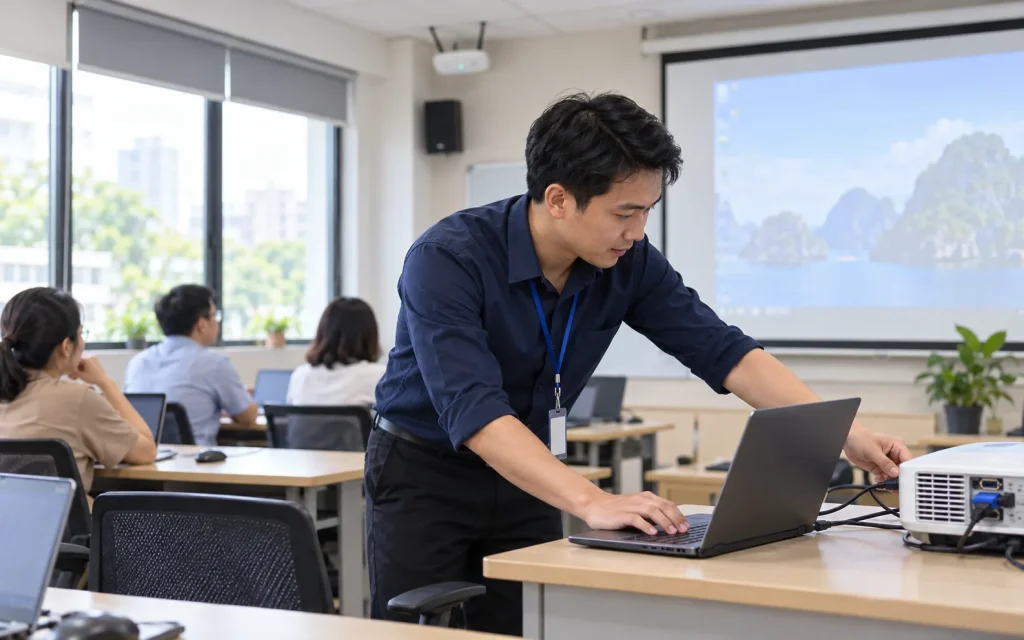
Quick answer: IT support for training centers should follow the class schedule and the impact of an incident: check classroom Wi-Fi, computers, displays, audio and instructor accounts before sessions; provide one clear support channel; and define whether IT, the internet provider, the learning-platform vendor or the equipment supplier owns each next step. Keep named accounts, role-based access, an equipment register and a recovery process aligned with the center’s own policies. IT Support can troubleshoot devices and connectivity and coordinate vendors, but should not access or alter learner records or LMS data without explicit authorization.
This guide is for language schools, skills and vocational centers, and training providers operating several classrooms or sites. It is an IT operations checklist, not legal advice, a substitute for the center’s data policies, or a promise that IT support will administer the learning platform.
Why training centers need an IT workflow of their own
Technology failures tend to arrive at the least convenient time: an instructor is about to start class, learners cannot sign in, a lesson will not display, or an online attendance workflow is interrupted. A weak Wi-Fi signal in one room can affect an entire session when several classes depend on the same network, classroom display and conferencing equipment.
Training centers also have changing user lists, rotating room schedules, shared equipment and multiple vendors. Without a room map, device inventory and a consistent way to report issues, staff are left guessing whether a fault belongs to a computer, network, account, learning application or internet connection. That uncertainty costs class time and makes ownership of the next action unclear.
Pre-class IT readiness checklist
| Area | Check | Who may need to coordinate |
|---|---|---|
| Classroom | Instructor computer, display input, projector/screen, audio and controls | IT, site operations, equipment vendor if needed |
| Wi-Fi and network | Coverage at learner seats, sign-in, lesson loading, expected device count and guest access | IT, ISP, network administrator |
| Accounts | Named instructor accounts, correct class permissions and an approved recovery method | Training owner, IT, platform administrator |
| LMS/software | Sign-in, user roles, supported browser/app and vendor incident notices | Center system owner, LMS provider |
| Shared devices | Printer, webcam, microphone, adapters and power; clear equipment owner | IT, reception/classroom operations |
| Incident readiness | Support contact, approved offline lesson option and class communication owner | Site manager, instructor, IT |
1. Inventory rooms, devices and owners
Start with a list of sites, classrooms, fixed equipment and devices loaned between sessions. Each item should have an easy-to-recognize name or asset tag, location, responsible person or team, condition, accessories and basic repair history. A complex tool is not the starting requirement: an owned inventory updated after room changes is more useful than an old list nobody maintains.
Record practical connection details such as display inputs, adapter types, access-point locations and support contacts. Do not post administrator Wi-Fi credentials or device login details in classroom documents. If equipment moves between sites, specify who hands it over, how it is transported and how accessories are checked.
2. Plan Wi-Fi around real classroom use
Test the network in the rooms and at the times learners actually use it. Class size, device types, online lesson content, video calls and room layout can all affect the experience. A test at reception or during a quiet period is not enough to establish how the network behaves during peak classes.
If instructors, staff, learners and guests use different network access, have an authorized administrator decide how access is separated and controlled. Do not change router, firewall or VLAN settings without an approved diagram, owner and recovery plan. When reporting a problem, include the site, room, time, affected users, device or action, and whether another room can connect. Do not send passwords in a public group chat.
3. Standardize accounts and class access
Instructors, employees and platform administrators should use accounts that match their roles rather than share one general login. When a class opens or an instructor changes, the training owner confirms who may enter the class, view content or perform LMS actions; IT applies only the approved access request. Enable multifactor authentication where the platform supports it and the center’s policy permits it.
When an instructor leaves, changes sites or completes a contract, include access, active sessions and assigned equipment in the offboarding checklist. Administrative accounts need an owner and a controlled recovery method. Keep passwords, authentication codes and learner details out of ordinary support tickets; use an approved test account or class reference when troubleshooting.
4. Separate IT troubleshooting from LMS and equipment vendors
When lesson content will not open, isolate the issue by class and device: can the user sign in; is one computer or several rooms affected; do other sites load; when did the problem start; has the vendor reported maintenance? IT can check endpoints, browsers, local network, DNS or account access within its agreed scope. Application defects, course data, class synchronization or vendor-hosted services belong with the platform provider.
The center should identify who may open a vendor ticket, what information may be shared and who validates the learning outcome. Do not send learner lists, screenshots containing personal information or coursework externally without approval. For projectors, audio equipment, cameras or interactive displays, clarify whether IT checks connectivity while the supplier handles hardware repairs and warranty work.
5. Agree on a fallback when technology is unavailable
Each site should agree how an incident is reported and how updates flow: who receives the report, who alerts the instructor, who decides whether to change rooms or postpone an activity, and when learners are notified. If offline lesson materials are available, the training owner decides what may be prepared, where it is stored and who may use it. IT should not change the timetable or upload copies of data to personal services as an improvised workaround.
A useful ticket records the time, site and room, affected class, device or platform, error message, steps already tried, vendor contact and next update. After service returns, the instructor or class owner confirms that the required activity works again. Close the ticket only after confirmation or clearly record why confirmation was unavailable.
Review IT at the rhythm of classes and course cycles
- Before a session: use a short check for display, audio, Wi-Fi and instructor access.
- When a class or instructor changes: confirm class permissions, equipment handover and support contacts.
- At course completion: remove temporary access, reconcile equipment and handle records under the center’s retention policy.
- Periodically: review room/network maps, device inventory, administrator accounts, updates, backups and vendor contacts.
- After an incident: record confirmed cause, impact, interruption, recovery and the action intended to prevent recurrence.
When should a training center outsource IT Support?
IT Support may be useful when several classes or sites rely on shared devices, Wi-Fi and a learning platform but the center does not have enough in-house IT coverage. The service scope should define support hours, remote/on-site work, priority by class impact, the internal approver, coordination with the ISP/LMS vendor and what evidence is recorded after a fix. Any SLA should reflect the number of sites, operating hours and realistic on-site coverage; avoid quoting a universal response time before assessing the environment.
IT Systems can review devices, networks, accounts and the support workflow to propose a suitable scope. See business IT Support and the IT services hub. The center and its LMS provider remain responsible for learning records, platform data and decisions about class operations.
Frequently asked questions
Does a small training center need recurring IT Support?
Not always. A center with few devices and occasional classes may be able to use an internal checklist and request-based support. Recurring support can help when several rooms, class schedules, accounts and vendors need a clear owner and regular checks.
Will IT Support fix LMS problems and learner records?
IT can isolate approved endpoint, network, browser and access issues. Platform functions or records may require the LMS provider. The center decides what data may be shared and validates the learning outcome.
Should a classroom share one account?
Use shared accounts only when the platform and center policy allow them, with a defined purpose and owner. Named role-based accounts generally make access removal and accountability easier.
When should classroom Wi-Fi be tested?
Test in the actual rooms and during representative load, especially before a busy session or a new online course. Record the conditions because results depend on devices, layout, user count and the internet connection.
What affects IT Support costs for a training center?
Scope usually depends on sites and rooms, device and account counts, operating hours, on-site frequency, network responsibilities and reporting needs. Assess these before agreeing on service levels.
Need an IT review for your training center?
Share the number of sites, classrooms, devices and operating hours. IT Systems can help define support ownership, an IT Support scope and the work that must stay with the LMS or connectivity provider.
References: CISA K-12 Resources and CISA K-12 School Security Guide. These are U.S. references, not Vietnamese legal requirements.