


STORAGE / ACCESS / BACKUP
Synology solutions for business
Start with the data and the way your team works, then choose drive bays, disks and a NAS model. IT Systems can assess requirements, configure the system, migrate files and hand over a tested recovery process.
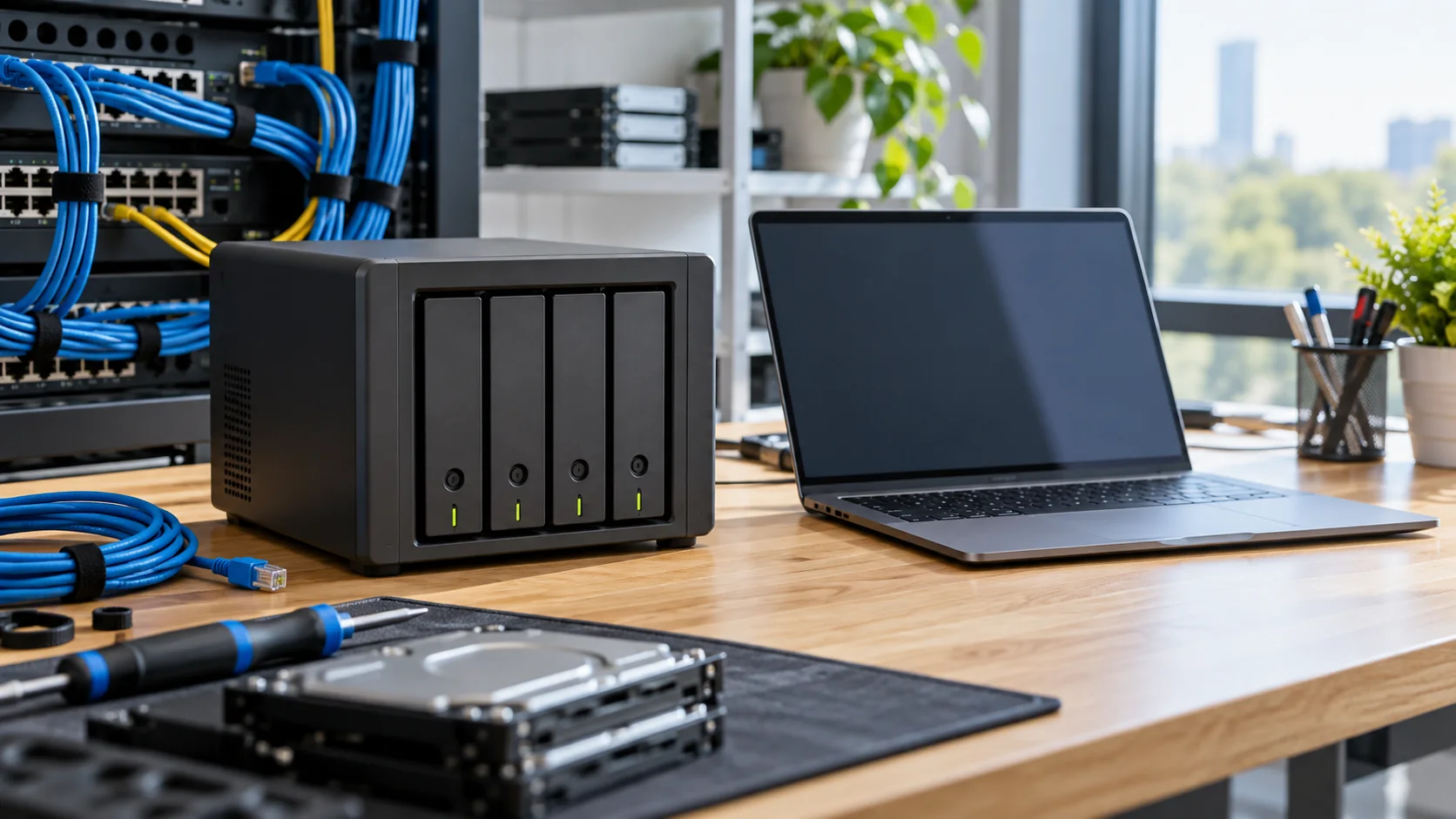
What business problem should Synology solve?
Synology NAS can provide centralized files, departmental access controls and managed sharing as part of a data-protection plan. The device alone is not a backup strategy: separate copies, version retention, alert ownership and restore tests still matter.
Not sure which centralized-data model fits? Read the three business storage deployment models before choosing hardware.
Not sure which centralized-data model fits? Read the three business storage deployment models before choosing hardware.
Separate three requirements before choosing hardware
Shared files with access control
Map data owners, read/edit groups and the process for granting or revoking access when employees change roles. Test office and remote access.
View access matrixBackup and recovery
List the PCs, servers, VMs and application data to protect; define RPO/RTO, off-device copies and a recovery test scenario.
View backup processMultiple offices
Assess inter-site bandwidth, synchronization, local access and who responds when a link or device is unavailable.
NAS, file server or SharePoint?Inputs that determine the configuration
Estimate concurrent users; file types and access speed; current capacity and two-to-three-year growth; usable capacity after RAID/SHR; existing 1/2.5/10GbE networking; version history, off-device copies and recovery time. Check drive, RAM and application compatibility for the exact model before ordering.
Match Synology applications to the job
These four tools address different layers. Do not assume every NAS supports every package: verify the model, DSM version, file system and data sources before quoting.
Synology Drive
For shared files, synchronization, controlled sharing and group-based version history. Versions can help reverse user mistakes but are not an independent backup copy. Need several people to co-edit documents, spreadsheets and slides? See the Synology Office collaboration guide and pilot real-file conversion.
Drive guideActive Backup for Business
For supported sources such as PCs, servers and virtual machines. Check x64 NAS, Btrfs, DSM version and source-type requirements before designing the job.
Active Backup guideSnapshot Replication
For recovery points on Btrfs shared folders and other supported objects. Local snapshots help return to an earlier state but are not a copy separated from the NAS.
Snapshot guideHyper Backup
For NAS data and configuration copies to an appropriate destination such as external storage, another NAS or cloud. Define schedule, retention and a restore test from the selected target.
Hyper Backup guideCheck capabilities against Synology documentation: Drive · Active Backup · Snapshot Replication · Hyper Backup
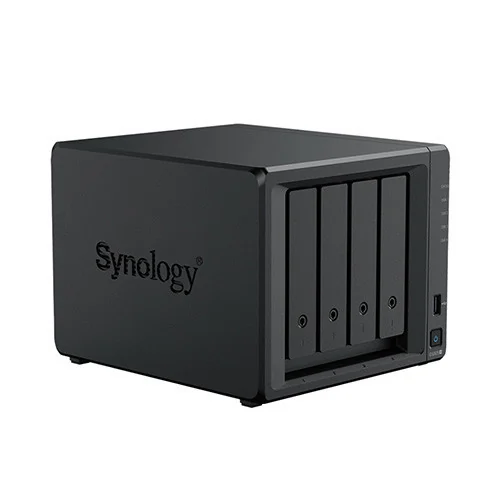
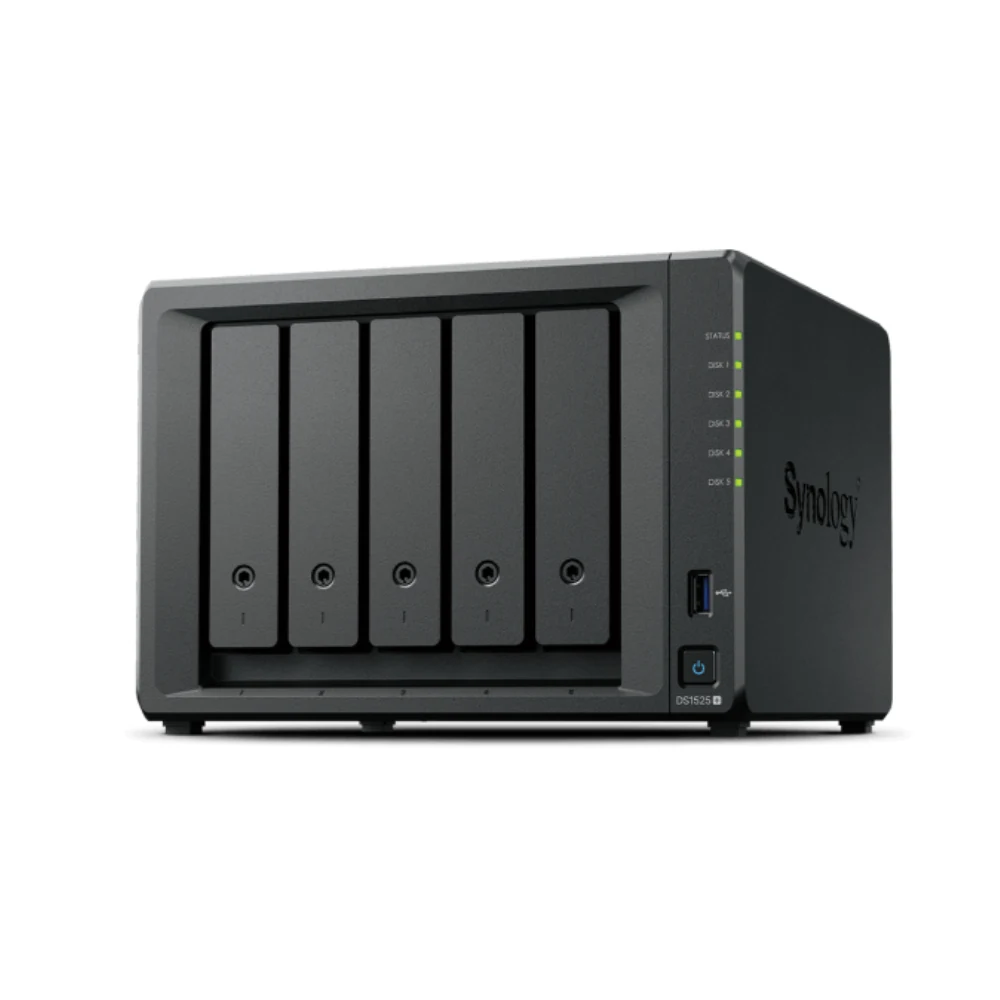
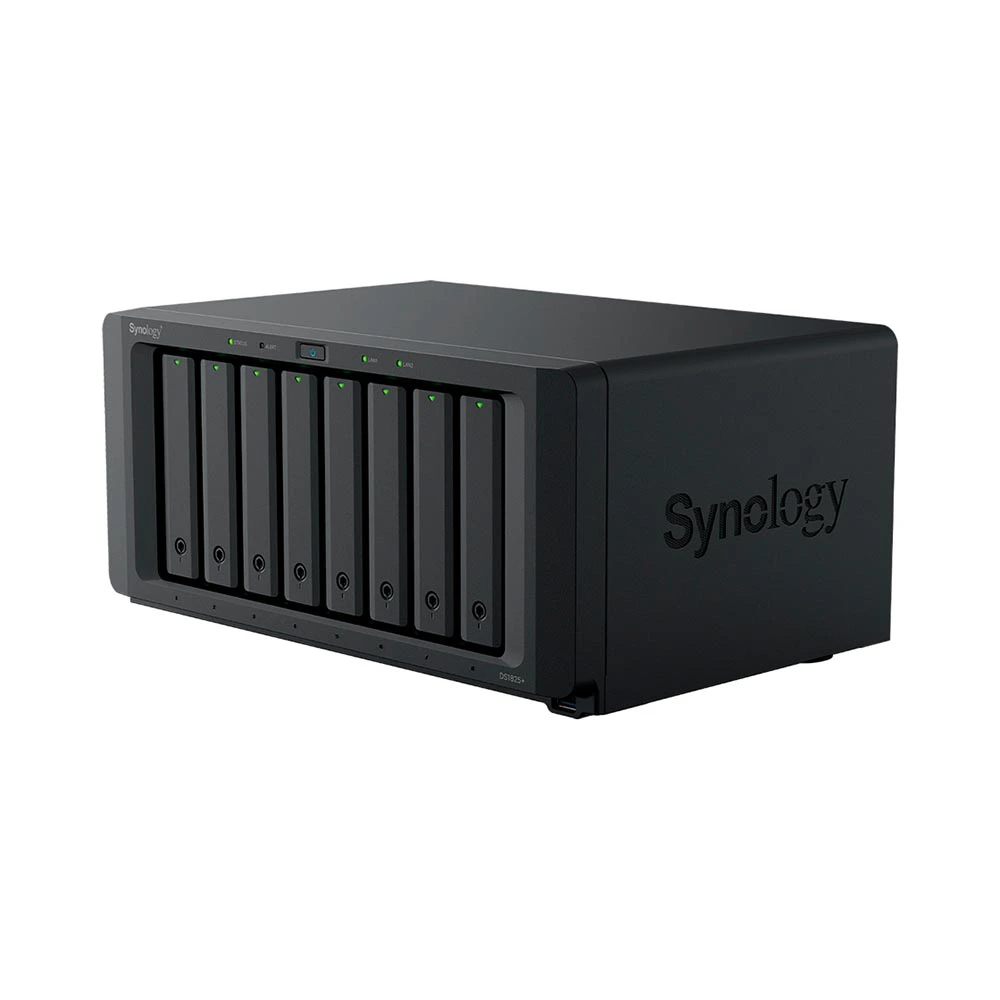
Hardware groups currently listed in Store
These are starting points, not performance or usable-capacity guarantees. Confirm current price, included drives, stock and deployment scope on the Store or in the quotation.
Browse DS Series
What does IT Systems deploy and hand over?
01. Assess
Inventory data sources, applications, accounts, rights, capacity, network and current risks.
02. Design
Select compatible model/drives, folder structure, permission groups, separate backup and access method.
03. Migrate
Schedule migration and validate sample files, permissions, versions and agreed downtime.
04. Accept
Hand over admin ownership, diagrams, backup schedule, alerts, test record and restore-test result.
RAID is not a backup
RAID/SHR can tolerate certain drive failures but does not fully protect against accidental deletion, ransomware, device loss or site incidents. Keep a copy at another destination and test restores. Package capabilities vary by model, DSM version and configuration.
Frequently asked questions
Can we buy a NAS before the assessment?
Yes, but a requirements review reduces the risk of insufficient bays, capacity or backup scope.
Does a NAS replace SharePoint?
Not in every case. Compare permissions, collaboration, remote access, compliance and budget; a hybrid setup may fit.
Are drives and migration included?
Do not assume so. The quote should separate hardware, compatible drives, configuration, migration and ongoing operations.
Sources and related guidance
See official Synology guidance on Drive sharing and NAS backup, plus the IT Systems NAS/file server/SharePoint decision guide.