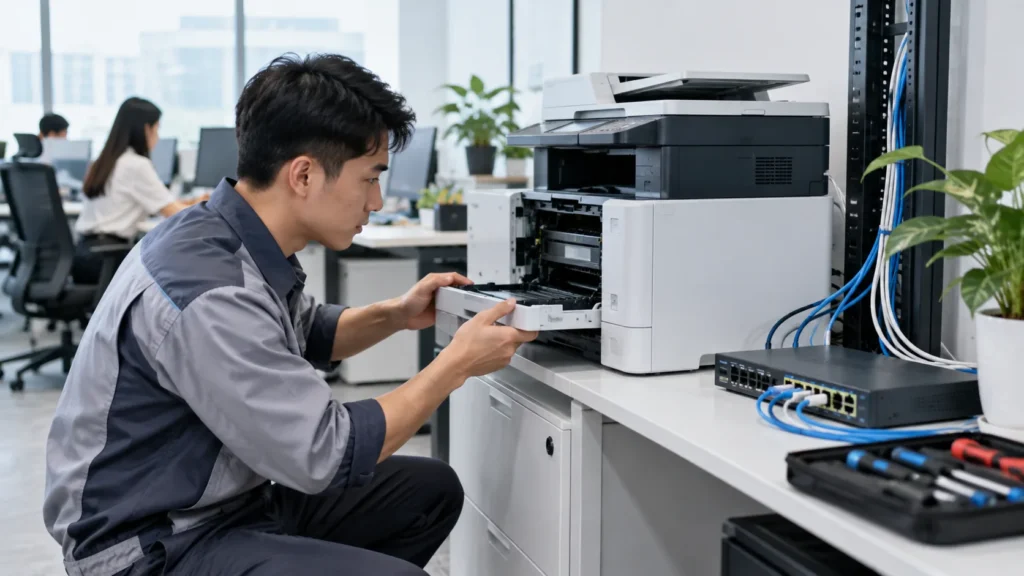
Quick answer: Recurring office Wi-Fi and printer issues should not be handled by “restart and move on”. IT Support should collect tickets, identify whether the issue affects one user or an area, check IP/DHCP/VLAN/SSID/driver/spooler, find root cause and report improvement actions.
Why do Wi-Fi and printer issues keep coming back?
They repeat because they sit across many layers: user device, driver, IP, DHCP, VLAN, guest Wi-Fi, router/firewall, AP placement, old printers and user habits. Fixing one computer may make today look solved, while the same root cause returns next week.
Printer and Wi-Fi issues are not small when they repeat
In an office, printers and Wi-Fi waste a surprising amount of time because they affect accounting, warehouse, sales, reception and meeting rooms. A blocked invoice print, unstable conference-room Wi-Fi or a laptop that cannot find the printer can stop multiple people even when the server and internet look healthy.
This is why IT Helpdesk should log tickets instead of handling everything through scattered chat messages. With ticket data, IT Support can see which area repeats, which device should be replaced, which driver is unstable and which network rule needs standardization.
Common root causes
| Symptom | Possible cause | Sustainable fix |
|---|---|---|
| Printer disappears | Printer IP changes after DHCP/router restart while Windows keeps the old port | Use static IP or DHCP reservation and standardize print ports |
| Printing works intermittently | Users are on guest Wi-Fi or another VLAN blocked from internal printing | Design SSID and VLAN rules by role |
| Laptop has internet but cannot find printer | Printer supports only 2.4GHz while laptop is on 5GHz or guest network | Align SSID design with older printer capability |
| Print jobs get stuck | Spooler issue, wrong driver, stuck queue or old firmware | Standardize driver, clear queue and update firmware carefully |
| Wi-Fi drops in one area | Poor AP placement, channel interference, roaming issue or overloaded AP | Survey signal, channel, AP load and device placement |
How to classify before onsite dispatch
| Impact scope | What to check | Handling path |
|---|---|---|
| One user | Laptop, driver, profile, print permission, VPN | Remote first |
| One department | Area switch/AP, VLAN, shared printer, cabling | Remote plus onsite if repeated |
| Whole office | Internet, router/firewall, DHCP/DNS, Wi-Fi controller | High priority |
| Only during peak hours | AP load, bandwidth, client count, printer queue | Review logs by time window |
| After equipment/config change | Firewall rule, SSID, driver, IP, firmware | Compare before and after change |
Periodic checklist
| Group | What to check | Evidence to keep |
|---|---|---|
| Network | IP, DHCP reservation, DNS, VLAN, firewall rule, guest/internal SSID | IP table, network map, config screenshots |
| Wi-Fi | Signal, channel, AP load, roaming, 2.4GHz/5GHz, AP placement | Simple heatmap or location-based notes |
| Printer | IP, driver, firmware, queue, spooler, permission, model/supplies | Config page, error log, repeat tickets |
| Users | Affected device, account, department and time pattern | Complete ticket fields |
| Reporting | Repeat issues, device replacement, rule change, user guidance | Monthly report |
SLA priority for Wi-Fi and printer issues
| Priority | Example | Reference response | Handling path |
|---|---|---|---|
| P1 | Whole office loses Wi-Fi or cannot print critical sales/accounting documents | 15-30 minutes | Immediate handling, onsite if needed |
| P2 | One department loses printer/Wi-Fi access and work is affected | 30-60 minutes | Analyze logs and isolate area |
| P3 | One user has driver, printer discovery or weak Wi-Fi issue | Business day | Remote first and track repeats |
| P4 | AP placement optimization, driver standardization, user guide | Scheduled | Handle during maintenance/improvement window |
Why restarting devices is not enough
Restarting the router, printer or computer may help temporarily, but it does not explain why the issue happened. If the printer IP changed, it will return. If the laptop is on guest Wi-Fi, the user still cannot print. If an AP is overloaded at peak hours, restarting only hides the symptom. If the driver is wrong, the queue can get stuck again days later.
IT Support should record evidence before restarting: time, area, user, SSID, printer IP, queue status, error message and number of affected users. This data supports root-cause resolution.
When onsite support is required
Remote support works for drivers, queues, spooler, user profiles, permissions and endpoint configuration. Onsite is needed when the issue involves AP placement, cabling, switch ports, Wi-Fi signal, power, printer supplies, paper jams or real location-based testing. The onsite vs remote support guide helps set expectations with users.
Standardization reduces repeat tickets
For shared printers, use static IP or DHCP reservation, name printers by department/location, standardize drivers, record model/supplies, review print permissions and publish user guidance. For Wi-Fi, separate employee and guest SSIDs, check coverage, avoid poor AP placement, review channel interference and track client count per AP.
For multi-branch businesses, standardize naming: branch code, AP name, printer name, IP range, VLAN and owner. When a ticket arrives, technicians do not waste time guessing which device is failing.
What the monthly report should show
The report should not only say “printer fixed” or “Wi-Fi repaired”. It should show tickets by area, repeat devices, impact time, confirmed root cause, replacement needs, configuration changes and budget recommendations. If the same printer or same Wi-Fi zone fails every month, that is an action signal.
Connect this with IT Support KPI/SLA reporting so management sees operational improvement instead of only the number of support calls.
Coordinate vendors instead of passing blame
Recurring office issues often involve more than one party: ISP, copier vendor, cabling contractor, software vendor and internal IT. Without one owner, each side may say the issue belongs somewhere else. IT Support should collect evidence, isolate the layer, communicate with the right vendor and keep the business updated through the ticket. This is especially important when printer, Wi-Fi and internet symptoms look similar to end users but have different technical owners.
Read next in the IT Support cluster
Do Wi-Fi, printers or office network issues keep coming back?
IT Systems can review tickets, devices, IP, Wi-Fi, printers and support workflow to find root causes, reduce repeat issues and provide clear reports for management.