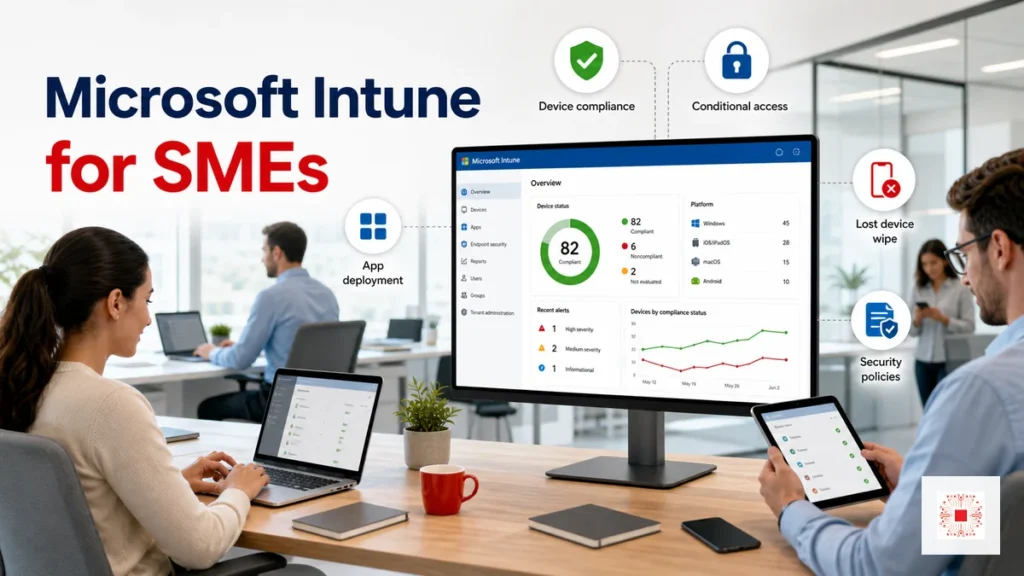
Microsoft Intune is Microsoft’s cloud platform for managing devices and apps, usually used with Microsoft 365 to manage Windows laptops, macOS devices, iPhones, iPads and Android devices. Instead of configuring each device manually, IT can define central policies: which devices are compliant, which apps are installed, how company data is protected and how a lost device can be locked or wiped. For SMEs, Intune is not only a technical console; it is a way to turn device management into a standardized, evidence-based and scalable process. It should connect with account policy, MFA, permission control, onboarding, offboarding and the way the company handles devices throughout their lifecycle.
This article focuses on practical SME rollout: when Intune is needed, what to enable first, which risks to control and how to connect Intune with daily IT operations.
Why Are SMEs Paying More Attention to Intune?
SME work patterns have changed. Employees use laptops in the office, work remotely, access email on phones and rely on Teams, OneDrive, SharePoint and many SaaS applications. If the company only manages passwords and installs software manually, risk grows as the number of devices increases. A personal phone with company email, a laptop without disk encryption or an outdated operating system can become a weak point. Intune helps IT check device health before allowing access to company data, especially when the company passes 20-30 users or has many people working outside the office.
When evaluating Intune, leaders should think in terms of the device lifecycle: purchase, enrollment, handover, daily use, support, user changes, loss and retirement. If each stage has an owner and evidence, Intune becomes an operating foundation instead of just another Microsoft 365 license.
How Is Intune Different From Traditional PC Management?
Traditional management often depends on technicians: imaging devices, setting policies, installing software, fixing issues and remembering each configuration. This is still needed in many onsite situations, but it does not scale well when employees grow, devices are distributed or offices multiply. Intune moves many tasks into a policy model. Policies are defined once, applied by user or device group, reported centrally and updated remotely. If the business already uses AD/GPO, Intune does not have to replace it immediately. Hybrid models can be practical when the cloud and on-premise boundaries are clear.
The need usually appears as repeated small gaps rather than one dramatic incident: nobody knows which laptop has which app, which phone still has company email, which device lacks encryption or which user kept access after leaving. Manual tracking becomes fragile as the team grows.
Which Devices Can Intune Manage?
Intune can manage company-owned devices and personal devices under a BYOD model, but the level of control differs. Windows laptops usually create the clearest value because they touch many apps, data, operating system updates and endpoint security controls. macOS, iOS/iPadOS and Android devices can also be managed for email, company apps, PIN requirements, encryption and corporate data removal. SMEs should classify devices first: company-owned, personal, email-only, privileged or sensitive-data devices. Correct classification prevents policies from becoming too heavy or too weak.
For environments with AD/GPO, a practical roadmap is to pilot new devices or hybrid-work users first. The business can then decide whether to use co-management, cloud-only management or keep certain controls on-premise because older applications still require them.
Device Compliance: Which Devices Are Allowed to Access Data?
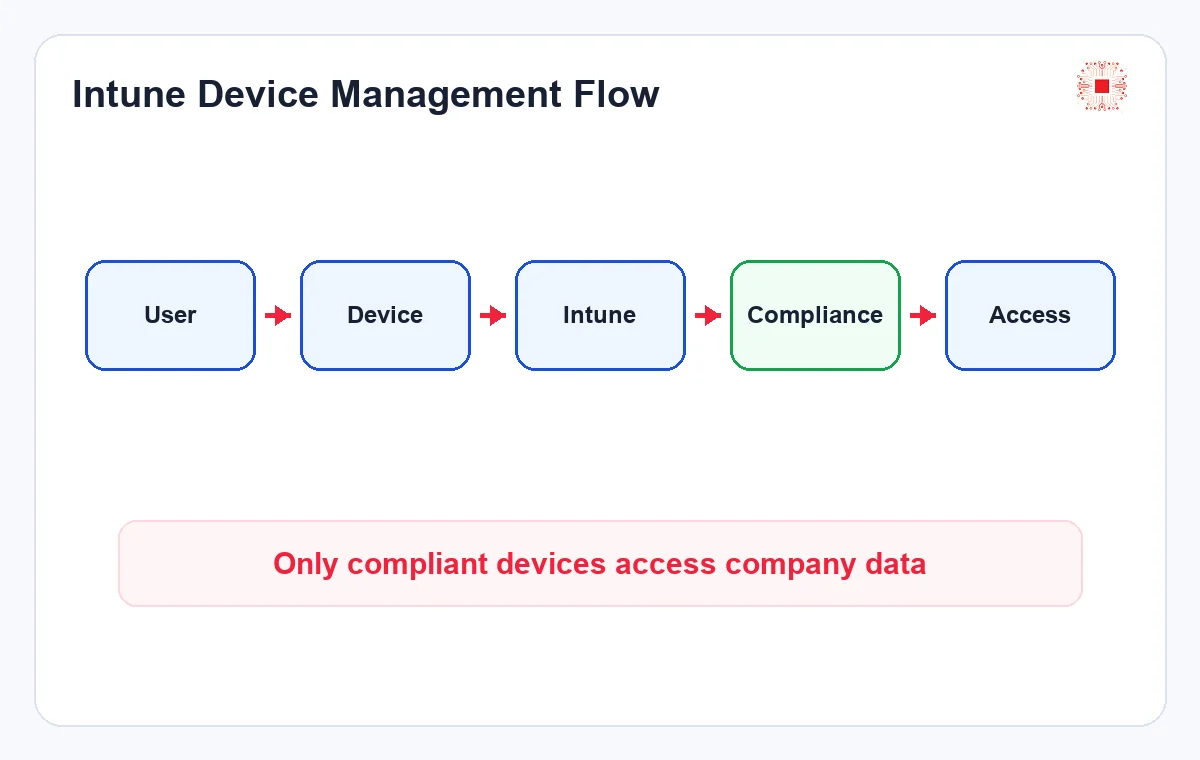
Device compliance lets a company define minimum standards before allowing a device to access corporate resources. Examples include password requirement, disk encryption, supported operating system version, no jailbreak or root, active antivirus and no critical risk state. Compliance does not protect everything by itself, but it creates an important checkpoint between users and data. When combined with Conditional Access, the business can require compliant devices before accessing email, Teams, SharePoint or cloud apps. This is where Intune directly supports Microsoft 365 security and device risk governance.
Device classification also protects budget. Not every device needs the same control level. A laptop handling sensitive data may require encryption, compliance and app control, while a personal phone may only need protection inside Outlook, Teams and OneDrive.
Conditional Access: Control by User, Device and Risk
Conditional Access does not only ask whether the password is correct. It evaluates the user, device, location, application, risk level and sign-in conditions before allowing, blocking or requiring MFA. Intune provides device state to Conditional Access: whether the device is compliant, managed, assigned to the right group and meeting policy. Common SME use cases include blocking access from unmanaged devices, requiring MFA outside the office or allowing file download only from trusted devices. Rollout should be layered so the team does not accidentally block the entire company.
If compliance is too strict from day one, users may be blocked unexpectedly. If it is too relaxed, risk remains unchanged. A pilot or audit-only stage helps the team see how many devices would become non-compliant before real access blocking is enforced.
App Deployment: Install and Update Software With Control
A common SME pain point is inconsistent software. One laptop lacks Teams, another has an old Office version, accounting software is not updated, the browser lacks required extensions or users install risky utilities. Intune can deploy applications by group, device, user and condition. IT can push Microsoft 365 Apps, browsers, VPN clients, internal software, configuration scripts or store apps. More importantly, IT can see deployment status: which devices succeeded, which failed, whether the issue is permissions, offline devices or package errors. This greatly reduces manual work.
Conditional Access should be documented as part of user access management. Each rule needs a purpose, target group, affected apps, exclusions and rollback path. Without this discipline, access rules become hard to maintain and risky to change.
Protecting Company Data on Personal BYOD Devices
BYOD is common in smaller businesses. Employees use personal phones to read email, use Teams or open files. If management is too intrusive, users feel their personal device is being over-controlled. If there is no management, company data may be saved, shared or remain on the device after an employee leaves. Intune can use app protection policies to protect data inside company apps: requiring a PIN, blocking copy to personal apps, restricting external save locations or removing corporate data from apps when access is revoked. A clear BYOD policy helps employees understand privacy boundaries.
For app deployment, Intune should not become a place to push everything without selection. Apps should be grouped into required, optional and department-specific software. This keeps employees productive without overloading devices or adding unnecessary software risk.
Autopilot and Standardized Device Onboarding
Windows Autopilot helps standardize new device handover. Instead of a technician building each laptop from scratch, devices can be pre-registered. When the employee starts the device and signs in with a company account, it receives policies, applications and security configuration automatically. For SMEs that are growing or hiring in multiple locations, Autopilot reduces deployment time and configuration mistakes. To work well, the business still needs Microsoft 365 tenant preparation, user groups, suitable licenses, pilot policies, handover process and user guidance.
BYOD communication is crucial. Employees should understand that, with the right configuration, IT is not reading personal photos, private messages or data outside company apps. Clear boundaries make security policy easier to accept.
Does Intune Replace IT Support?
Intune does not fully replace IT support services. It reduces repetitive tasks such as app installation, policy deployment, device lock, compliance checks and reporting, but people are still needed to design policies, operate the environment, handle exceptions and support users. When a policy blocks email, logs must be checked. When app deployment fails, the cause must be diagnosed. When a device is lost, the situation must be validated before wiping data. When an employee leaves, HR and account management processes must work together. Intune is a strong tool; value comes from the process around it.
Autopilot should include a handover checklist: who buys the device, who registers the serial number, who assigns the user, which apps are required, how long setup should take and who helps if enrollment fails. The clearer the process, the better the first-day experience.
Comparison Table: Manual Management, AD/GPO and Intune
Not every company needs to move everything to Intune immediately. Some environments still need Active Directory and Group Policy, especially when old internal applications or on-premise systems remain important. However, for companies using Microsoft 365, hybrid work and mobile devices, Intune gives clearer cloud-native management. The table below helps managers and IT compare models from an operational point of view, not just technology names. The practical goal is choosing the right model for the current environment and building a phased roadmap.
After rollout, IT still needs recurring reports. Useful metrics include compliant device count, stale devices, failed app deployments, policies that create many tickets, lost/locked/wiped devices and Conditional Access changes made during the month.
| Criteria | Manual | AD/GPO | Intune |
|---|---|---|---|
| Best fit | Few devices | On-premise office | Hybrid/cloud, many devices |
| App rollout | Per device | Domain based | Cloud user/group based |
| Remote devices | Hard to control | Limited | Better managed |
| Evidence | Notes dependent | Internal policy | Dashboard and reports |
| Risk | Inconsistent | Office-network dependent | Requires careful policy design |
SME Intune Rollout Checklist
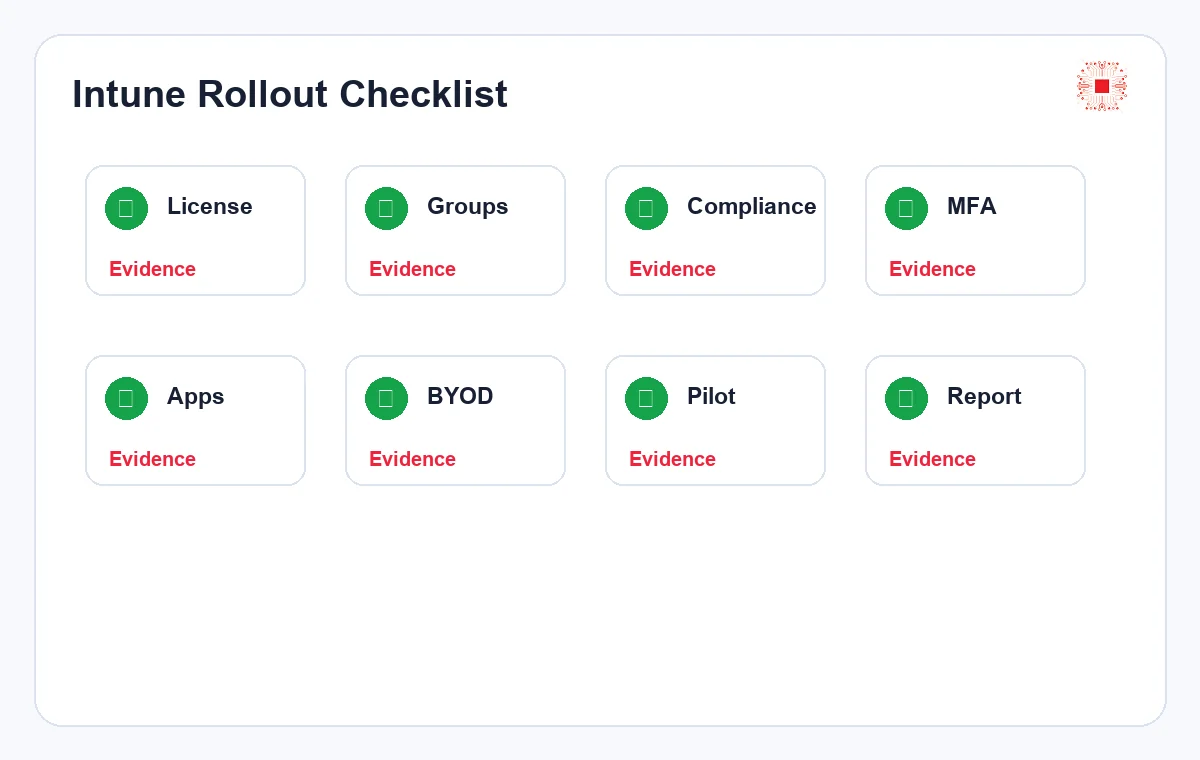
Intune deployment should start with a clear checklist. The business should review licenses, Microsoft 365 tenant state, user groups, company-owned devices, personal devices, compliance requirements, MFA, Conditional Access, required apps, BYOD policies, lost-device process and operational reporting. Do not enable every policy for everyone at once. A better path is a pilot group containing IT, managers and representative users; measure issues, adjust policy, write guidance and then expand. The checklist needs owners and evidence: policy records, app deployment reports, compliant device count and issue notes.
The comparison table also shows that Intune is not the only answer. Its value is clearest when the company needs to manage devices outside the office, protect Microsoft 365 data and see device status from reports instead of relying fully on manual work.
| Area | Decision Question | Evidence |
|---|---|---|
| License | Does the plan include Intune? | License table |
| Compliance | What makes a device trusted? | Pilot policy |
| Conditional Access | Which apps need access conditions? | Rules and target groups |
| BYOD | How is company data handled on personal devices? | App protection policy |
| Operations | Who handles issues after go-live? | SLA/ticket/report |
What Drives Intune Cost?
Cost is not only the license price. The company should consider user count, current Microsoft 365 plan, device count, policy complexity, Autopilot needs, internal apps, BYOD, security requirements and the capability of the current IT team. If the business uses Microsoft 365 Business Premium, many Intune and endpoint security components may already be included. If it uses a lower plan, requirements should be compared against real needs. The Microsoft 365 Business Basic, Standard and Premium comparison is a useful reference before deciding.
A good checklist should end with rollout waves. For example: wave 1 for company laptops, wave 2 for phones with company email, wave 3 for Autopilot and wave 4 for advanced policies. This reduces operational shock.
How IT Systems Implements Intune
IT Systems usually starts by reviewing the Microsoft 365 tenant, user accounts, licenses, device groups, data access risks and current IT processes. We then propose a rollout scope: compliance policies, Conditional Access, app deployment, BYOD protection, Autopilot where useful, operating documentation and monthly reporting. For SMEs, the goal is not enabling many features just to make the dashboard look busy. The goal is reducing real risk: lost devices can be handled, leavers lose access correctly, non-compliant devices cannot reach sensitive data and key apps are installed consistently. Intune naturally connects with IT Systems’ Microsoft 365 services and managed IT services.
The company should also budget for user support during the first 2-4 weeks. This is when most questions appear: why MFA is required, why a device is non-compliant, why an app has not installed or why a personal device needs app registration.
Common Mistakes SMEs Should Avoid
The first mistake is treating Intune as a one-click security upgrade. The console can enforce policies, but the company still needs decisions about device ownership, employee communication, exception handling and service responsibility. The second mistake is applying strict policies to everyone before testing real devices. A single condition can block email, Teams or SharePoint for many users if pilot results are ignored. The third mistake is forgetting offboarding. If device management does not connect with account disabling, license removal and data wipe decisions, the company still carries risk after an employee leaves.
Another common issue is creating policies without names, descriptions or owners. After several months, nobody knows why a policy exists or whether it is still needed. Good naming and change notes sound small, but they make the environment easier to audit and safer to modify.
How to Measure Whether Intune Is Working
Intune success should be measured by operating outcomes, not only by setup completion. Useful metrics include compliant device percentage, number of unmanaged devices accessing Microsoft 365, failed app deployments, time to prepare a new laptop, number of stale devices, number of blocked risky sign-ins and support tickets created by device policies. These metrics help management see whether Intune is reducing risk and saving time.
The report should also include decisions. For example, if many devices fail compliance because Windows is outdated, the action may be update policy, user communication or device replacement. If many app deployments fail, the issue may be packaging, internet access or device enrollment quality. A report without decisions is only a dashboard screenshot.
FAQ About Microsoft Intune for SMEs
Do small companies need Intune? Not always, but it becomes valuable when employees use many devices, work remotely, access Microsoft 365 data from phones or need consistent security policy. Is Intune only for Windows? No. Windows is often the strongest use case, but Intune can also manage macOS, iOS/iPadOS and Android. Can Intune wipe personal phones? With the right BYOD design, IT can remove corporate app data without wiping the whole personal device. Should Intune be deployed by IT or security? Both perspectives matter. IT handles usability and support, while security defines risk controls and access requirements. Which license should SMEs review first? Microsoft 365 Business Premium is usually the first plan to compare because it combines productivity, identity security and device management capabilities.
A Practical First 30 Days Roadmap
During the first 30 days, an SME should avoid trying to perfect every policy. A practical roadmap starts with discovery: licenses, users, devices, existing Microsoft 365 security settings and current support pain points. The next step is a small pilot for Windows laptops and mobile app protection. After that, the team reviews failed enrollments, non-compliant devices, user questions and Conditional Access impact. Only when the pilot is stable should the company expand to more departments. This phased approach gives management evidence before wider rollout and keeps the project connected to daily work instead of becoming a technical experiment. It also creates a cleaner handover for support teams.
Need a practical Intune rollout?
IT Systems can review your Microsoft 365 tenant, licenses, devices, Conditional Access, BYOD policy and build an Intune roadmap for SMEs.