


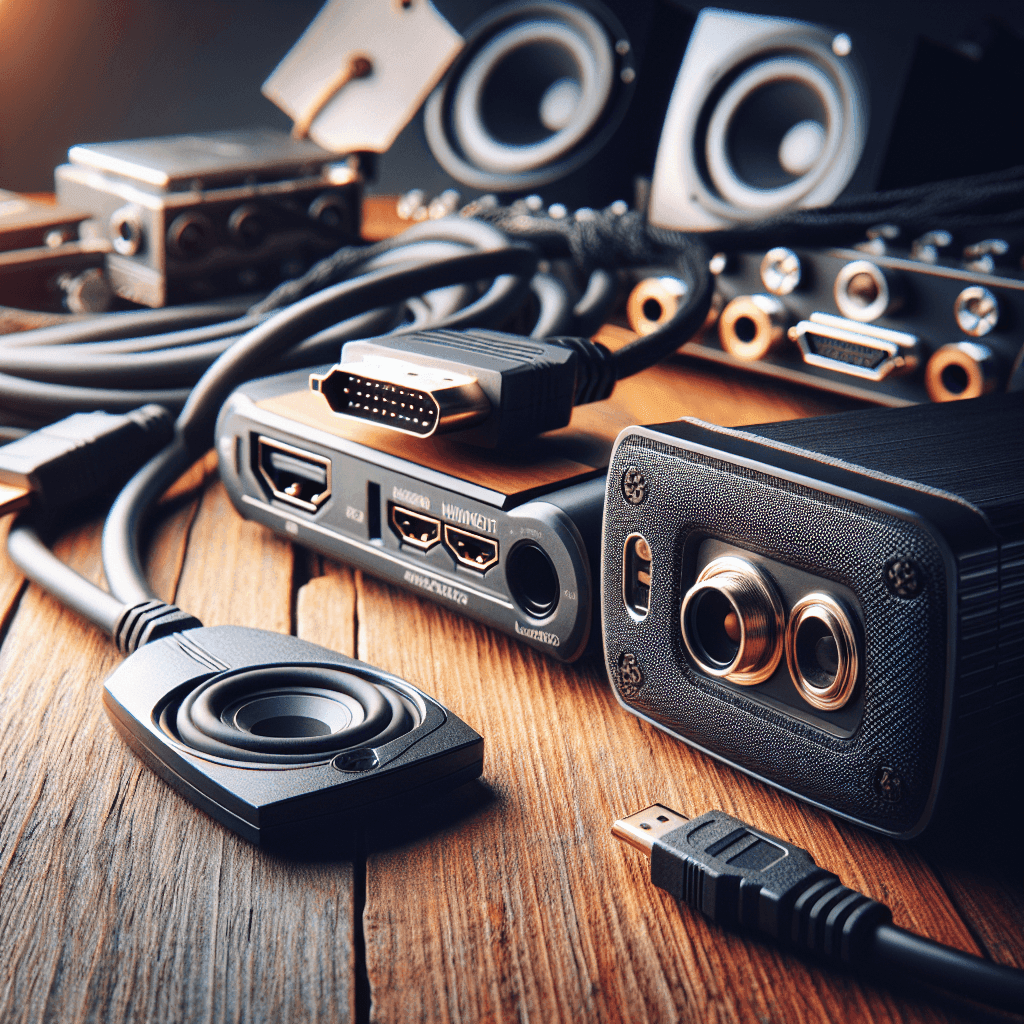
No Sound Through HDMI: Causes and Effective Fixes
In today’s world, using HDMI cables to transmit audio and video between devices has become more common than ever. However, sometimes users encounter the issue of ‘no sound through HDMI’, leading to a poor experience. In this article, we will analyze the causes and ways to effectively fix this error.
Why Is There No Sound on HDMI? Understanding Common Causes
There are many reasons why an HDMI cable might not transmit sound. Let’s go through some of the most common causes:
Faulty HDMI Cable: Check and Replace
A damaged or incompatible HDMI cable can be the main cause of no sound. To check this, you can try using a different HDMI cable to see if the issue is resolved.
Incorrect HDMI Audio Settings: Detailed Configuration Guide
Incorrect settings in audio configuration can prevent sound from being transmitted over the HDMI cable. Make sure you have selected the correct HDMI device in your operating system’s audio settings.
Outdated HDMI Audio Driver: How to Update Drivers
Old or faulty audio drivers can cause audio issues over HDMI. You should check and update drivers regularly to ensure optimal performance.
Software Conflicts: Applications That May Cause Errors
Background applications may conflict with HDMI audio. To fix this, close unnecessary applications and check again.
Hardware Issues: Damaged Graphics Card or HDMI Port
Finally, if all the above methods do not work, it is possible that your hardware is damaged. You should check the graphics card and HDMI port.
[Guide] 7 Quick Ways to Fix No Sound Through HDMI
Here are the steps to resolve the HDMI sound problem:
Step 1: Check HDMI Cable and Connections
First, make sure the HDMI cable is securely connected to both devices you are using.
Step 2: Properly Configure HDMI Audio on Windows/macOS
On Windows, go to the audio settings and select the HDMI device as the default device. On macOS, go to System Preferences -> Sound and select the HDMI device.
Step 3: Update HDMI Audio Driver to the Latest Version
Visit the manufacturer’s website for your sound card or motherboard to download and install the latest driver version.
Step 4: Check Audio Settings on TV/Display Device
Ensure that the audio on the TV or display device is turned on and not muted.
Step 5: Close Applications That May Cause Audio Conflicts
Close all unnecessary applications to ensure that none are causing audio errors.
Step 6: Restart the Device
Restarting the computer and related devices may help eliminate temporary errors.
Step 7: Check Hardware (Graphics Card, HDMI Port)
If there is still no sound, check your hardware; your graphics card or HDMI port may be damaged.
No Sound on TV/Computer via HDMI? Solutions for Each Device
Here are fixes for specific devices:
TV No Sound When Connected via HDMI: How to Fix
Check the audio settings directly on the TV and ensure it is not in mute mode or too low volume.
Computer Not Outputting Sound Through HDMI: Detailed Guide
Make sure you have selected the correct audio device in the audio settings and that no application is obstructing audio playback.
HDMI ARC No Sound: Check and Configure
Check the configuration of the HDMI ARC port in the setup menu of your TV and connected devices.
FAQ: Answers to Common Questions About No Sound Through HDMI
Why Can’t I Hear Sound When Connecting via HDMI?
This may be due to incorrect audio settings or a malfunctioning HDMI cable. Please recheck the troubleshooting steps.
How Can I Check If My HDMI Cable Is Faulty?
You simply need to try using a different HDMI cable to see if the issue is resolved.
What Is the Best HDMI Audio Driver for My Graphics Card?
You should visit the graphics card manufacturer’s website to find the most suitable audio driver.
What is HDMI ARC and Why Is It Not Producing Sound?
HDMI ARC (Audio Return Channel) allows audio to travel both ways. If there is no sound, it may be due to incorrect settings on the device.
Successfully Fixing HDMI No Sound Issue: Summary and Tips
We hope this article has provided you with useful information to resolve the no sound through HDMI issue. Please check each step, and if you are still unsuccessful, don’t hesitate to leave your questions for us to assist you promptly.
If you need assistance, please contact us right away
IT SYSTEMS VIETNAM CO., LTD
IT Solutions – Your Business IT Department
HOTLINE: 0283 9950 359
Email: contact@itsystems.com.vn
Website: https://itsystems.vn/
Facebook: https://www.facebook.com/ITSystems.VIETNAM
Youtube: https://www.youtube.com/@ITSYSTEMS
HCM: 2nd Floor, 184/1A Le Van Sy Street, Ward 10, Phu Nhuan District, Ho Chi Minh City, Vietnam
HCM: 321/10 Phan Dinh Phung Street, Ward 15, Phu Nhuan District, Ho Chi Minh City, Vietnam.
Hanoi: House No. 22, Garden Villa Area, Vinh Hoang Urban Area, 431 Tam Trinh Street, Hoang Mai District, Hanoi, Vietnam.
Bình Dương: Binh Duong Boulevard, Phu Hoa Ward, Thu Dau Mot City, Binh Duong Province, Vietnam
FAQ
When should a business ask IT Systems for support?
Ask for support when the issue affects users, business data, security, licensing compliance, service availability or daily operations. A short technical review often prevents repeated incidents and hidden costs.
Can IT Systems help review the current environment before proposing a solution?
Yes. IT Systems can review the current setup, identify risks, map the issue to the right service scope and recommend a practical next step for your business.
Does this topic connect to ongoing IT operations?
In most cases, yes. Problems around software, cloud, endpoint, network, backup or security should be connected to a broader IT operations plan instead of being handled as isolated incidents.
Need help applying this to your business?
IT Systems Vietnam can help assess the issue, recommend the right service path and support implementation for your team.


