


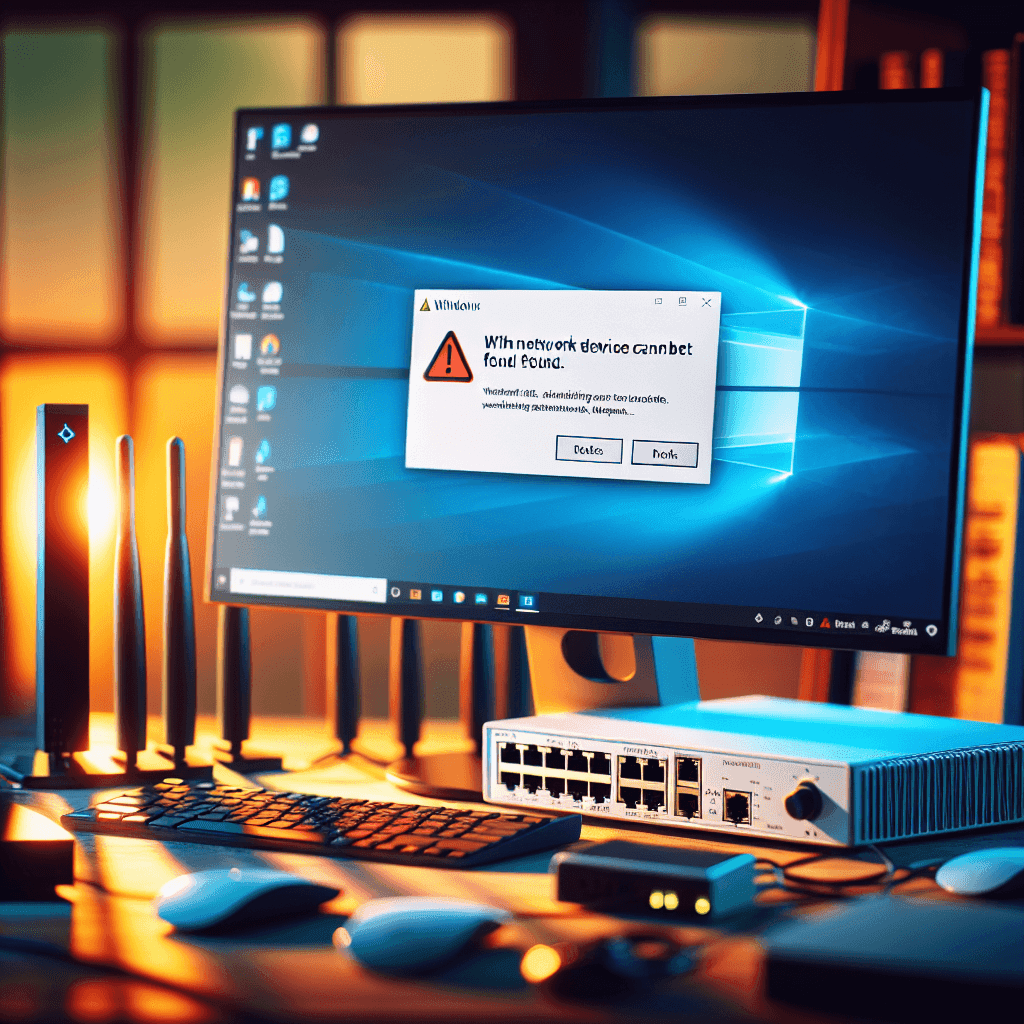
Network Device Not Found Error on Windows: Causes and Effective Solutions
The network device not found error on Windows can hinder access to the Internet and other network resources. There are many potential causes of this issue, ranging from software to hardware. In this article, we will analyze the identifying signs, causes, and effective steps to troubleshoot this network error quickly.
Identifying Signs of the Network Device Not Found Error on Windows
Common signs when the computer cannot find the network device include:
- Unable to connect to the Internet even though WiFi or Ethernet cable is still being used.
- The network connection icon in the system tray displays an exclamation mark or no connection icon.
- Error messages appear when attempting to connect to the network, such as ‘Network device not found.’
- The system does not detect surrounding WiFi networks.
Network Device Not Found Error on Windows: Causes
There are numerous causes leading to the network device not found error on Windows. Here are some common reasons:
- Faulty or uninstalled network driver: The driver is essential for the operating system to communicate with the network hardware. If the driver does not function correctly or is not installed, the computer will not find the network device.
- Disabled network card (Ethernet/WiFi): A disabled network card can prevent the computer from detecting the network.
- Incorrect network settings: Incorrect IP or DNS settings can lead to errors preventing connection to the network.
- Hardware faults: If the network card is damaged or the connection cable is broken, you will not be able to connect to the network.
- Software conflicts: Some security software may conflict with network connection functions.
- Router/Modem issues: Network devices such as routers or modems may also encounter problems, preventing the computer from connecting.
Network Device Not Found Error: Step-by-Step Troubleshooting Guide
3.1. Check Physical Connections:
When encountering the network device not found error, the first step you need to take is to check the physical connections:
- Ensure the network cable (Ethernet) is securely plugged into the port on the computer and the router/modem.
- Check the indicator lights on the Router/Modem to see if there is a signal.
3.2. Restart Network Devices:
Sometimes, restarting the computer, router, and modem can quickly resolve network errors. Follow the steps below:
- Turn off the computer and unplug the router and modem.
- Wait for about 30 seconds, then plug back in and restart all devices.
3.3. Enable/Disable Network Card:
To check if the network card is functioning, you can do the following:
- Go to Device Manager on Windows.
- Find the Network adapters section, right-click on your network card, and choose Enable if it is disabled.
- You can also try Disable and then Enable the network card again.
3.4. Update Network Driver:
Updating the network driver is crucial to ensure that the network card operates at its best. You can do as follows:
3.4.1. Automatic Network Driver Update
To automatically update the driver, follow:
- Open Device Manager.
- Right-click on the network card and select Update driver.
- Select the option to automatically search for updated drivers.
3.4.2. Manual Network Driver Update
If you need to download the driver from the manufacturer’s website:
- Visit the manufacturer’s official website.
- Search for your network card model and download the latest driver.
- Install the new driver following the on-screen instructions.
3.5. Uninstall and Reinstall the Network Driver:
If the problem persists, try uninstalling the network driver and reinstalling it:
- Go to Device Manager.
- Right-click on the network card, select Uninstall device.
- Restart the computer; Windows will automatically install the new driver.
3.6. Use Network Troubleshooter:
Windows has a built-in network troubleshooter that can help you detect and fix errors:
- Right-click on the network icon in the system tray.
- Select Run troubleshooter and follow the on-screen instructions.
3.7. Reset Network Settings:
If the above steps do not work, you may try resetting network settings:
- Go to Settings > Network & Internet.
- Select Status and scroll down to Network reset.
- Click on Reset now.
3.8. Check and Disable Firewall:
Sometimes the firewall may block connections. Perform the following:
- Open Settings.
- Select Update & Security > Windows Security.
- Choose Firewall & network protection and turn off the firewall for testing.
3.9. Check Network Services:
Services like DHCP Client and DNS Client need to run for network connectivity:
- Open Services on Windows.
- Find the above services and ensure they are running.
3.10. Scan for Viruses and Malware:
Viruses can cause networking issues:
- Use antivirus software and run a full system scan.
- Remove any malware found.
Fixing WiFi Not Found Error on Windows
For WiFi-related issues, there are several additional steps you may try:
- Ensure WiFi on the computer is turned on. Check the hardware switch or shortcut key.
- Forget the current WiFi network and try to reconnect by entering the correct password.
- Update the WiFi driver as mentioned above.
Common Issues and Advanced Solutions
5.1. ‘Default Gateway Is Not Available’ Error
This error can be resolved by running the command ipconfig /release and ipconfig /renew in Command Prompt.
5.2. DNS Server Not Responding Error
You may check the DNS settings or change the DNS address to Google DNS (8.8.8.8 and 8.8.4.4).
5.3. IP Address Conflict
Ensure that no two devices on the network are using the same IP address, or enable DHCP on the router.
When to Seek Professional Help?
If none of the above solutions yield results, the issue may lie with hardware or require more complex configurations. In that case, contact a technician or a reliable repair service for effective advice and support.
If you need assistance, please contact us right away
IT SYSTEMS VIETNAM CO., LTD
IT Solutions – Your Business IT Department
HOTLINE: 0283 9950 359
Email: contact@itsystems.com.vn
Website: https://itsystems.vn/
Facebook: https://www.facebook.com/ITSystems.VIETNAM
Youtube: https://www.youtube.com/@ITSYSTEMS
HCM: 2nd Floor, 184/1A Le Van Sy Street, Ward 10, Phu Nhuan District, Ho Chi Minh City, Vietnam
HCM: 321/10 Phan Dinh Phung Street, Ward 15, Phu Nhuan District, Ho Chi Minh City, Vietnam.
Hanoi: House No. 22, Garden Villa Area, Vinh Hoang Urban Area, 431 Tam Trinh Street, Hoang Mai District, Hanoi, Vietnam.
Bình Dương: Binh Duong Boulevard, Phu Hoa Ward, Thu Dau Mot City, Binh Duong Province, Vietnam
FAQ
When should a business ask IT Systems for support?
Ask for support when the issue affects users, business data, security, licensing compliance, service availability or daily operations. A short technical review often prevents repeated incidents and hidden costs.
Can IT Systems help review the current environment before proposing a solution?
Yes. IT Systems can review the current setup, identify risks, map the issue to the right service scope and recommend a practical next step for your business.
Does this topic connect to ongoing IT operations?
In most cases, yes. Problems around software, cloud, endpoint, network, backup or security should be connected to a broader IT operations plan instead of being handled as isolated incidents.
Need help applying this to your business?
IT Systems Vietnam can help assess the issue, recommend the right service path and support implementation for your team.


