


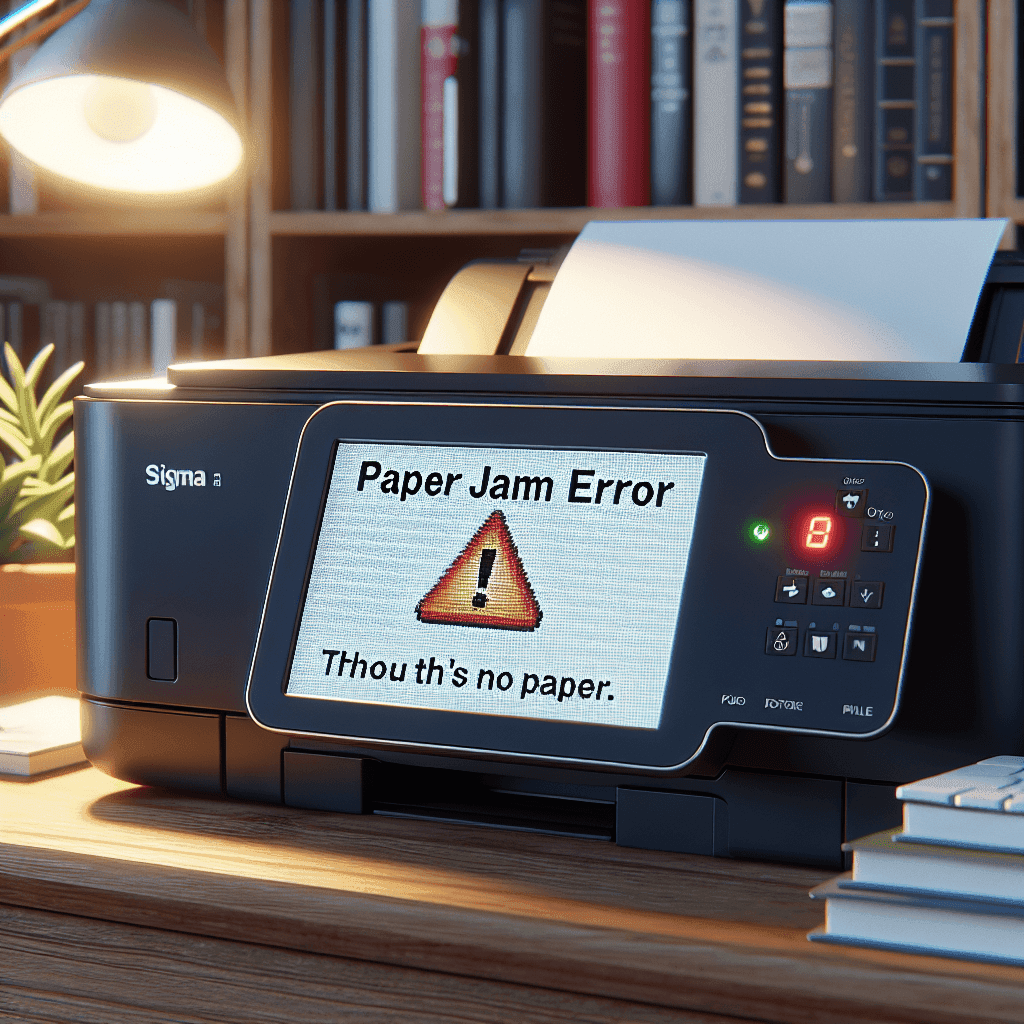
Printer Error Reports Paper Jam Despite No Paper: A Persistent Problem and Solutions
The printer is an indispensable device in office or personal work. However, the issue of the printer reporting a paper jam when there is actually no paper can be frustrating for many users. This problem can stem from various causes and can severely impact your work efficiency.
Recognizing the Phantom Paper Jam: Common Signs
When your printer displays a paper jam message, the first thing you need to do is recognize the accompanying signs.
- The printer cannot print, but the paper jam message still appears on the screen.
- When checked, you find no paper actually jammed inside the machine.
- The printer’s sound changes abnormally when you attempt to print.
When Should You Worry About the Printer ‘Paper Jam’ Error?
If your printer frequently encounters this error and you’ve tried various solutions without success, it’s time to worry. This not only damages the printer but can also disrupt your work.
Why Does the Printer Report a Paper Jam When There Is No Paper? Common Causes
Here are some common causes leading to the printer reporting a paper jam while there is no jammed paper:
Faulty Paper Sensor
The internal paper sensor in the printer is responsible for detecting the presence of paper. If this sensor is dirty or malfunctioning, the printer will assume that the paper is jammed.
Outdated or Malfunctioning Printer Driver
The printer driver needs to be updated regularly to ensure compatibility with the system. An outdated or faulty driver can result in misleading messages.
Control Board Issues
The control board is the brain of the printer. If this component malfunctions, all operations of the printer will be affected, leading to a paper jam error message.
Obstruction in the Paper Path
A small obstruction can cause this error. Small pieces of paper, gum, or any other object can prevent the printer from receiving the correct information.
Software or Firmware Malfunction
The software controlling the printer may have issues and need to be reinstalled or updated. This can help fix operational errors.
Step-by-Step Guide to Fixing Printer Reporting Paper Jam (No Paper)
To resolve the phantom paper jam error on the printer, you can follow these steps:
Check and Clean the Paper Sensor
A dusty paper sensor can cause this error. Clean the paper sensor regularly to ensure it works well.
Location of the Paper Sensor on Common Printer Models
The paper sensor is usually located deep inside the printer. Check the user manual to determine the specific location.
How to Clean the Paper Sensor Safely and Effectively
Use a clean lint-free cloth and a gentle cleaning solution to wipe the sensor.
Restart the Printer and Computer
Restarting can help resolve many temporary issues. Be sure to restart both your printer and computer.
Why Restarting Can Solve the Issue
Restarting helps reset settings and may refresh faulty software.
Update or Reinstall the Printer Driver
Ensure your printer driver is always up to date. If necessary, you can try reinstalling the driver to fix the error.
Find and Download the Latest Printer Driver from the Manufacturer’s Website
Visit the manufacturer’s website to download the latest driver for your printer.
Step-by-step Guide to Installing the Printer Driver
Follow specific instructions when installing the driver to avoid causing errors.
Check the Paper Path and Remove Obstructions
Check for any obstructions in the paper path. Remove any foreign objects that may hinder the process.
Common Locations for Obstructions
Carefully check each layer of the printer where the paper passes through.
Reset the Printer to Its Original State
Resetting the printer can help restore the correct settings. Refer to the reset instructions for your specific printer model.
Printer Reset Instructions for Different Models
Typically, there is a reset button on the printer, or you can perform it through the settings menu.
Check and Replace the Cartridge/Toner
The toner cartridge may also relate to the paper jam error. If necessary, replace it with a new cartridge.
The Connection Between Cartridge/Toner and Paper Jam Error
An improperly seated cartridge can cause paper jams by not providing enough force to push the paper through.
Things to Consider When Dealing with Phantom Printer Paper Jam
When addressing the printer’s phantom paper jam, you should keep the following in mind:
- Carefully read the printer’s user manual.
- Avoid disassembling components without sufficient knowledge.
- Keep the printer clean and perform regular maintenance.
Preventing Recurrence of ‘Paper Jam’: Tips for Using and Maintaining Your Printer
The best way to handle paper jam issues is prevention. Follow these tips:
- Choose the correct type of paper for your printer.
- Ensure the paper is not damp or wrinkled.
- Regularly check and maintain the printer.
When Should You Seek Professional Printer Repair Services?
If you’ve tried all solutions and still cannot resolve the issue, it may be time to seek professional repair services. Experts can help diagnose and fix more complex issues that you cannot handle yourself.
Signs Your Printer Needs to Be Checked by a Technician
Here are some signs that indicate your printer needs to be checked:
- The printer makes unusual noises.
- The printer frequently experiences errors beyond just paper jams.
- All attempts to fix it yield no results.
Bid Farewell to Phantom ‘Paper Jam’: Keep Your Printer Running Smoothly and Efficiently
Fixing the printer reporting a paper jam is not as difficult as you think. By understanding the causes and taking the correct troubleshooting steps, you can save time and money.
Conclusion: Fixing the Printer Reporting Paper Jam Is Not as Hard as You Think
In this article, we explored the issue of the printer reporting a paper jam when there is no paper. We hope you will apply these solutions to keep your printer running efficiently and steadily.
Explore related services at IT Systems, providing professional and multi-channel technical support
If you need assistance, please contact us right away
IT SYSTEMS VIETNAM CO., LTD
IT Solutions – Your Business IT Department
HOTLINE: 0283 9950 359
Email: contact@itsystems.com.vn
Website: https://itsystems.vn/
Facebook: https://www.facebook.com/ITSystems.VIETNAM
Youtube: https://www.youtube.com/@ITSYSTEMS
HCM: 2nd Floor, 184/1A Le Van Sy Street, Ward 10, Phu Nhuan District, Ho Chi Minh City, Vietnam
HCM: 321/10 Phan Dinh Phung Street, Ward 15, Phu Nhuan District, Ho Chi Minh City, Vietnam.
Hanoi: House No. 22, Garden Villa Area, Vinh Hoang Urban Area, 431 Tam Trinh Street, Hoang Mai District, Hanoi, Vietnam.
Bình Dương: Binh Duong Boulevard, Phu Hoa Ward, Thu Dau Mot City, Binh Duong Province, Vietnam
FAQ
When should a business ask IT Systems for support?
Ask for support when the issue affects users, business data, security, licensing compliance, service availability or daily operations. A short technical review often prevents repeated incidents and hidden costs.
Can IT Systems help review the current environment before proposing a solution?
Yes. IT Systems can review the current setup, identify risks, map the issue to the right service scope and recommend a practical next step for your business.
Does this topic connect to ongoing IT operations?
In most cases, yes. Problems around software, cloud, endpoint, network, backup or security should be connected to a broader IT operations plan instead of being handled as isolated incidents.
Need help applying this to your business?
IT Systems Vietnam can help assess the issue, recommend the right service path and support implementation for your team.


